
How to use the Knowledge Base in iBoomto AI?
- How the Knowledge Base Works
- Online Knowledge Base
- Local Knowledge Base
- Comparison between Online Knowledge Base and Local Knowledge Base
- Which Knowledge Base Should You Choose?
The Knowledge Base feature in iBoomto AI helps you organize information from files, text, and web links in one place. It processes your sources and retrieves relevant content to answer your questions, making it easier to search, understand, and work with your documents.
Follow this guide to learn how to create an Online or Local Knowledge Base, add different types of sources, and ask questions about your content.
How the Knowledge Base Works
Upload your sources → iBoomto AI processes the content and builds a search index → Retrieve relevant information when you ask a question → Send the retrieved content to the selected AI model (cloud-based for Online Knowledge Base or local for Local Knowledge Base) → Generate and display the answer in the software.
Online Knowledge Base
How to Add Files, Text, and Links
Open Knowledge Base on iBoomto AI.
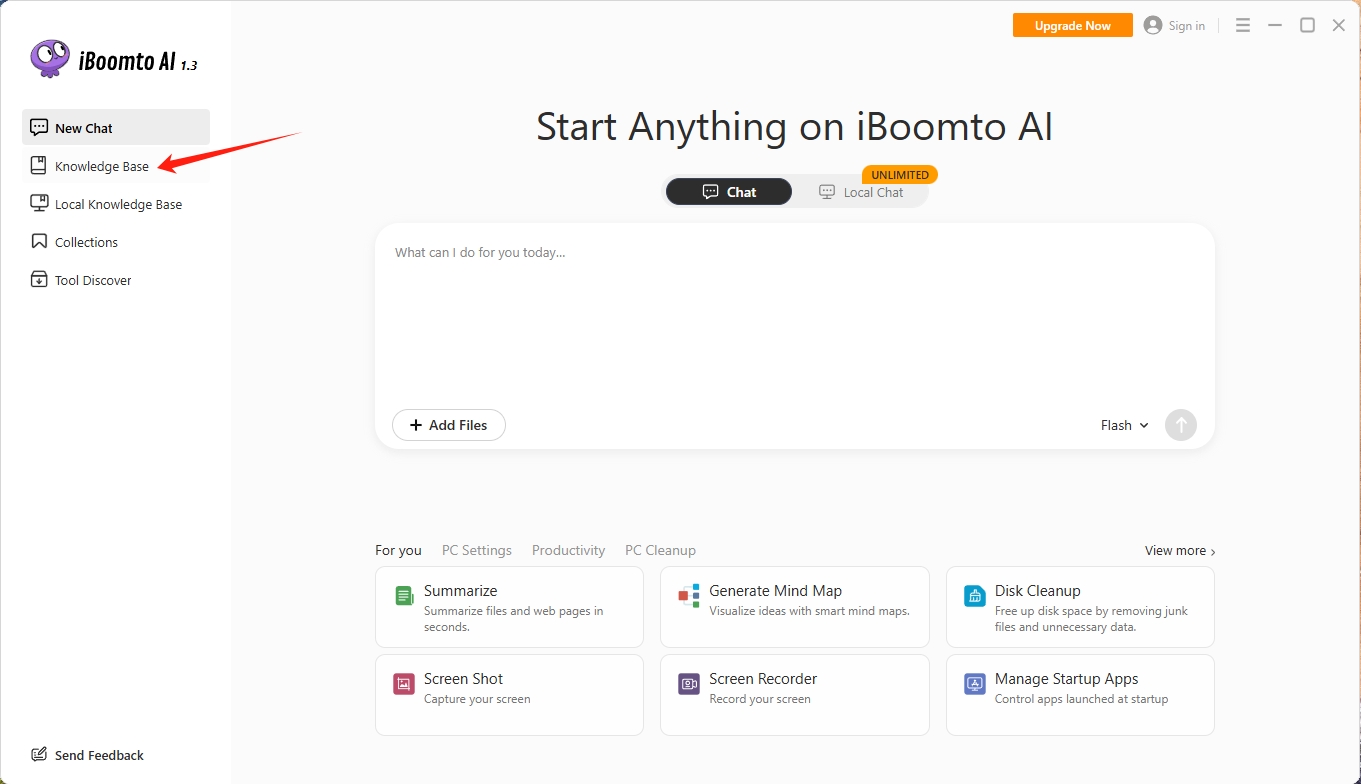
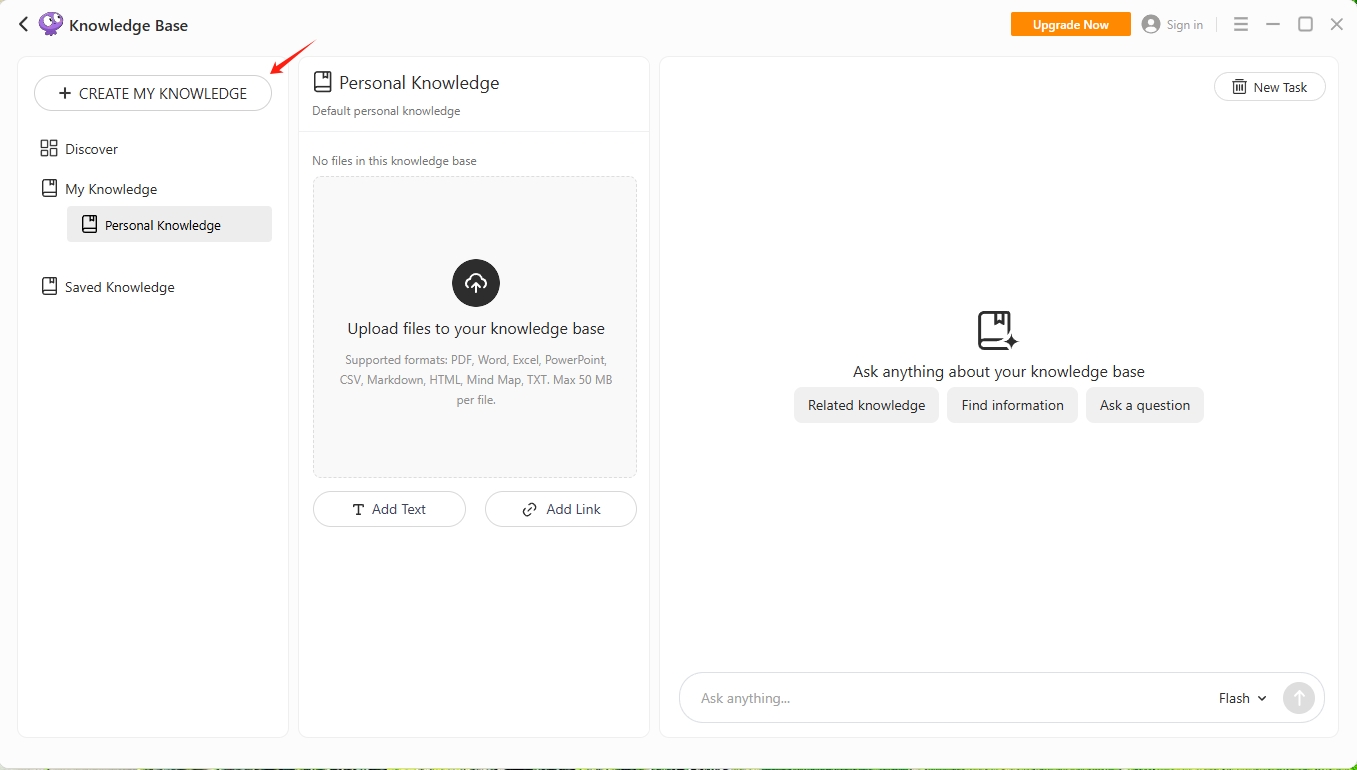
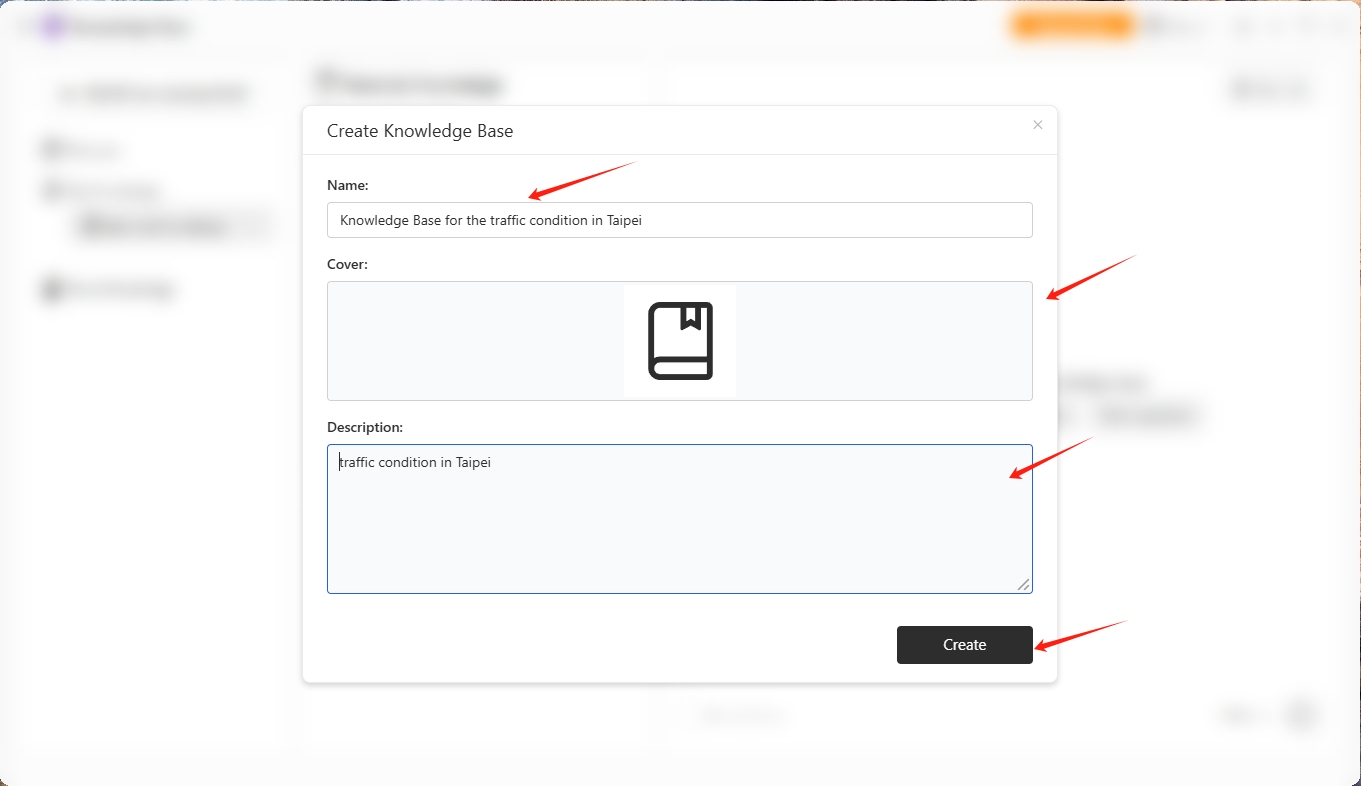
Click the CREATE MY KNOWLEDGE button; a pop-up window will appear. Then you can modify the name, cover, and description to create your Knowledge Base.
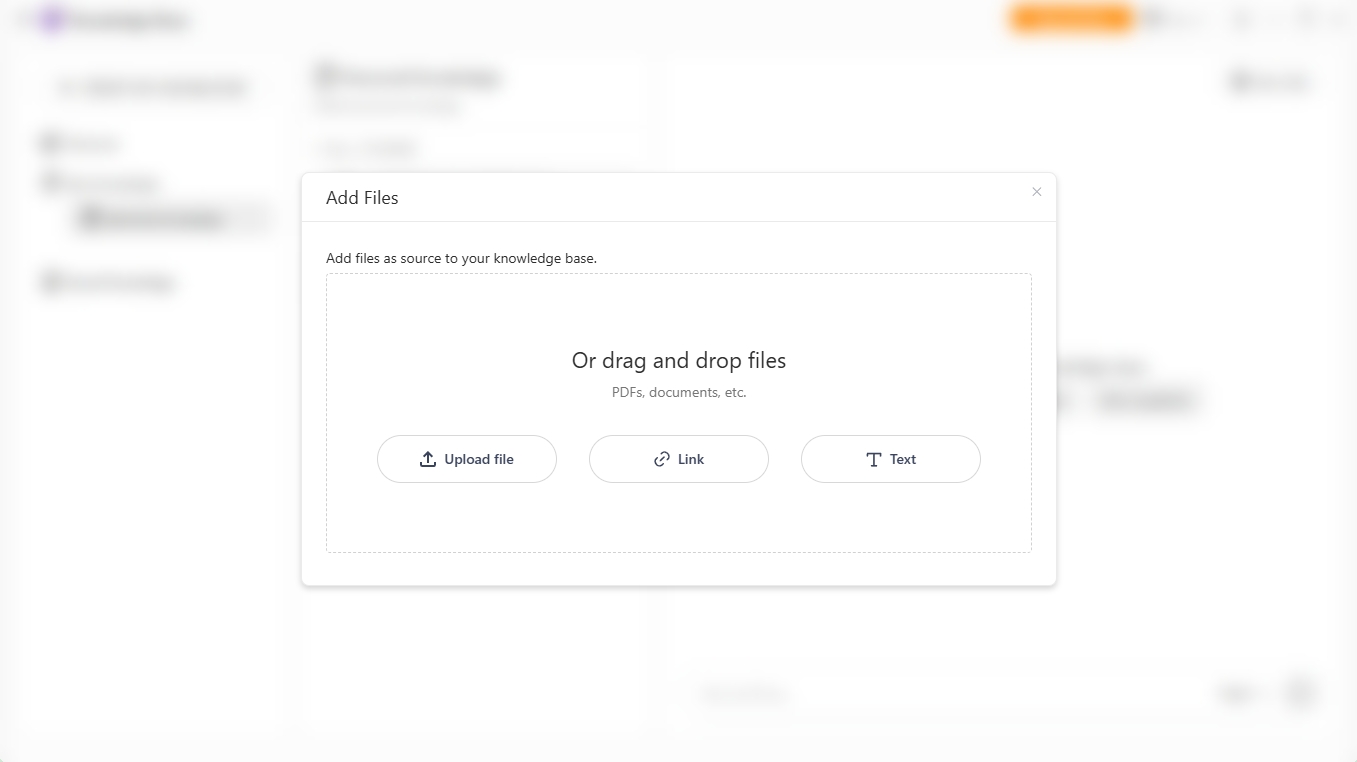
There are three kinds of sources you can add, including files, text, and links.
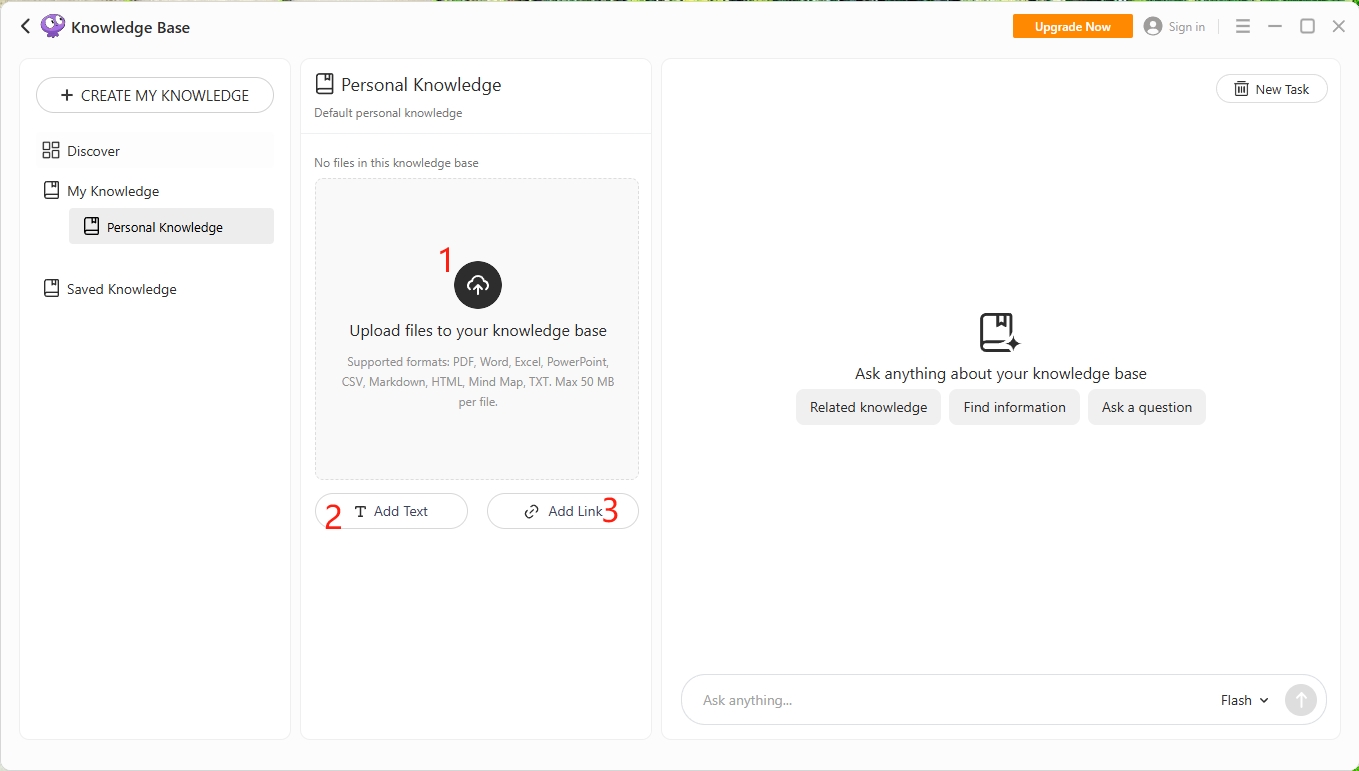
1. Upload Files
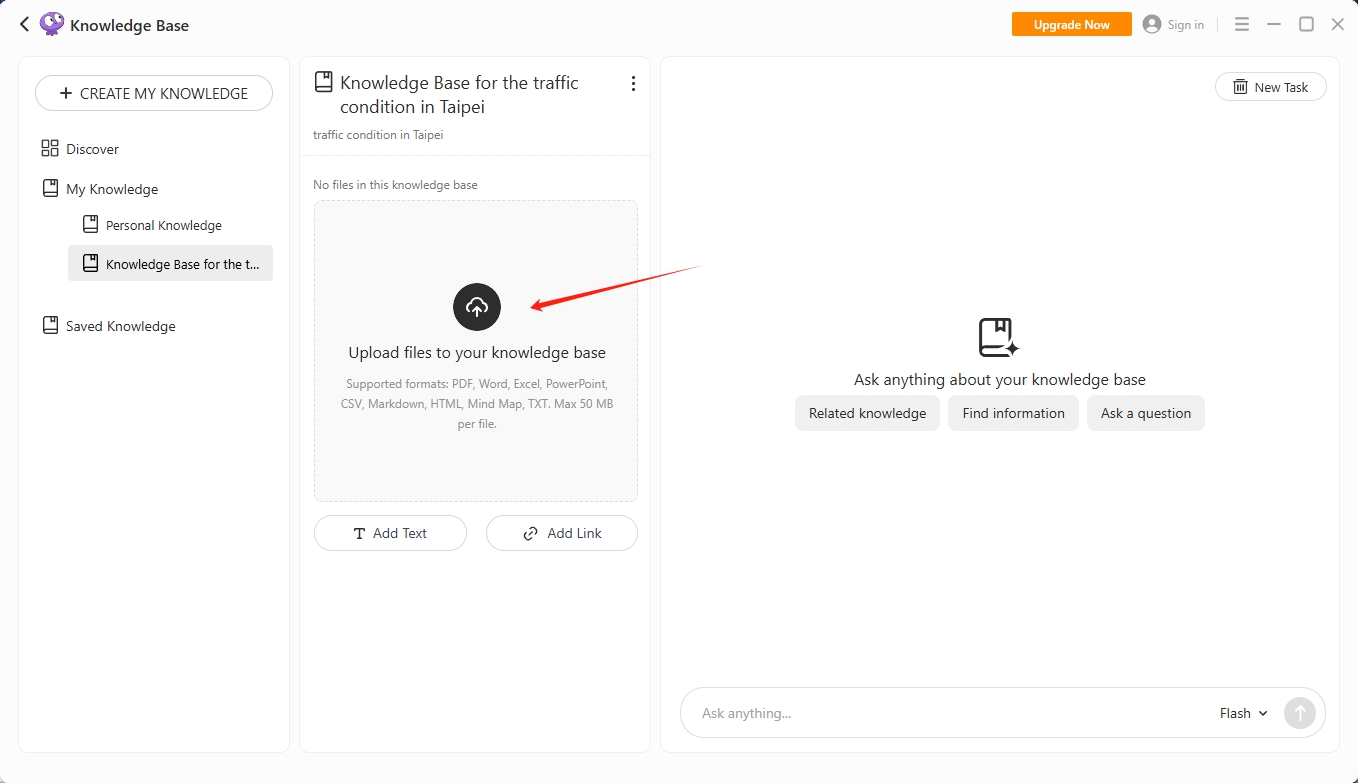
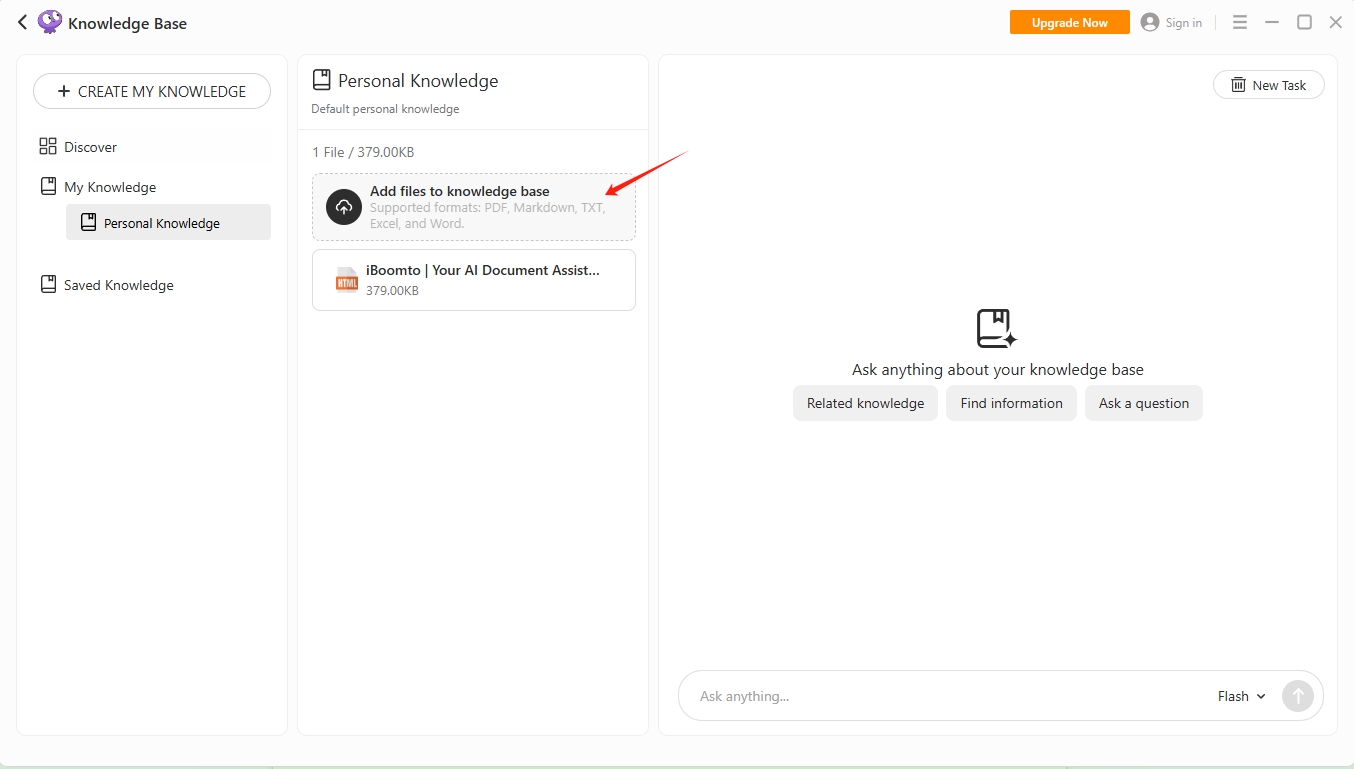
Click the Upload button to upload files to your knowledge base. Supported formats: PDF, Word, Excel, PowerPoint, CSV, Markdown, HTML, Mind Map, and TXT. Max 50 MB per file.
2. Add Text
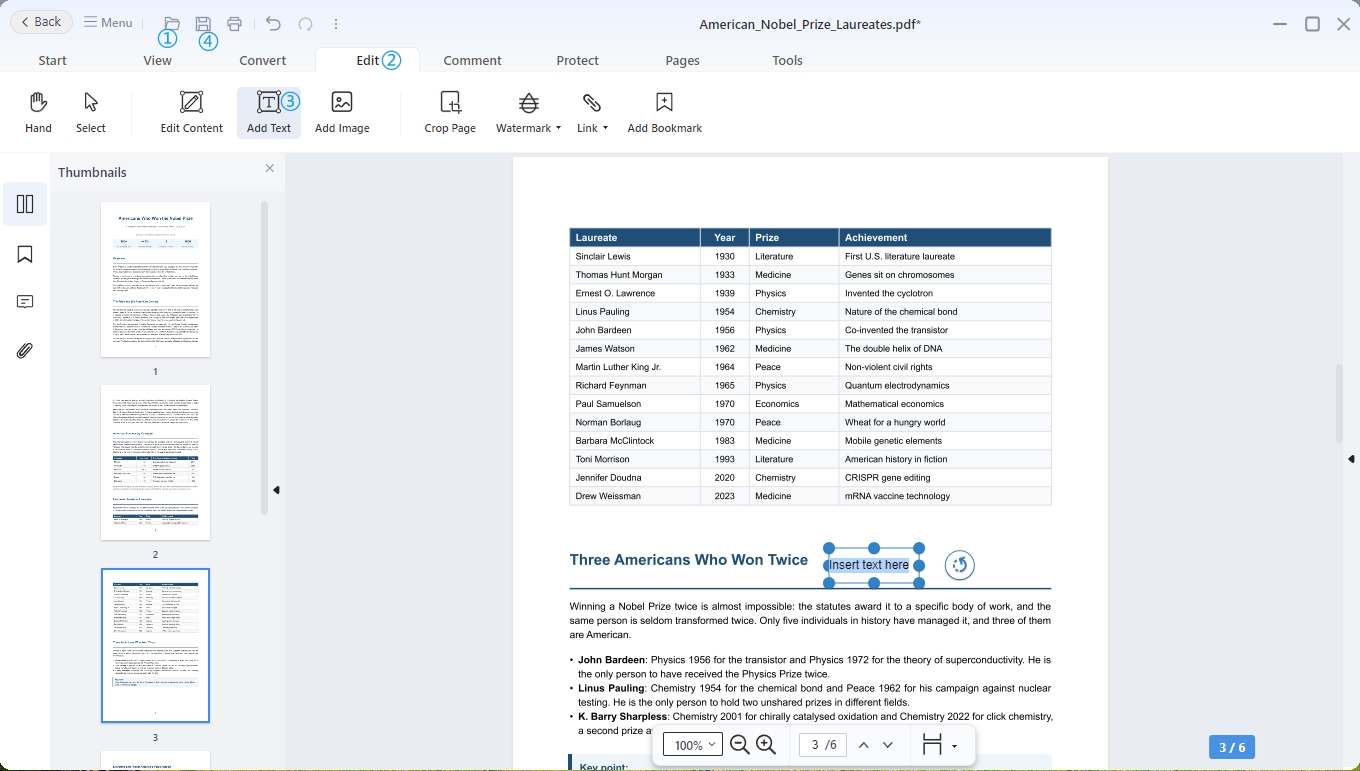
Click the Add Text button, then enter text as a source for your knowledge base.
3. Add links
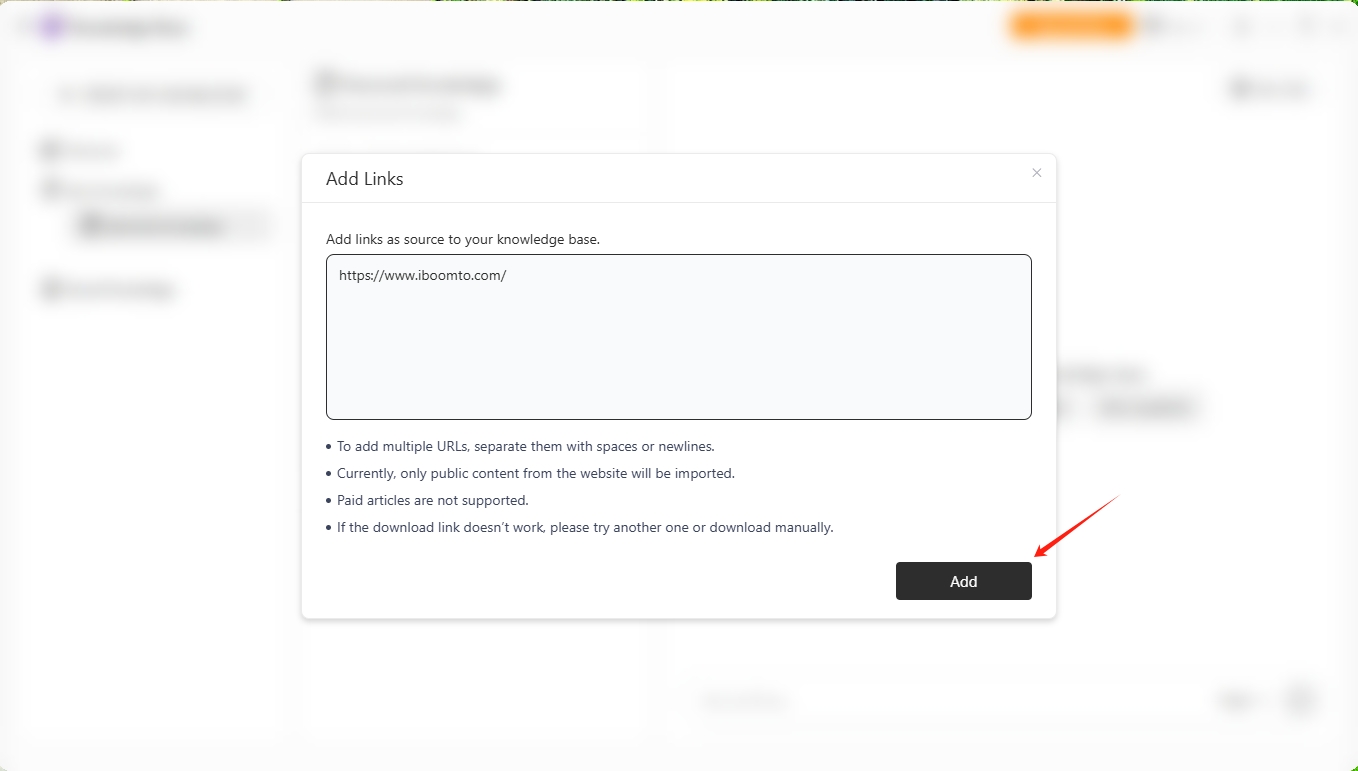
Click the Add Link button, then enter a publicly accessible URL as the source for your knowledge base.
After the file, text, or the link is uploaded or added, iBoomto AI will analyze it and build a search index and display its summary when you hover over it.
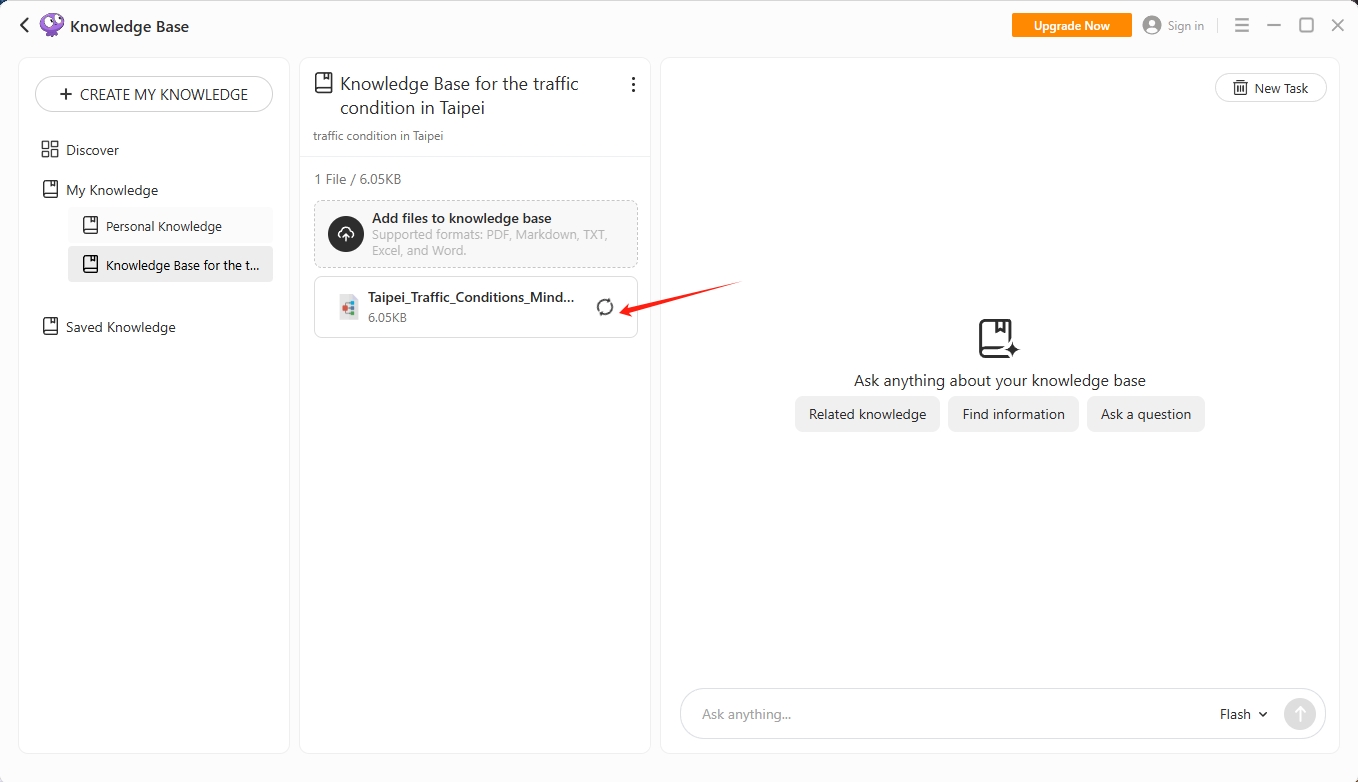
After one file is added, you can continue to add another file by clicking the upload button above the added file.
How to Ask Questions
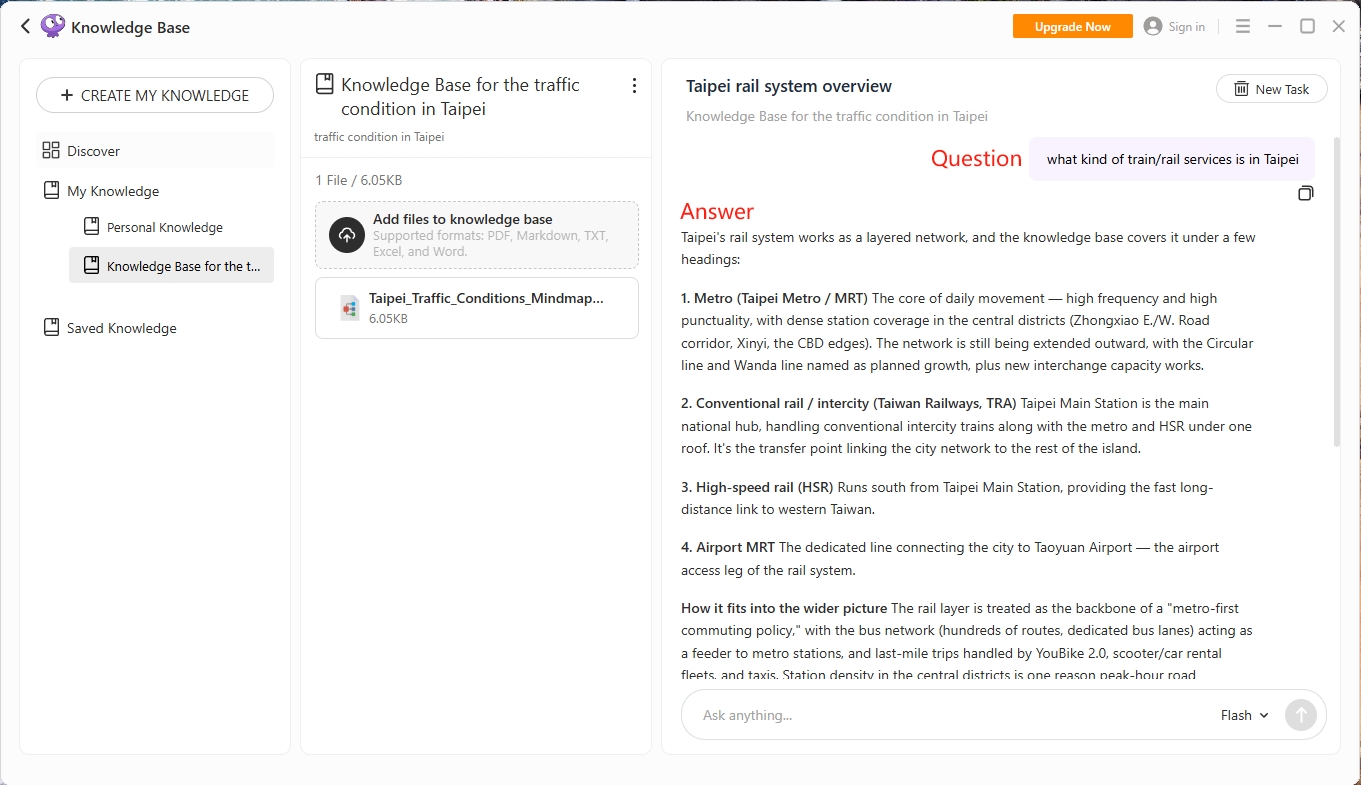
Once your sources have been successfully processed, enter your question in the chat panel. iBoomto AI will search your Knowledge Base for relevant information and use the retrieved content to generate an answer.
You can also ask follow-up questions to explore specific topics or get more details from your sources.
How to Verify Answers Against Original Sources
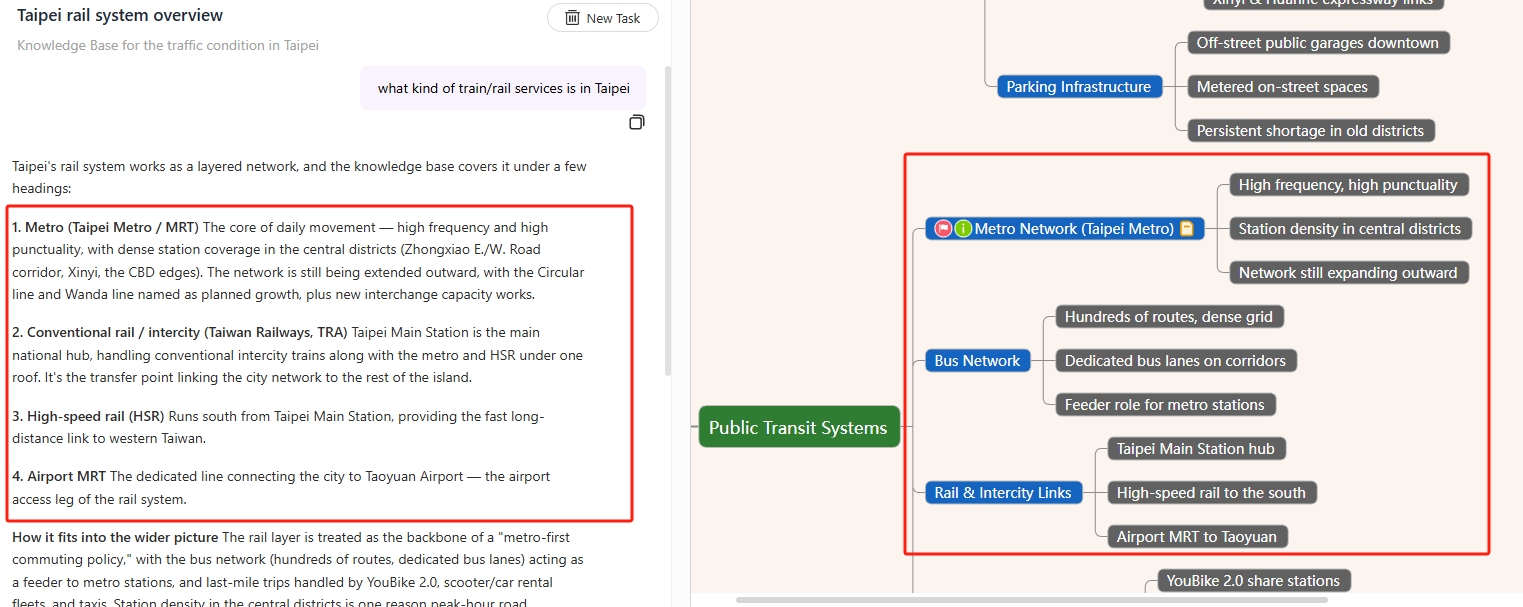
Open the source file and compare its content with the answer. This helps you check important details, such as figures, dates, and conclusions, against the original information.
Local Knowledge Base
Local Knowledge Base provides a document Q&A experience similar to Online Knowledge Base, but processes your sources using compatible local AI models running on your device. All sources are processed locally on your device, helping protect your privacy and data.
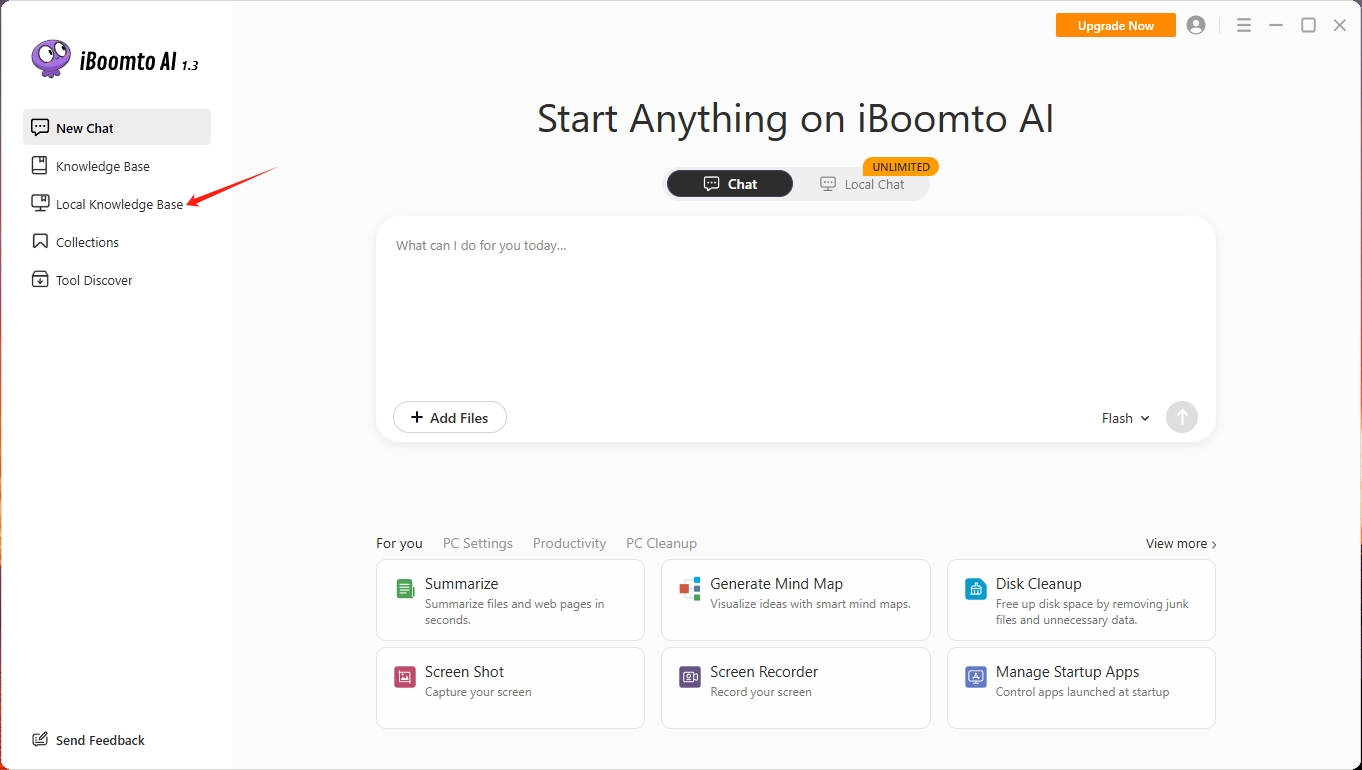
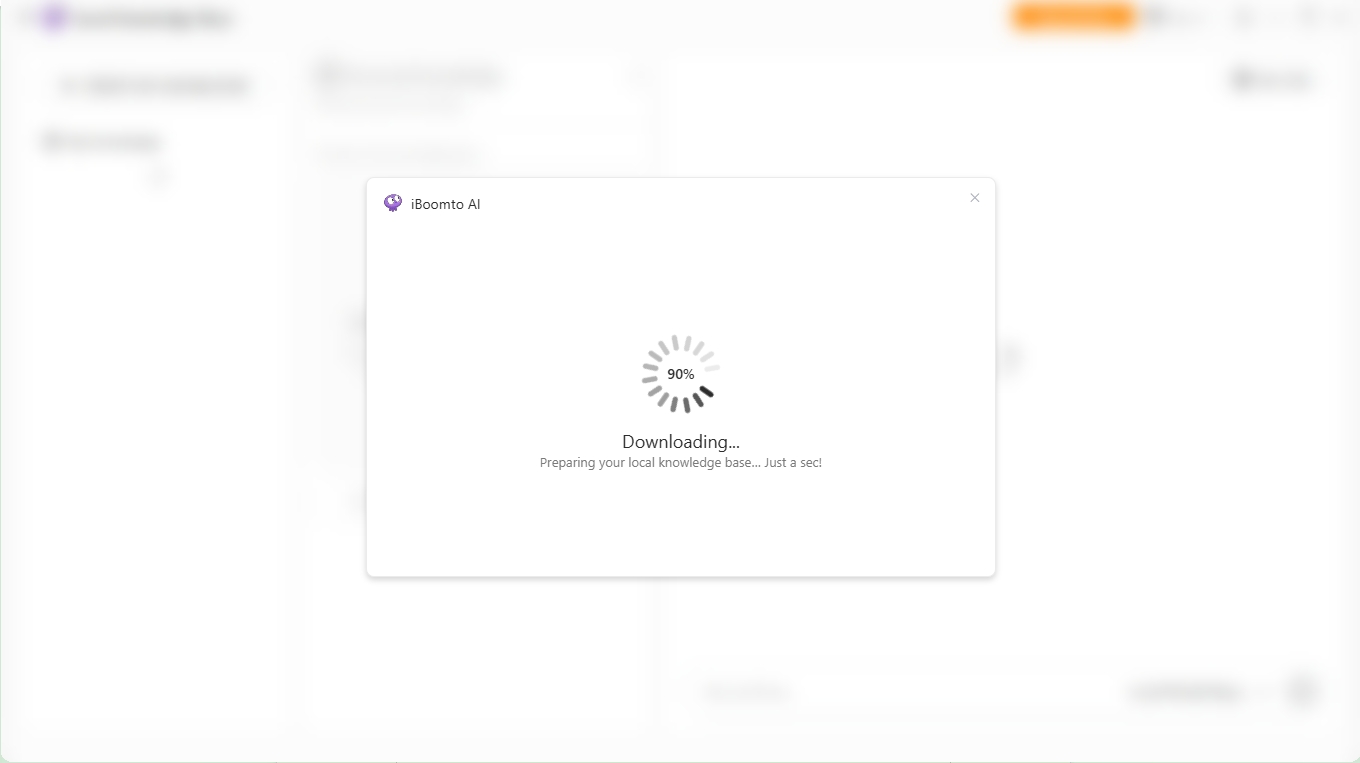
Open Local Knowledge Base in iBoomto AI. A loading screen will appear while the app prepares the local environment.
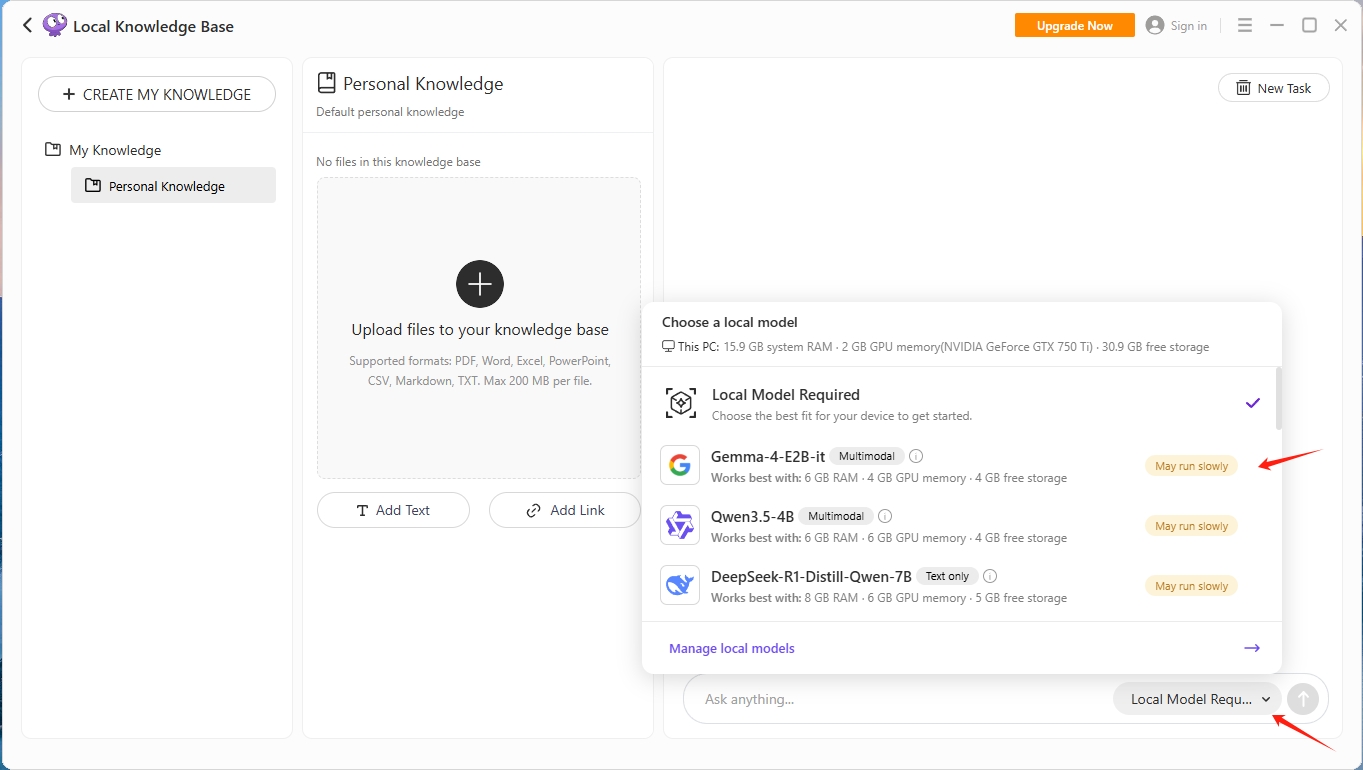
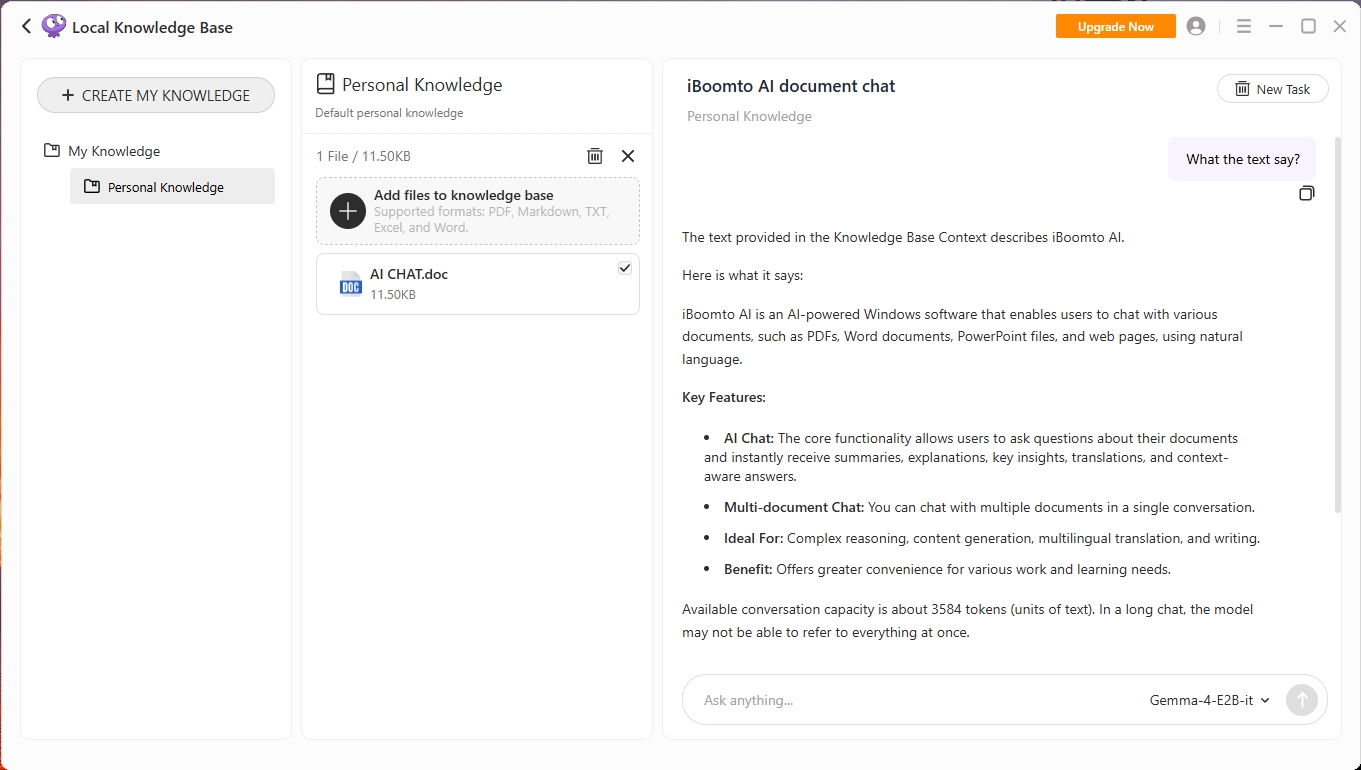
Local Knowledge Base follows a similar workflow to Online Knowledge Base. However, you must download a compatible local AI model before using it. Once the model is ready and your sources have been processed, you can ask questions based on your uploaded content.
Comparison between Online Knowledge Base and Local Knowledge Base
| Feature | Online Knowledge Base | Local Knowledge Base |
| Model Execution | Cloud-based AI models | Runs locally on your device |
| Internet Required | Yes | Not required after the compatible local model has been downloaded |
| Response Speed | Depends on network quality, AI model performance, task complexity, and active users. | Depends on device performance |
| AI Capability | Access to more advanced AI models | Limited by local hardware |
| Privacy | Sources are uploaded and processed through cloud services | Sources are processed locally on your device without being uploaded to cloud AI services |
| File Processing | Cloud-based processing | Local processing |
| Hardware Requirements | Lower local requirements | Requires additional storage and computing resources |
| Usage Limits | May vary by plan | No cloud usage quota |
| Add Link | Yes | Coming soon |
| Generate summary automatically | Yes | No |
| Source Selection | Automatically retrieves relevant content | Requires selecting files before asking questions |
| Price | Free & Pro | Free |
Which Knowledge Base Should You Choose?
| Scenario | Recommended Mode | Reason |
| Analyzing complex reports or comparing multiple documents | Online Knowledge Base | Cloud models may offer stronger capabilities for complex analysis and multi-document tasks. |
| Working with sensitive documents that should be processed locally | Local Knowledge Base | Documents can be processed on the device without sending them to cloud AI services |
| Working without an internet connection | Local Knowledge Base | Available when a compatible local model has already been installed |
| Using a computer with limited storage or computing resources | Online Knowledge Base | Avoids the additional local model storage and computation requirements, although internet access is needed |
| Processing long documents | Depends on the task and model | Consider file-size limits, context limits, hardware resources, and processing requirements |
With iBoomto AI, you can create and manage both Online and Local Knowledge Bases to organize information and find answers from your sources. Choose an Online Knowledge Base for access to cloud-based AI models and convenient document analysis, or a Local Knowledge Base for on-device processing and offline access after downloading a compatible model.
Choose the mode that best fits your workflow, hardware, and privacy requirements.
Was this helpful?
Thank you for your feedback!