
How to use iBoomto AI Chat?
- Intro to AI Chat
- How to Use AI Chat?
- Intro to Local Chat
- How to Download and Install Local Chat?
- Comparison between AI Chat and Local Chat
- AI Chat and Local Chat: Which One Should You Choose?
Intro to AI Chat
iBoomto AI is an AI-powered Windows software that allows users to chat with any kind of documents, including but not limited to: PDFs, Word documents, PowerPoint files, and web pages using natural language. AI Chat is the core app functionality of iBoomto AI. With AI Chat, you can ask questions about your documents and instantly receive summaries, explanations, key insights, translations, and context-aware answers. Chat with multiple documents in a single conversation. Ideal for complex reasoning, content generation, multilingual translation, and writing. Offers greater convenience for various work & learning needs.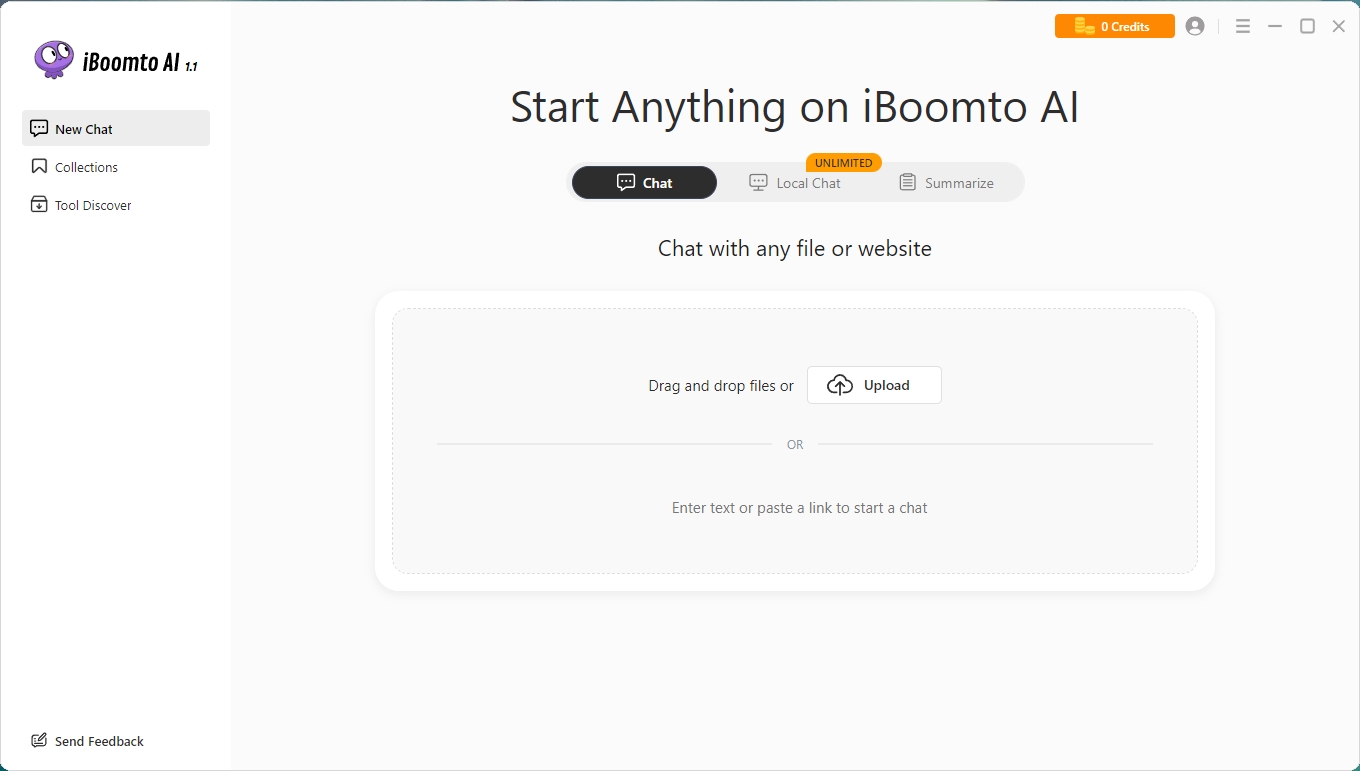
How to Use AI Chat?
Step 1
After launching iBoomto AI, click the AI Chat tab from the main interface. Then upload PDFs, Word documents, PowerPoint presentations, text files, or paste website URLs.
Step 2
Use natural language questions such as:
What is the main topic?
Summarize this document.
Translate this section into French.
Extract the key findings.
Step 3
AI Chat generates context-aware answers based on the uploaded content. You can continue the conversation with follow-up questions until you get the information you need.
Intro to Local Chat
iBoomto AI also supports local Chat. Unlike AI Chat, it runs an AI model and processes documents locally. Local Chat processes documents directly on your device, not on cloud servers, providing greater privacy, security, and control over sensitive information. It is particularly well-suited for handling private or sensitive documents, as well as for analyzing internal corporate data.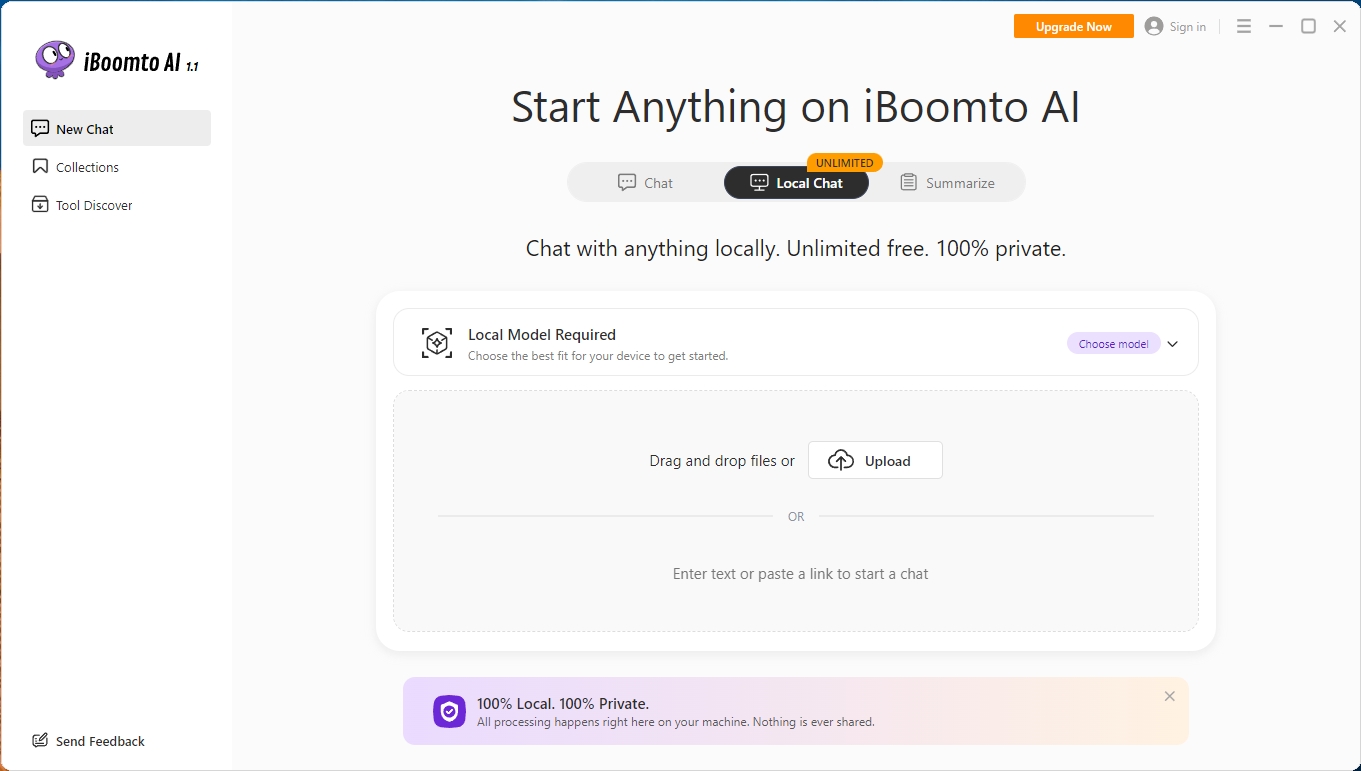
How to Download and Install Local Chat?
During the installation of iBoomto AI, the local AI model is automatically downloaded and installed if your system meets the required specifications. After installation, you can download additional models or upgrade to the latest version yourself whenever needed. Once the software is launched, simply click the Local Chat tab to start chatting with your documents locally.
Comparison between AI Chat and Local Chat
| Feature | AI Chat | Local Chat |
| Model Execution | Cloud-based AI models | Runs locally on your device |
| Internet Required | Yes | No |
| Response Speed | Depends on network quality, AI model performance, task complexity, and active users. | Depends on device performance |
| AI Capability | Access to more advanced AI models | Limited by local hardware |
| Privacy | Files are processed through cloud services | Files always remain on your device |
| Large File Processing | Requires file upload | Direct local processing |
| Hardware Requirements | Lower local requirements | Requires additional storage and computing resources |
| Usage Limits | May vary by plan | No cloud usage quota |
| Price | Free & Pro | Free |
AI Chat and Local Chat: Which One Should You Choose?
AI Chat and Local Chat are designed for different use cases and user needs. AI Chat provides access to cloud-based AI capabilities, making it suitable for advanced analysis, content generation, and online assistance. Local Chat, on the other hand, focuses on privacy and offline document processing by running AI models on your device. You can easily switch between the two features by clicking either the AI Chat or Local Chat button and choose the option that best fits your workflow and requirements.
Was this helpful?
Thank you for your feedback!