
How to fix file import and text recognition issues?
- Common File Import and Text Recognition Issues
- Still Experiencing Issues?
This guide covers common file import and text recognition issues in iBoomto AI and provides practical troubleshooting steps to help you resolve them.
Common File Import and Text Recognition Issues
-File Cannot Be Selected, or the Format Is Unsupported
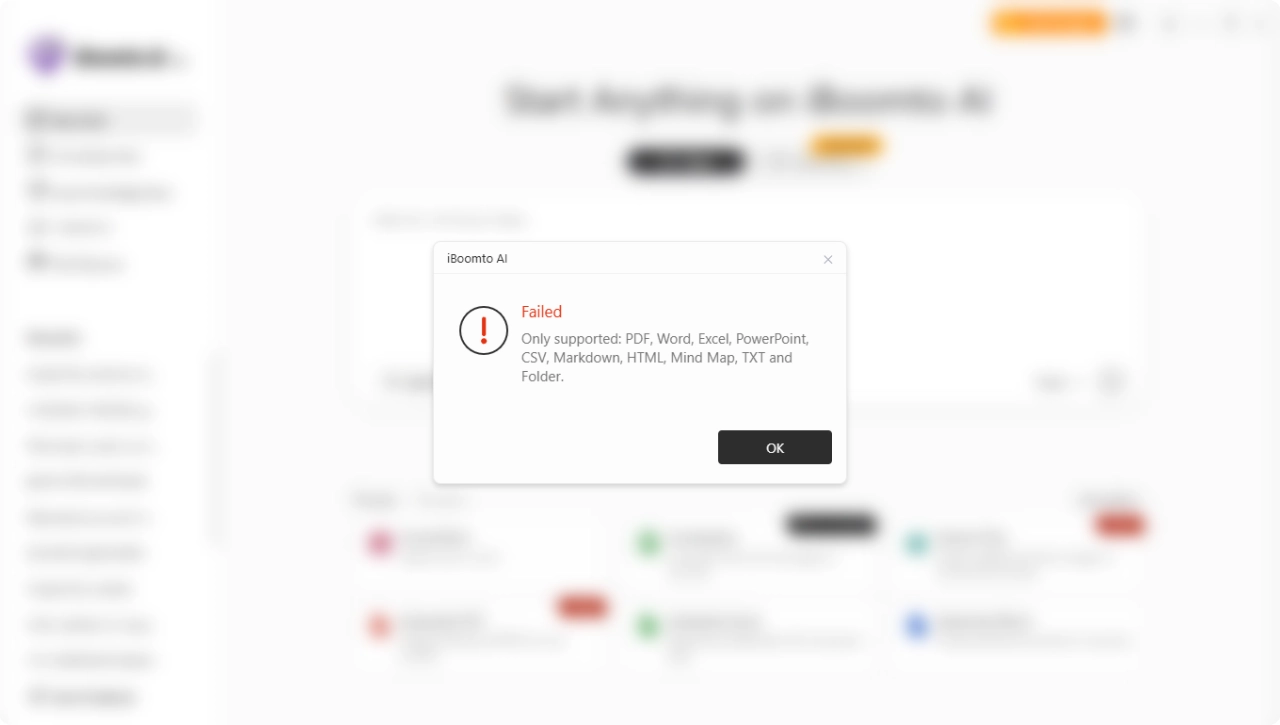
Solutions:
Check whether the file format is supported by the current feature.
Make sure the file extension matches its actual format.
If necessary, convert the file to a supported format before importing it.
-File Exceeds the Size Limit
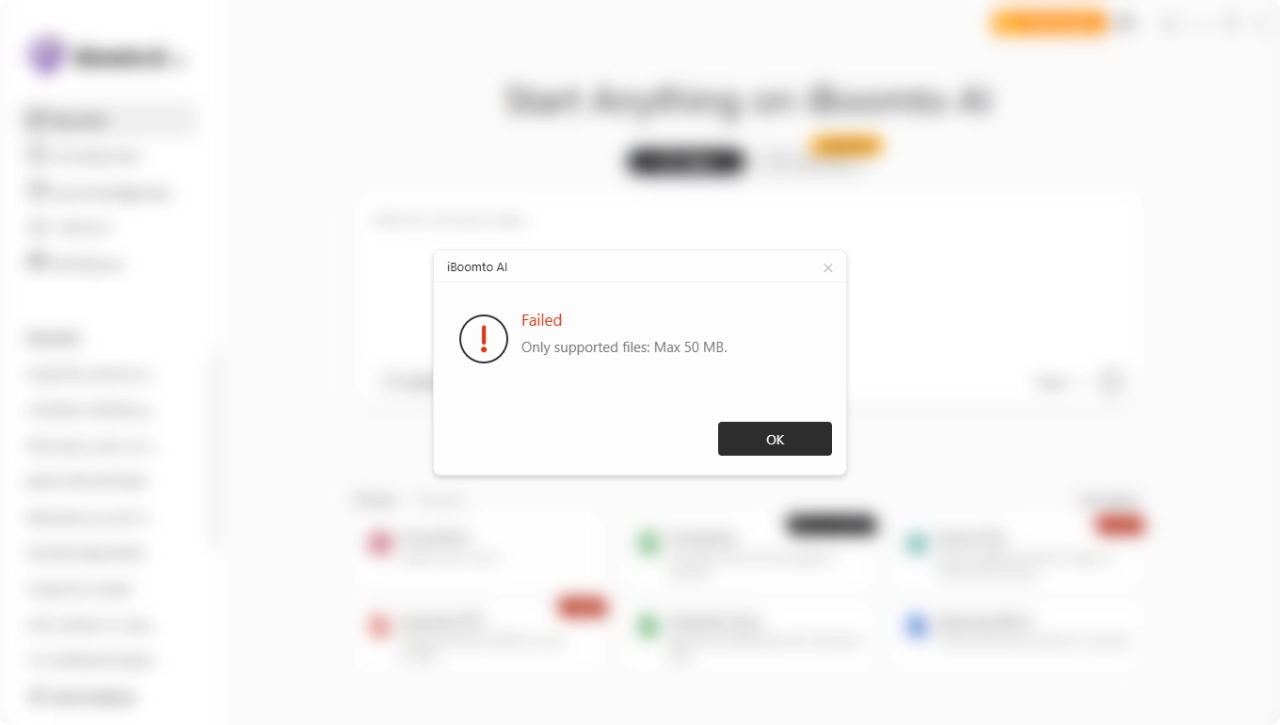
Solutions: Check the file size limit displayed by the system. If the file exceeds the limit, compress it or split it into smaller files before importing.
-Cannot Read Encrypted or Protected PDFs
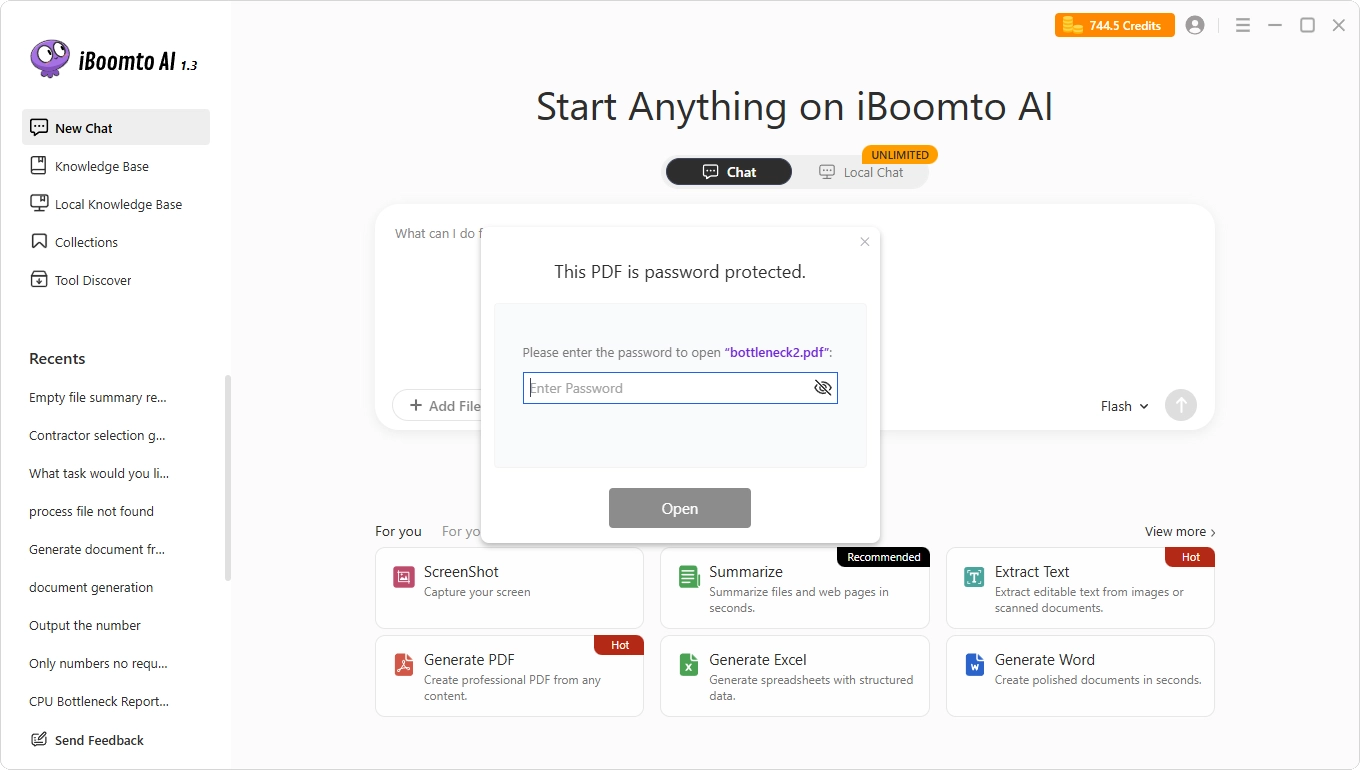
Solutions: If the PDF is password-protected, enter the correct password when prompted. Make sure you have permission to access the document.
-Cannot Recognize Web Links
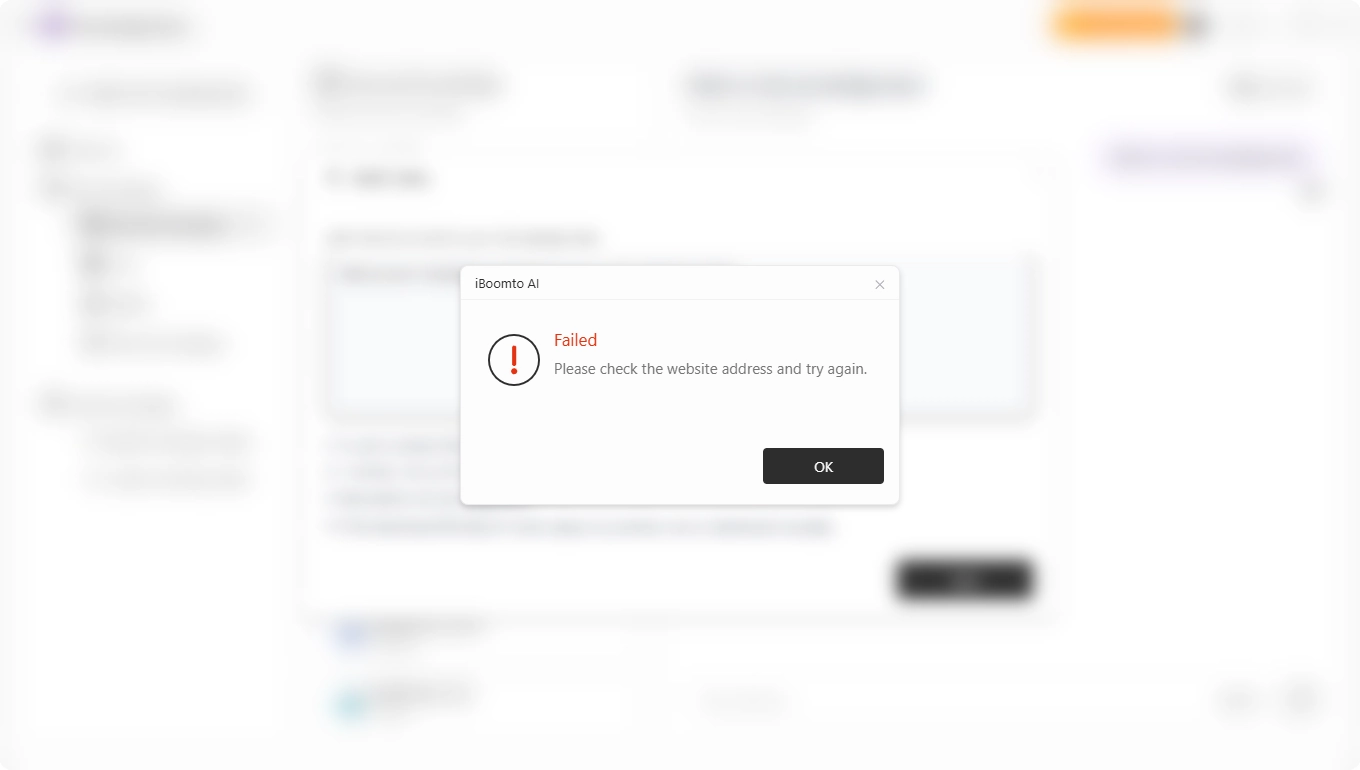
Solutions: Download the file from the web link to your device first, then import the downloaded file into iBoomto AI.
-Cannot Access the Selected File
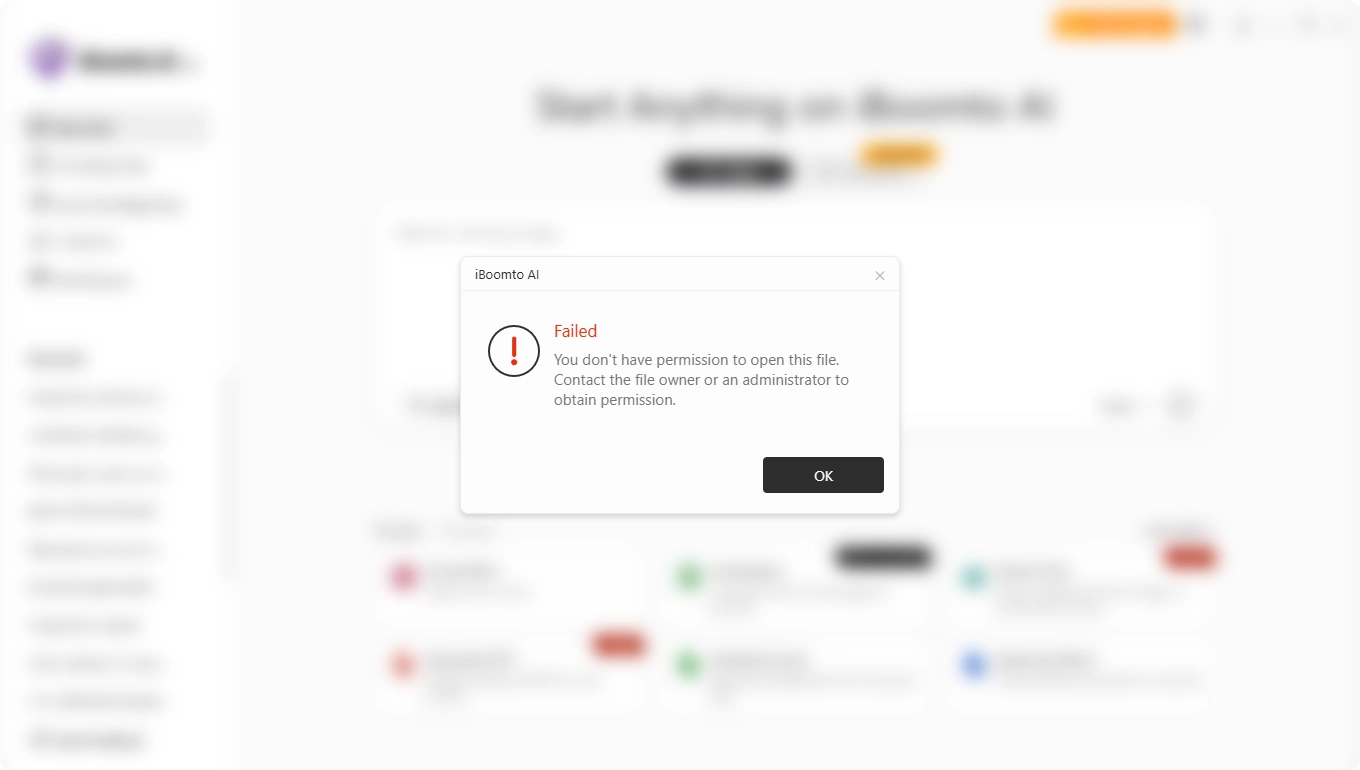
Solutions: Check whether iBoomto AI has permission to access the selected file or its containing folder. If necessary, adjust the file permissions or move the file to an accessible local folder and try again.
Still Experiencing Issues?
If the problem persists, contact our support team and provide the following information:
Your device specifications and Windows version.
The AI model you are using, if applicable.
The file format and a description of the issue.
Any error messages displayed by iBoomto AI.
If possible, attach screenshots of the error messages to help our support team investigate the problem.
Was this helpful?
Thank you for your feedback!