
PDF Table Extractor Online - Extract Tables from PDF for Free

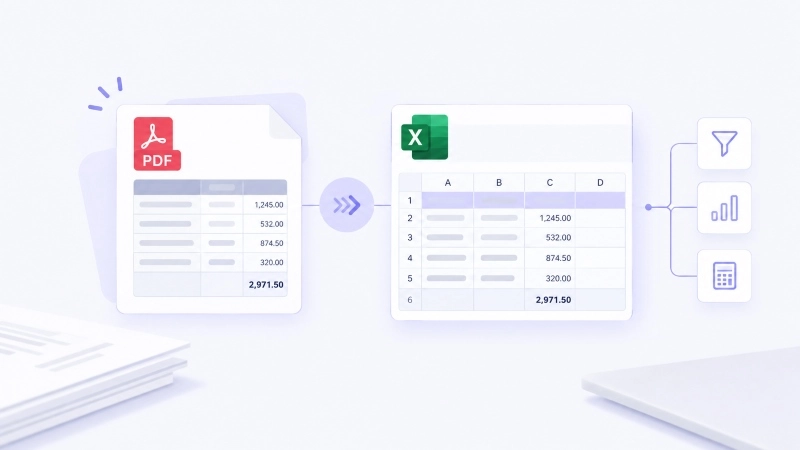
One click to extract multi-page tables from PDF online for free. Preview structured tabular data and convert PDF tables to Excel, CSV, or JSON fast with no signup required.

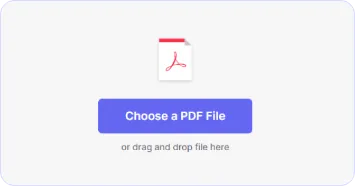
Choose a PDF File

or drag and drop a file here

Secure processing. Your files are automatically deleted the moment you close the page.
Extract tables from multiple PDFs—even scanned documents—with iBoomto AI.

How to Extract Table from a PDF in 3 Steps?

Step 1

Upload Your PDF File

Drag and drop your PDF into the upload area, or click to select a single file from your device. The free online PDF table extractor supports PDFs up to 50 MB.

Upload Your PDF File
Step 2

Auto-Extract All Tables

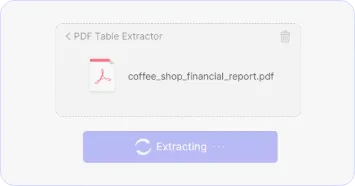
iBoomto PDF Table Extractor automatically scans every page and detects all the tables in your file. If it is encrypted, you’ll be prompted to enter the password before extraction starts.

Auto-Extract All Tables
Step 3

Export Tables to Excel, CSV, or JSON

Preview to check each extracted table, including the content, structure, and number of tables detected. Once everything looks right, download the tables from PDF to Excel, CSV, or JSON for free.

Export Tables to Excel, CSV, or JSON
Step 1

Upload Your PDF File

Drag and drop your PDF into the upload area, or click to select a single file from your device. The free online PDF table extractor supports PDFs up to 50 MB.

Upload Your PDF File
Step 2

Auto-Extract All Tables

iBoomto PDF Table Extractor automatically scans every page and detects all the tables in your file. If it is encrypted, you’ll be prompted to enter the password before extraction starts.

Auto-Extract All Tables
Step 3

Export Tables to Excel, CSV, or JSON

Preview to check each extracted table, including the content, structure, and number of tables detected. Once everything looks right, download the tables from PDF to Excel, CSV, or JSON for free.

Export Tables to Excel, CSV, or JSON

Why iBoomto Is the PDF Table Extractor You Can Trust

Not every PDF table extractor exports tables you can directly use in Excel. iBoomto focuses on accuracy, structure, and data safety so you spend less time cleaning up and more time working with your data.

Any PDF Works

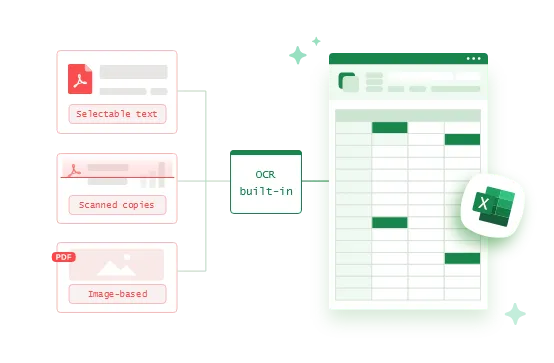
Works on Text-Only, Scanned, or Image-Based PDFs

iBoomto PDF table extractor can read, reconstruct, and export table structure from:

  • Selectable text PDFs
  • Scanned PDFs
  • Image-based PDFs and screenshots saved as PDF
Built-in OCR helps capture tables even when your file has no selectable text.
Works on Text-Only, Scanned, or Image-Based PDFs
All Tables Extraction

Extract Every Table from a PDF at Once

Upload a PDF (up to 50 MB), and iBoomto pulls out all the tables it contains automatically in one extraction, whether it's a two-page invoice or a 100-page academic report.

Your Data Stays Private

Secure Table Extraction Without Storing or Sharing Files

Your PDF and extracted tables are used only for processing. Learn details in iBoomto’s Privacy Policy. If you regularly work with highly sensitive documents such as financial statements, bank records, or internal invoices, consider using iBoomto AI documentation agent for Windows.

Export to XLSX, CSV, JSON
Export in 3 Formats

Convert Tables in PDF to Excel, CSV, or JSON

Choose the format that fits your workflow:

  • Excel (.xlsx) – start summing, filtering, and building pivot tables immediately
  • CSV – move data into BI tools, databases, or scripts
  • JSON – integrate table data into apps, APIs, or custom pipelines

Beyond Extraction — Summarize, Ask, and Calculate Across Tables

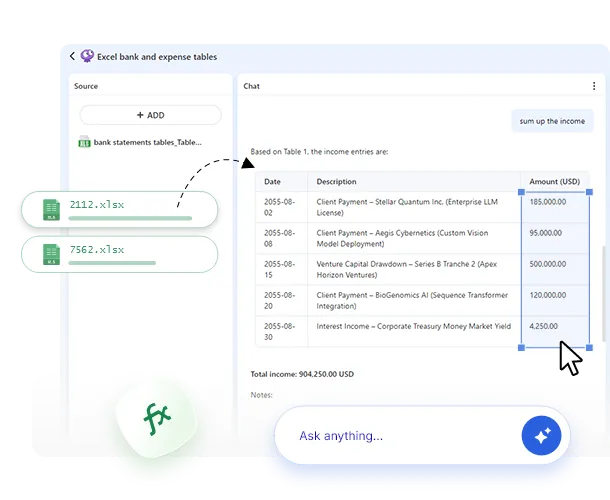
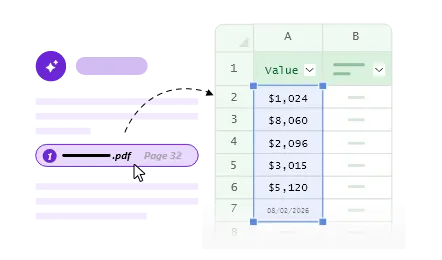
More than a one-time export. iBoomto AI lets you summarize table content without copying data anywhere else. Ask questions about a single table or across multiple tables, pull out specific rows or columns, and run calculations.

PDF to Excel with iBoomto AI
Calculate Across Tables with iBoomto AI Agent

Everything iBoomto's Free PDF Table Extractor Can Do

iBoomto's PDF to Excel tool supports structured row-and-column extraction that preserves logical structure, data types, and formatting. Thus, the extracted tables can work with Excel formulas right away.

Reconstructed Lines

Detect Borderless & Color-Banded Tables

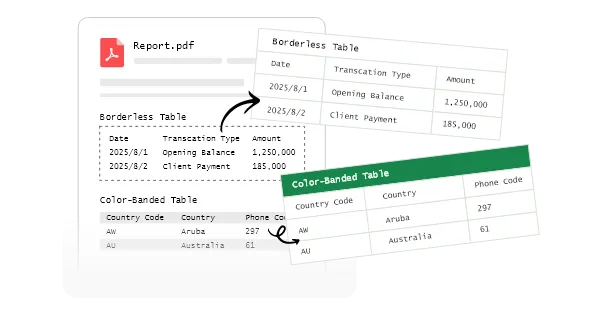
Not every table has visible lines. Financial statements, spec sheets, and academic papers often use borderless layouts, while invoices, SaaS billing pages, and dashboard exports tend to rely on alternating row colors. iBoomto recognizes both.
Detect Borderless & Color-Banded Tables
Intact Cells

Handles Merged Cells

When a cell spans two columns or three rows, which is common in multi-level headers and subtotal rows, iBoomto keeps that relationship intact instead of splitting or duplicating the content.

Handles Merged Cells
Nested Headers

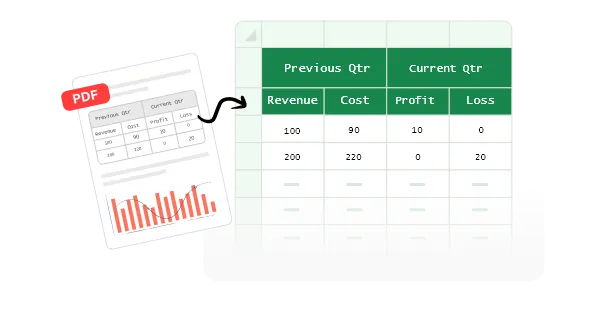
Recognize Multi-Level Headers

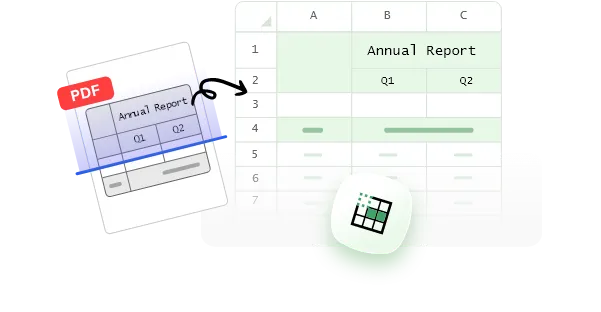
Headers with merged cells and nested levels (like an annual report of 2026 that can span into Q1, Q2, Q3, and Q4) are reconstructed correctly by iBoomto PDF table extractor, preserving the parent-child relationship instead of flattening everything into one row.

Recognize Multi-Level Headers
Seamless Merging

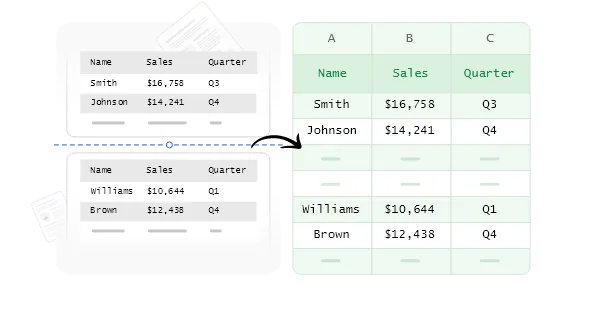
Merge Multi-Page Tables

If a table spans multiple pages or is split across sections, iBoomto stitches the data back together into a single, continuous table when exporting to Excel. No manual copying-and-pasting page by page.

Merge Multi-Page Tables
Real Data

Output Original Data Type and Format

Only if numbers, currency symbols, percentages, and dates are extracted as native Excel data types, not plain text, can you sum, sort, filter, and run formulas immediately, with no manual reformatting first. That’s what iBoomto can do.

Output Original Data Type and Format

When to Use iBoomto to Import a PDF into Excel?

If you're dealing with a scanned document, an inconsistent format, or a PDF packed with multiple tables, that's when iBoomto comes to save you time.

Research papers and academic reports often pack in dense, multi-level headers and unit labels across dozens of tables. iBoomto pulls all the tables out at once, keeping the header hierarchy and formatting intact without manually retyping or cleaning up.

Extract PDF to Excel for Free

Invoices and financial statements are troublesome due to borderless tables and inconsistent formatting, and they are often shown as scanned or photographed copies. iBoomto's online PDF table extractor handles most of these cases. For recurring, privacy-sensitive workflows—like monthly statements or internal financials—iBoomto AI for Windows (version 2.0+) offers on-device processing, so your documents never leave your machine. It still recognizes invisible tables, merged cells, and scanned data.

Extract PDF to Excel for Free

You can dig usable numbers out of a government report, regulatory filing, or large PDF dataset for analysis or writing news with iBoomto PDF Table Extractor. It captures structured tables from PDF to Excel as real, calculable values for instant analysis.

Extract PDF to Excel for Free

When copying tables from a PDF to Excel once a month or a year, iBoomto PDF Table Extractor is exactly the premier choice for small businesses or individual professionals. It is free, requires no sign-up, and has no limits on the number of table extractions in a single file. Also, its Windows version is secure for processing sensitive documents.

Extract PDF to Excel for Free
Capture Data Tables from Research PDFs
Extract Tables from Financial Documents
Pull Tables from PDF to Excel for Data Analysis
Occasional Table Extraction from PDF
Capture Data Tables from Research PDFs

Capture Data Tables from Papers & Academic PDFs

Research papers and academic reports often pack in dense, multi-level headers and unit labels across dozens of tables. iBoomto pulls all the tables out at once, keeping the header hierarchy and formatting intact without manually retyping or cleaning up.

Extract PDF to Excel for Free
Extract Tables from Financial Documents

Extract Tables from Invoices & Statements

Invoices and financial statements are troublesome due to borderless tables and inconsistent formatting, and they are often shown as scanned or photographed copies. iBoomto's online PDF table extractor handles most of these cases. For recurring, privacy-sensitive workflows—like monthly statements or internal financials—iBoomto AI for Windows (version 2.0+) offers on-device processing, so your documents never leave your machine. It still recognizes invisible tables, merged cells, and scanned data.

Extract PDF to Excel for Free
Pull Tables from PDF to Excel for Data Analysis

Pull Tables from PDF to Excel for Data Analysis

You can dig usable numbers out of a government report, regulatory filing, or large PDF dataset for analysis or writing news with iBoomto PDF Table Extractor. It captures structured tables from PDF to Excel as real, calculable values for instant analysis.

Extract PDF to Excel for Free
Occasional Table Extraction from PDF

Occasional Table Extraction from PDF

When copying tables from a PDF to Excel once a month or a year, iBoomto PDF Table Extractor is exactly the premier choice for small businesses or individual professionals. It is free, requires no sign-up, and has no limits on the number of table extractions in a single file. Also, its Windows version is secure for processing sensitive documents.

Extract PDF to Excel for Free

Manual Copy-Paste vs. Using a PDF Table Extractor

If you’ve ever tried copying a table from a PDF by hand, you know the frustration. Here’s how iBoomto fixes what typically goes wrong.

Challenge
Manual Copy-Paste
iBoomto PDF Table Extractor
Borderless or color-banded tables
Detect as text and collapse into a single column
Preserve table structure even with invisible lines and borders
Merged cells
Structure breaks, data loss, or split cells
Reconstruct merged cells in correct rows and columns
Multi-level headers
Lose header hierarchy
Maintain a strict parent-subheader relationship
Numbers, currency, and dates
Often pasted as plain text, lose data types
Recognize Excel data types for formulas and calculations
Scanned/image-based PDFs
Unable to copy, no selectable text
Built-in OCR captures image data into structured tables
Multiple tables within one PDF
Copy and paste one-by-one
Detect and isolate every table in the file with a single click
Time for a 10-page document
20–30 minutes, including manual cleanup
Under 1 minute

PDF Table Extractor vs. PDF to Excel Converter: What's the Difference?

The two sound similar, but they are built to solve different problems. PDF to Excel Converter is designed to convert the whole content of pages in a PDF to Excel format. PDF Table Extractor is focused on table extraction only, ignoring the surrounding text. Check the quick comparison to figure out which tool you need.

  • Primary focus
  • Non-table content
  • Table structure accuracy
  • Multi-page Tables
  • Best for

PDF to Excel Converter

  • Primary focusRecreate the entire page layout
  • Non-table contentDrag paragraphs and headers into the spreadsheet
  • Table structure accuracyBreak the table structure and misplace it in rows and columns
  • Multi-page TablesCan split tables across page breaks
  • Best forDigitize PDF documents

PDF Table Extractor

  • Primary focus
    Extract structured table data only
  • Non-table content
    Ignore non-table text and focus on tables
  • Table structure accuracy
    Detect and maintain table structure and data type
  • Multi-page Tables
    Merge and align continuous table data
  • Best for
    Make PDF table data usable in Excel fast
Start PDF Table Extraction for Free
FAQs

Extract Table from PDF to Excel FAQs

Frequently asked questions about extracting table data from PDF documents online.

Still have questions?

Contact Us
Is it free to extract a table from a PDF using iBoomto PDF table extractor?+-
Yes. iBoomto's PDF Table Extractor is free to use, with no sign-up or account required.
Is there a limit on file size or number of pages?+-
You can upload a PDF file up to 50 MB, and there is no limit on the number of pages or tables within a single text-based PDF.
Is my PDF data safe when I upload it?+-
iBoomto doesn’t store the uploaded file or the extracted tables for any use. Once you close the tool page, the data and cache will be deleted. If you need to extract tables from highly sensitive documents (for example, financial statements or bank records), iBoomto AI (versions 2.0+) also supports on-device processing for Windows users, so the file stays on your computer.
Can I extract multiple tables from a PDF at once?+-
Yes. iBoomto automatically extracts all the tables in your file in one click for quickly exporting to Excel, CSV, or JSON.
Can I use iBoomto PDF table extractor to extract all the tables in a scanned PDF for free?+-
Maybe not in every case. iBoomto’s one-time free use is limited by a token allowance (up to 100,000 tokens). Scanned PDFs or image-based PDFs consume more tokens than text-only PDFs. Thus, based on the file limit (up to 50 MB), you may not be able to extract all tables from a very large scanned PDF for free in a single run.
How to fix it if the numbers get extracted as text and you can't run Excel formulas right away?+-
Once you open the extracted tables in Excel and find the cell has a small green triangle warning in the upper-left corner, the data may have been exported as the wrong data type. Just click on the warning and choose the fix you want. Here, we pick “transform to number”.
How to extract tables from a password-protected PDF?+-
If you have a password, just upload the file, and iBoomto will prompt you to enter the password before extraction. If you own the PDF or you are authorized to edit it but have forgotten the password, you can get a PDF unlocker tool to remove the password and then extract tables from it with iBoomto.
How to identify if my PDF files are scanned or image-based?+-
Try selecting text in the PDF with your cursor. If you can highlight and copy it, it's a text-based PDF. If nothing selects and the page behaves like a picture, it's scanned or image-based. iBoomto supports both, so you don't need to figure this out in advance.
How do I extract a table from a PDF into Excel without retyping everything?+-
The simple way is to use a dedicated PDF table extractor rather than a general PDF-to-Excel converter. General converters turn the whole page, including text, images, and layout, into a spreadsheet, which usually still needs cleanup. A table extractor like iBoomto focuses on detecting and reconstructing table structure, so the output lands in Excel already organized, with no retyping needed.
How do I import a PDF into Excel and pull out only the tables?+-
Upload your PDF to iBoomto’s PDF-to-Excel tool. It automatically identifies the tables on each page and extracts them all with one click.
What’s the best online PDF table extractor for scanned documents?+-
There isn’t a single “best” tool for every scanned PDF. A good PDF table extractor for scanned documents should:
• Accurately recognize table structure, merged cells, header hierarchy, and data types
• Work reliably with OCR for image-based content
• Be safe and simple to use, without collecting or sharing your data
iBoomto’s PDF Table Extractor is designed with these goals in mind, particularly for users who care about privacy and table accuracy.
Which file formats can I export after extracting tables from a PDF?+-
You can export the extracted tables into Excel, CSV, and JSON.
What can I edit before exporting, and what happens after I download?+-
iBoomto extracts tables only. Once exported, you can edit them freely in Excel.
FAQs

Extract Table from PDF to Excel FAQs

Frequently asked questions about extracting table data from PDF documents online.

Is it free to extract a table from a PDF using iBoomto PDF table extractor?+-
Yes. iBoomto's PDF Table Extractor is free to use, with no sign-up or account required.
Is there a limit on file size or number of pages?+-
You can upload a PDF file up to 50 MB, and there is no limit on the number of pages or tables within a single text-based PDF.
Is my PDF data safe when I upload it?+-
iBoomto doesn’t store the uploaded file or the extracted tables for any use. Once you close the tool page, the data and cache will be deleted. If you need to extract tables from highly sensitive documents (for example, financial statements or bank records), iBoomto AI (versions 2.0+) also supports on-device processing for Windows users, so the file stays on your computer.
Can I extract multiple tables from a PDF at once?+-
Yes. iBoomto automatically extracts all the tables in your file in one click for quickly exporting to Excel, CSV, or JSON.
Can I use iBoomto PDF table extractor to extract all the tables in a scanned PDF for free?+-
Maybe not in every case. iBoomto’s one-time free use is limited by a token allowance (up to 100,000 tokens). Scanned PDFs or image-based PDFs consume more tokens than text-only PDFs. Thus, based on the file limit (up to 50 MB), you may not be able to extract all tables from a very large scanned PDF for free in a single run.
How to fix it if the numbers get extracted as text and you can't run Excel formulas right away?+-
Once you open the extracted tables in Excel and find the cell has a small green triangle warning in the upper-left corner, the data may have been exported as the wrong data type. Just click on the warning and choose the fix you want. Here, we pick “transform to number”.
How to extract tables from a password-protected PDF?+-
If you have a password, just upload the file, and iBoomto will prompt you to enter the password before extraction. If you own the PDF or you are authorized to edit it but have forgotten the password, you can get a PDF unlocker tool to remove the password and then extract tables from it with iBoomto.
How to identify if my PDF files are scanned or image-based?+-
Try selecting text in the PDF with your cursor. If you can highlight and copy it, it's a text-based PDF. If nothing selects and the page behaves like a picture, it's scanned or image-based. iBoomto supports both, so you don't need to figure this out in advance.
How do I extract a table from a PDF into Excel without retyping everything?+-
The simple way is to use a dedicated PDF table extractor rather than a general PDF-to-Excel converter. General converters turn the whole page, including text, images, and layout, into a spreadsheet, which usually still needs cleanup. A table extractor like iBoomto focuses on detecting and reconstructing table structure, so the output lands in Excel already organized, with no retyping needed.
How do I import a PDF into Excel and pull out only the tables?+-
Upload your PDF to iBoomto’s PDF-to-Excel tool. It automatically identifies the tables on each page and extracts them all with one click.
What’s the best online PDF table extractor for scanned documents?+-
There isn’t a single “best” tool for every scanned PDF. A good PDF table extractor for scanned documents should:
• Accurately recognize table structure, merged cells, header hierarchy, and data types
• Work reliably with OCR for image-based content
• Be safe and simple to use, without collecting or sharing your data
iBoomto’s PDF Table Extractor is designed with these goals in mind, particularly for users who care about privacy and table accuracy.
Which file formats can I export after extracting tables from a PDF?+-
You can export the extracted tables into Excel, CSV, and JSON.
What can I edit before exporting, and what happens after I download?+-
iBoomto extracts tables only. Once exported, you can edit them freely in Excel.

Still have questions?

Contact Us