
How to fix slow responses and memory errors?
- Slow Response Issues
- High Memory Usage and Resource Errors
- Still Experiencing Performance Issues?
This guide covers common performance and memory issues when using iBoomto AI, including slow AI responses, high memory usage, and out-of-memory errors. Follow the troubleshooting steps below to identify and resolve these issues.
Slow Response Issues
Slow AI responses can be caused by various factors, including network connectivity, system resource limitations, and local model performance. For Local Chat, insufficient CPU, RAM, or GPU memory (VRAM) may affect response speed. Try reducing prompt length, requesting shorter responses, or switching to a smaller local model that better matches your device's hardware. If performance remains poor, check your system resource usage to identify potential hardware limitations.
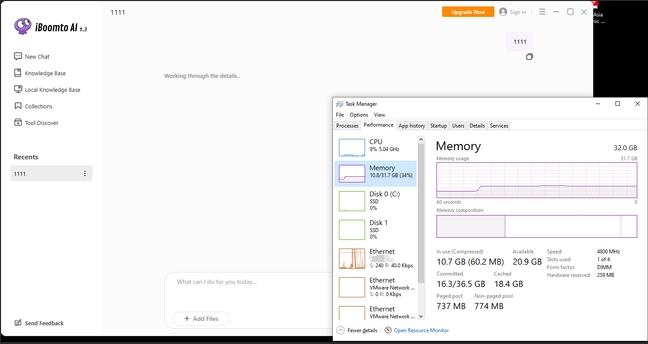
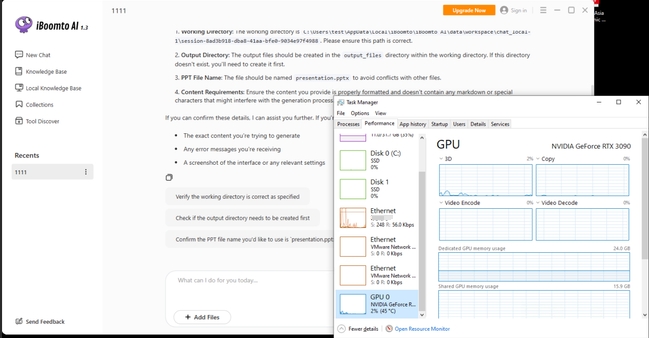
-AI Chat takes too long to start responding
Solutions: Check your internet connection and try again. If the issue persists, use shorter prompts or reduce the number and size of attachments.
-Local Chat Takes Too Long to Load
Solutions: Wait for the model to finish loading. Close unnecessary applications to free up system resources, reduce the length of your input, or switch to a smaller model that better matches your device's hardware.
-Local Chat generates responses slowly
Solutions: Choose a model labeled "Runs well" for your device. You can also request shorter answers or break complex tasks into smaller steps to reduce processing time.
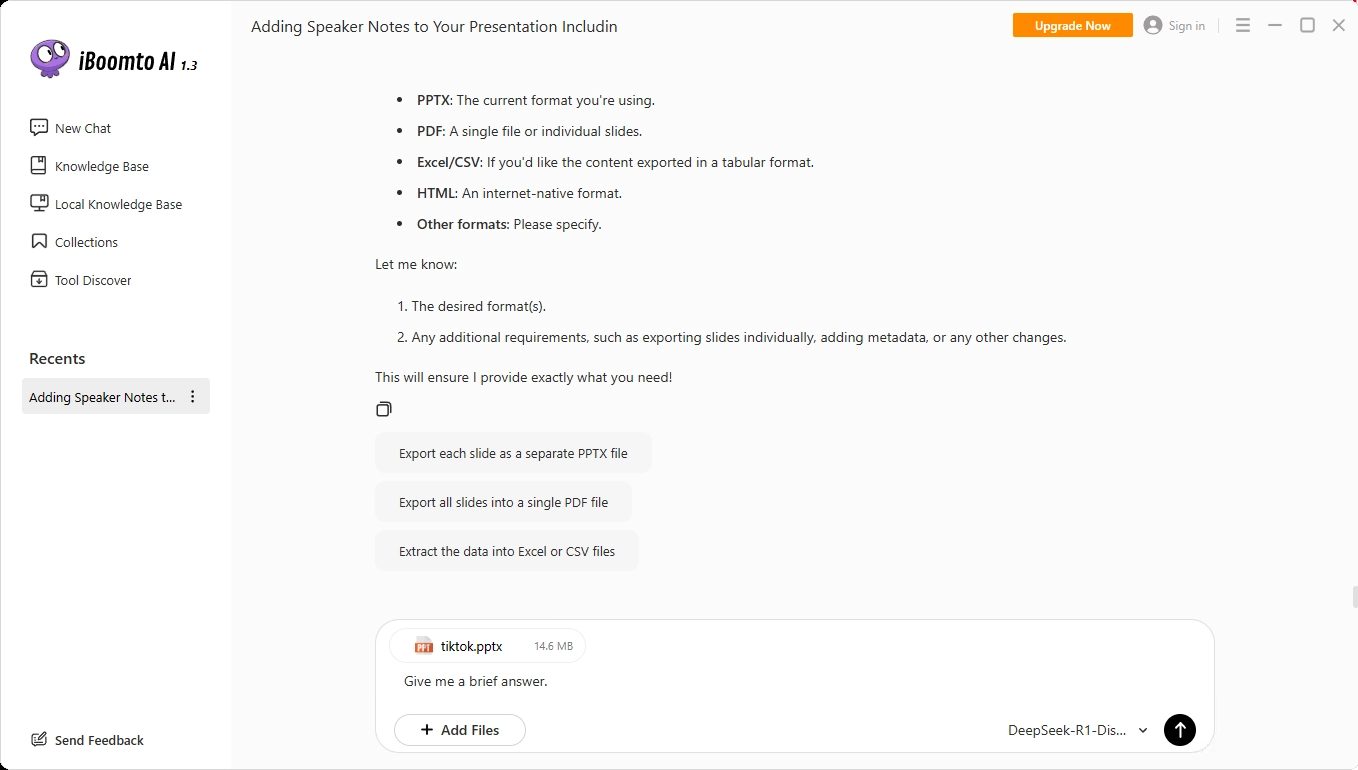
-Long conversations slow down, and memory usage increases
Solutions: Long conversations may require the AI to process more context, increasing memory usage and response times. Reduce unnecessary context, request shorter answers, and break complex tasks into smaller steps. Start a new conversation when a chat becomes too long.
High Memory Usage and Resource Errors
High memory usage and resource errors can be caused by limited system resources, large files, long conversations, or demanding local models. For AI Chat, processing multiple or large attachments may increase resource usage. For Local Chat, running larger models or processing complex tasks may require more RAM and GPU memory (VRAM). Try closing unnecessary applications, reducing file sizes, or switching to a smaller local model to free up system resources.
-Out of memory or insufficient RAM
Solutions: Close unnecessary applications to free up RAM. Reduce the number and size of files being processed, shorten your input, and avoid running multiple resource-intensive tasks simultaneously.
-Local model runs out of GPU memory (VRAM)
Solutions: Close other GPU-intensive applications, reduce the input length and file size, and avoid running multiple tasks simultaneously. If the issue persists, switch to a smaller local model with lower VRAM requirements.
-Overall system slowdown / High disk activity
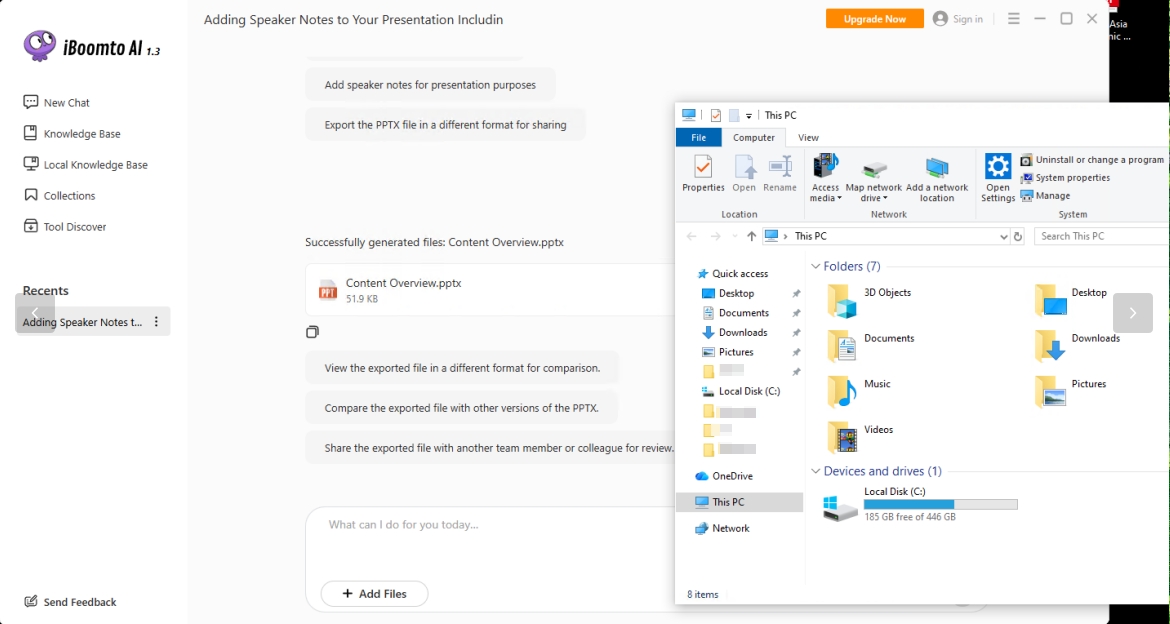
Solutions: Open Windows Task Manager to check CPU, memory, disk, and GPU usage. Close unnecessary applications and background processes to free up system resources. Also, make sure your system drive has sufficient free space.
Still Experiencing Performance Issues?
If the problem persists after trying the solutions above, restart iBoomto AI and your computer. Make sure your application and local models are up to date. If you still experience issues, contact our support team and include your device specifications, the model you are using, and a description of the problem. If possible, attach screenshots of any error messages to help us investigate.
Was this helpful?
Thank you for your feedback!