


Get Text You Can Work With
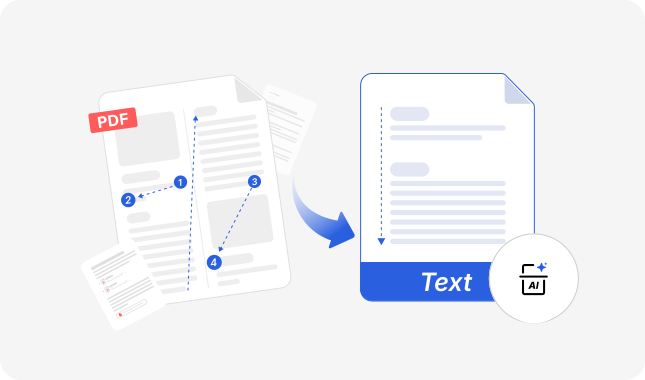
iBoomto uses AI to understand your PDF the way a person would. It follows paragraphs, recognizes text boundaries, and produces clean, continuous text that you can review, edit, and use for the next task.


or drag and drop files here
 Your files are secure during processing and automatically deleted once you close the page.
Copying text from a PDF can leave you with broken lines or text in the wrong order. iBoomto PDF to Text extracts the text in your PDF and leaves you a file you can copy, edit, and put straight to use anywhere.
iBoomto uses AI to understand your PDF the way a person would. It follows paragraphs, recognizes text boundaries, and produces clean, continuous text that you can review, edit, and use for the next task.
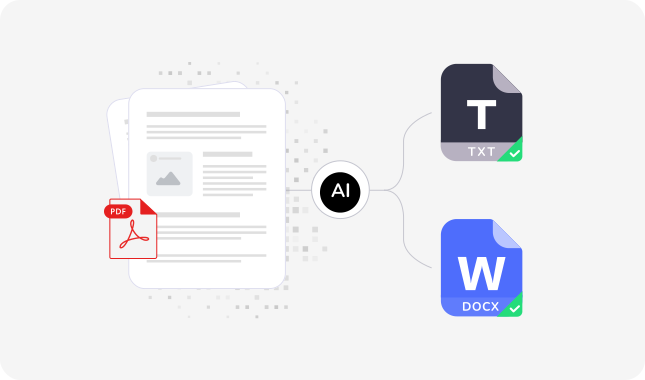
iBoomto PDF text extractor supports both docx and txt. Choose TXT when you need plain text for a script, a search, or another text-based workflow. Choose DOCX when you want to review and edit the content in a word processor.
DOCX output may differ from the PDF's original layout. Formulas and complex formatting can affect page breaks and text placement.
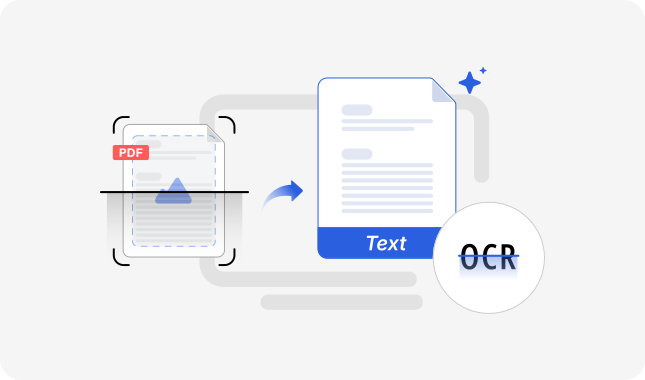
For a scanned PDF, iBoomto uses OCR to recognize the words in the page images and turn them into editable text. The result depends on how readable the scan is. Blurred text, faint print, and complex layouts may need corrections after extraction.

Get free extractions every day with no sign-up, no credit card, and no hidden fees. Your one-off job stays free instead of turning into a subscription decision.

Files are processed in real time and automatically deleted once you close the page. iBoomto never stores your documents or trains on them.

No desktop app to install, no extension to add. iBoomto PDF Text Extractor runs entirely in your browser, so you get the complete extraction tool the moment you land on the page.
There's no account to create and no email to confirm before your first file. Upload a PDF and extract text right away.

Chrome, Safari, Edge, Firefox - iBoomto PDF Text Extractor runs on every modern browser, whether you are on desktop or mobile. No compatibility issues to worry about. If you can open a webpage, you can extract text from a PDF.
No install, no account, nothing to learn. Getting the text out takes only three steps.
Drag and drop your file into the upload area, or select it from your device. Reports, papers, forms, contracts, and scans are all fair game. Check the file size (up to 50 MB) and scanned-page limits before uploading.
Click Extract to start processing. iBoomto's AI reads the entire document, identifies the text content, and processes it into clean output. Processing time depends on the document's size and complexity.
Once extraction is complete, choose your preferred output format. Download the .txt file for plain, unformatted text, or the .docx file for text organized by page. The file saves directly to your device via your browser's download manager.
Extracting text is rarely the goal itself — people want the text somewhere useful. Here's how iBoomto fits real workflows.
When a passage in a journal PDF is difficult to copy, extract the text and locate the section you need. Compare it with the original before quoting it, and retain the source citation and page reference in your notes.
Statements, filings, and exported reports often arrive as PDFs by design. Export their text as TXT when you need to search for terms, compare wording between reporting periods, or use the content as input to a script.

Scanned agreements, signed pages, certificates, and old records can be viewed, but their text can’t be edited directly. Turning them into DOCX is what makes them searchable, correctable, and sendable again.
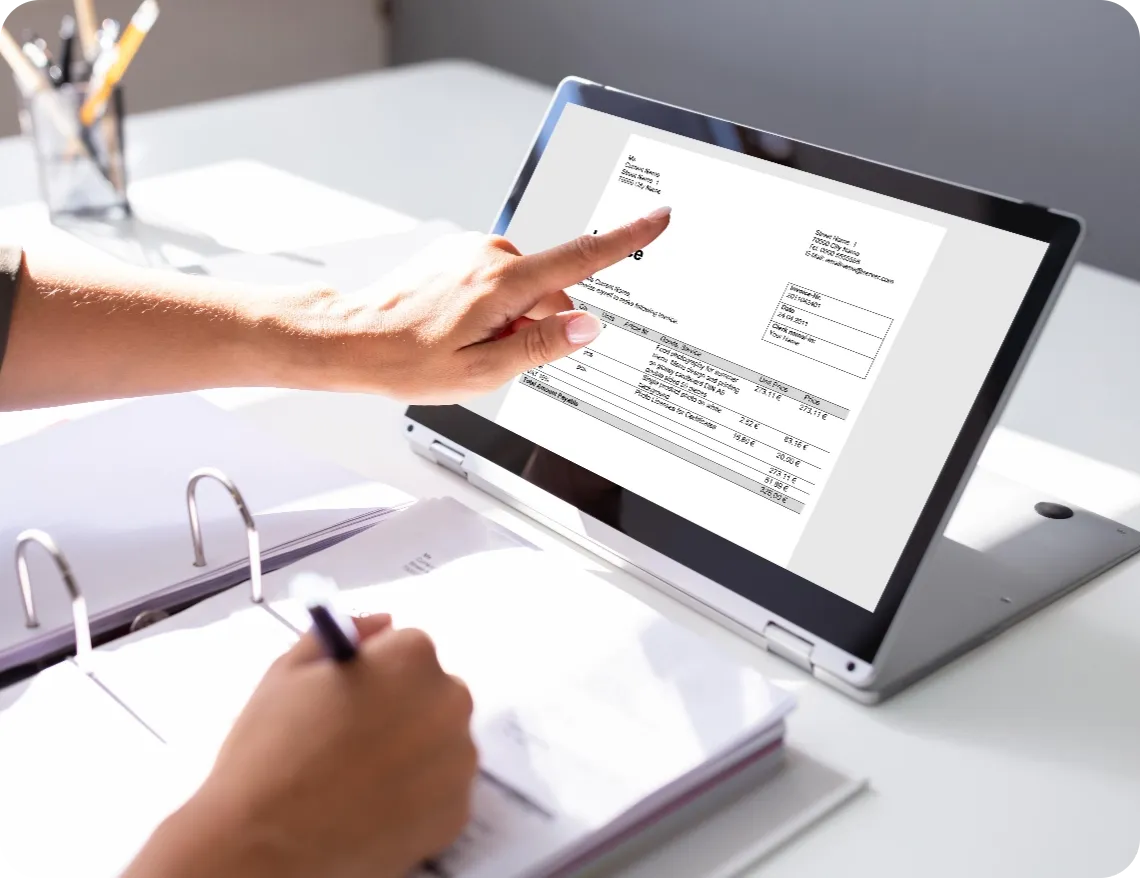
For invoices or forms saved as PDFs, extract the text and check the details you need before transferring them into another document or system. Review field labels and values together: extracted text may not retain the original arrangement of the form or table.
iBoomto’s online tool extracts text from a PDF and lets you download the result. For sensitive files, scanned PDFs, or images, use the iBoomto AI desktop app for Windows. It accepts PDFs, JPGs, PNGs, and WebP files, uses OCR to extract text, and lets you copy the result. Version 1.1 and later offers both offline and cloud models. Choose offline processing when you want to keep the file on your device, or a cloud model when that better suits your task.
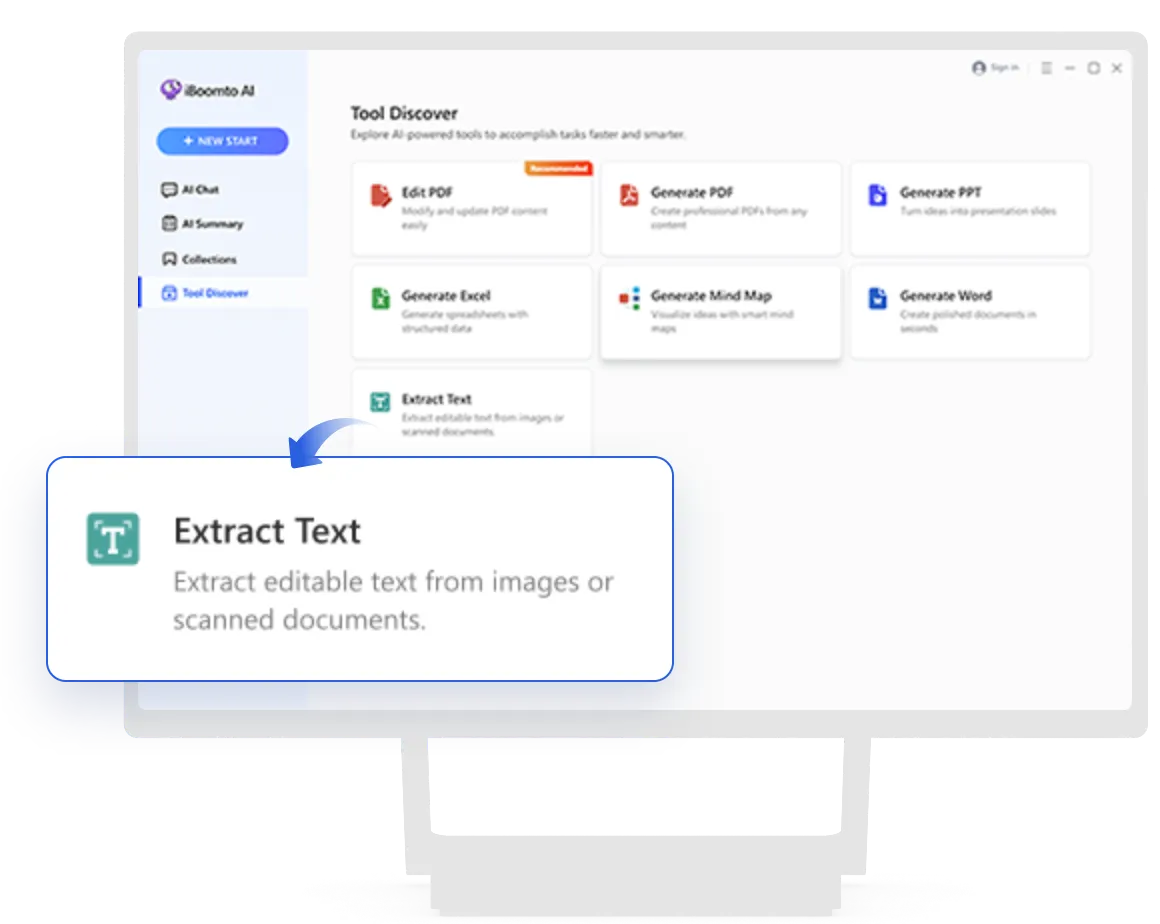

Upload a PDF or drop in an image file directly. JPG, PNG, and WebP are all supported. Screenshots, scanned photos, and photographed documents go in without converting to PDF first. iBoomto AI extracts the text on your desktop and returns it for you to copy.

Built-in OCR handles scanned PDFs and image-based files. Whether it's a photographed document or a screenshot with text, iBoomto AI recognizes the characters and converts them into editable text, no separate OCR step needed.

The desktop app carries its own daily free allowance, separate from the online tool, so your free conversions don't stop when the online limit does.

Use an offline model to keep sensitive data on your Windows device. Cloud processing is also available whenever you need it.
Upload a PDF or drop in an image file directly. JPG, PNG, and WebP are all supported. Screenshots, scanned photos, and photographed documents go in without converting to PDF first. iBoomto AI extracts the text on your desktop and returns it for you to copy.
Built-in OCR handles scanned PDFs and image-based files. Whether it's a photographed document or a screenshot with text, iBoomto AI recognizes the characters and converts them into editable text, no separate OCR step needed.
The desktop app carries its own daily free allowance, separate from the online tool, so your free conversions don't stop when the online limit does.
Use an offline model to keep sensitive data on your Windows device. Cloud processing is also available whenever you need it.
Everything you may want to know before getting started with iBoomto PDF to Text Converter.
Upload your PDF to iBoomto, click Extract, then choose TXT or DOCX to download. The whole process takes seconds — no software to install and no account to create.
Upload the scan, iBoomto PDF to Text Converter extracts the text in scanned pages and PDFs built from images, up to 10 pages per file, and returns TXT or DOCX. iBoomto supports scanned PDFs with built-in OCR. Text within images is recognized and converted into editable text automatically.
When the PDF has a text layer, you can select it directly. When selecting isn't possible — a scan, an image page, or a file that restricts copying — iBoomto extracts the text for you. Upload your PDF, and download it as TXT or DOCX. Open the file and copy the part you need. Nothing to retype, and no formatting to untangle.
Image files aren't supported on the online tool yet, but this feature is coming soon. Until then, iBoomto AI can extract text from any of your images. Upload an image or a PDF built from images to the iBoomto AI desktop app, and it will extract the text from the image, ready to copy, edit, and paste.
PNG and JPG upload isn't available on the online tool yet, but it's coming soon.
For now, the iBoomto AI desktop app supports uploading both PNGs and JPGs and extracting text from them for you. You can copy and paste the extracted content into a new text file and save it. The same process works for screenshots, photographed documents, and any other image-based content.
That message usually means the PDF is a scanned or image-based file with no text layer, or the file may be too low in quality or corrupted to process.
Scanned PDFs can be extracted by our online converter, which uses OCR to recognize the text in them. Image files are a different case: you can use the iBoomto AI desktop app, which extracts text from JPGs, PNGs, and screenshots with built-in OCR on your device.
If the PDF quality is too low or the file is damaged, the extraction may fail. Try using a tool to enhance or repair the PDF, or rescanning the document at a higher resolution. Then upload the improved version and try again.
AI-assisted extraction pulls text reliably from mixed layouts, tables, and scanned pages, where a simple copy routine drops words and scrambles lines. Results can still vary by scan quality, layout complexity, and the source PDF.
Yes. Your file is processed in real time and automatically deleted once you close the page. iBoomto does not store your documents or use them to train models. Your content stays private.
Extract text from your PDFs with iBoomto - for free.
 1
1