
How to edit PDF in iBoomto AI?
- Step 1: Download and launch iBoomto AI.
- Step 2: Open the Edit PDF tools.
- Step 3: Choose the right PDF editing tool.
- Step 4: Edit and save your PDF
Working with PDFs often involves more than editing text. You may need to add images, annotate important sections, reorganize pages, convert files, or protect sensitive information. iBoomto AI for Windows brings these tasks together in one desktop workspace, helping you manage PDF documents without switching between multiple tools.
This guide walks you through the Edit PDF interface and explains how to access the tools you need for common PDF editing tasks.
Step 1: Download and launch iBoomto AI.
Click here to download and install the Windows software, then launch iBoomto AI.
Step 2: Open the Edit PDF tools.
Click Tool Discover and go to the Edit PDF tab.
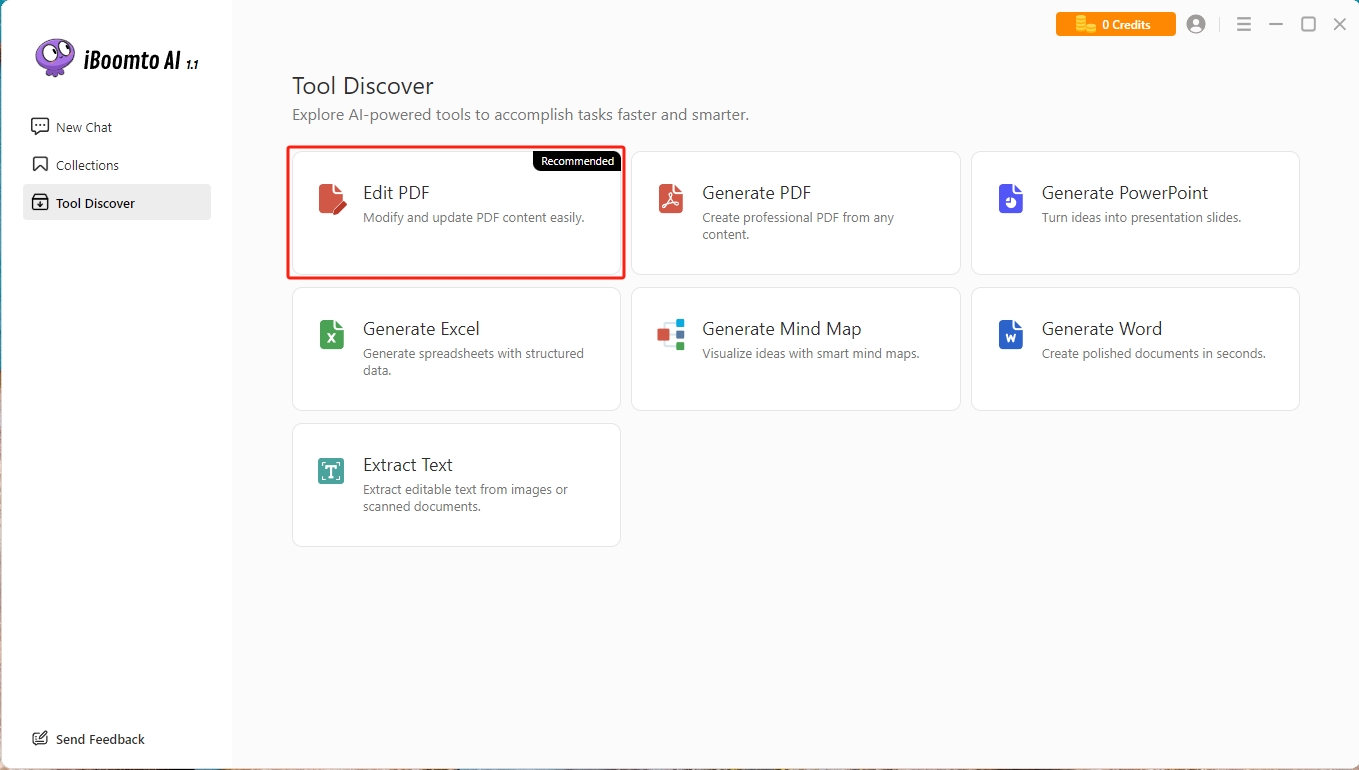
Step 3: Choose the right PDF editing tool.
Click the Edit PDF tab to open the workspace, where the tools are organized into the following categories:
Start: Open PDFs, access frequently used tools, and view recent files
View: Zoom in and out, rotate pages, and search PDF content
Convert: Convert PDFs to/from formats such as Word, Excel, and images
Edit: Modify existing content, add text and images, and crop pages
Comment: Highlight, underline, add annotations, insert shapes, and create text boxes
Protect: Encrypt, decrypt, redact content, and add signatures
Pages: Delete, extract, insert, replace, combine, and split pages
Tools: Quick access to common PDF tools and OCR functionality
Step 4: Edit and save your PDF
Below are some example steps of how to edit PDFs.
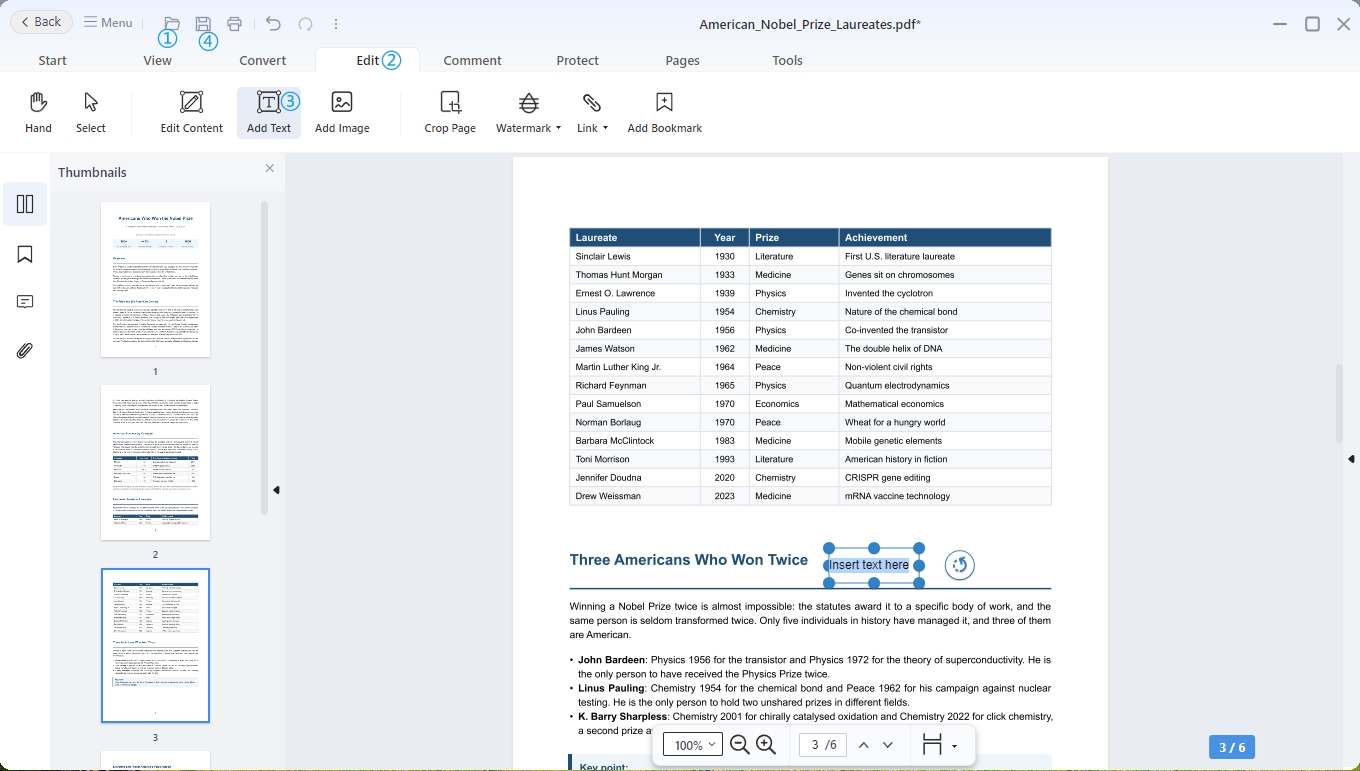
- Add text to a PDF
- Open a PDF.
- Switch to the Edit tab.
- Click Add Text, select the desired location on the page, and enter your text. Adjust its position if needed.
- Click the Save button to save the updated PDF.
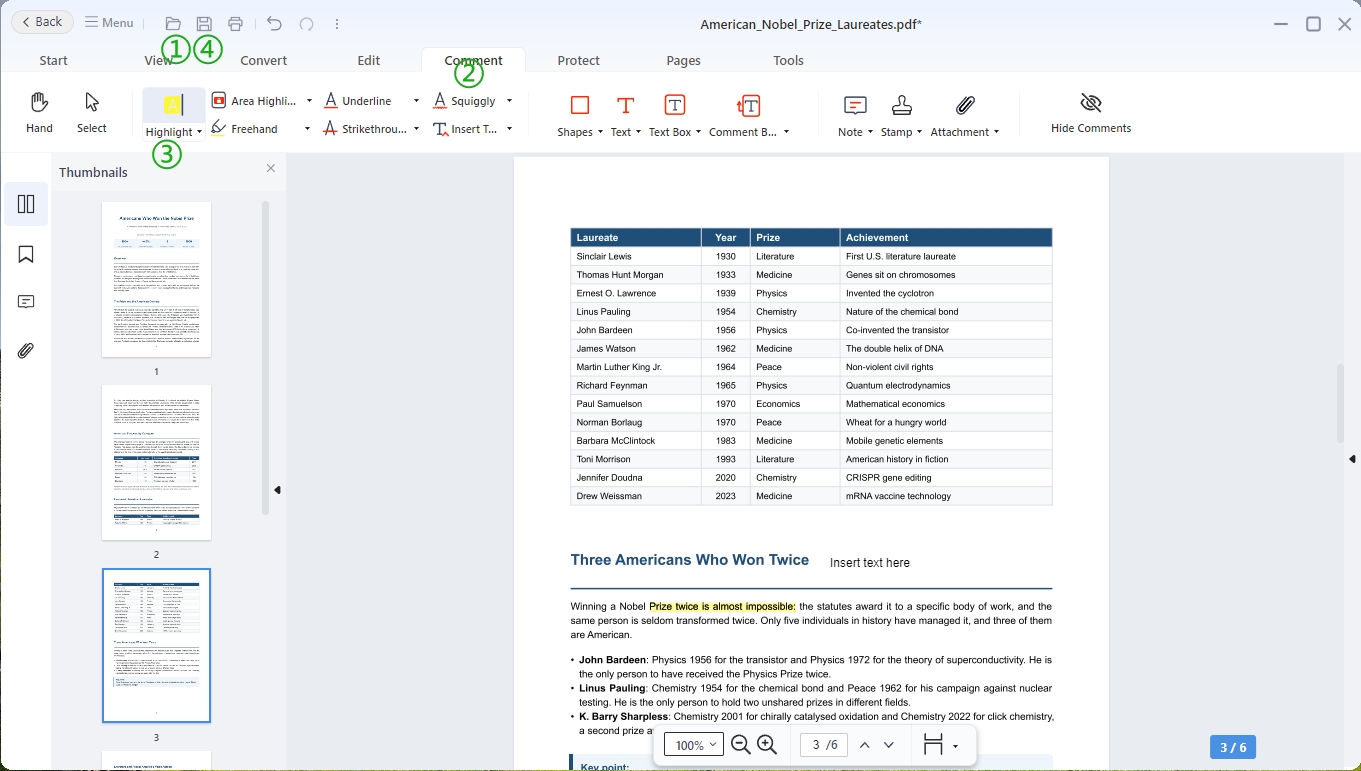
- Annotate a PDF
- Open a PDF.
- Switch to the Comment tab.
- Click the Highlight tool to add some highlights over the text you want to emphasize.
- Click the Save button to save the updated PDF.
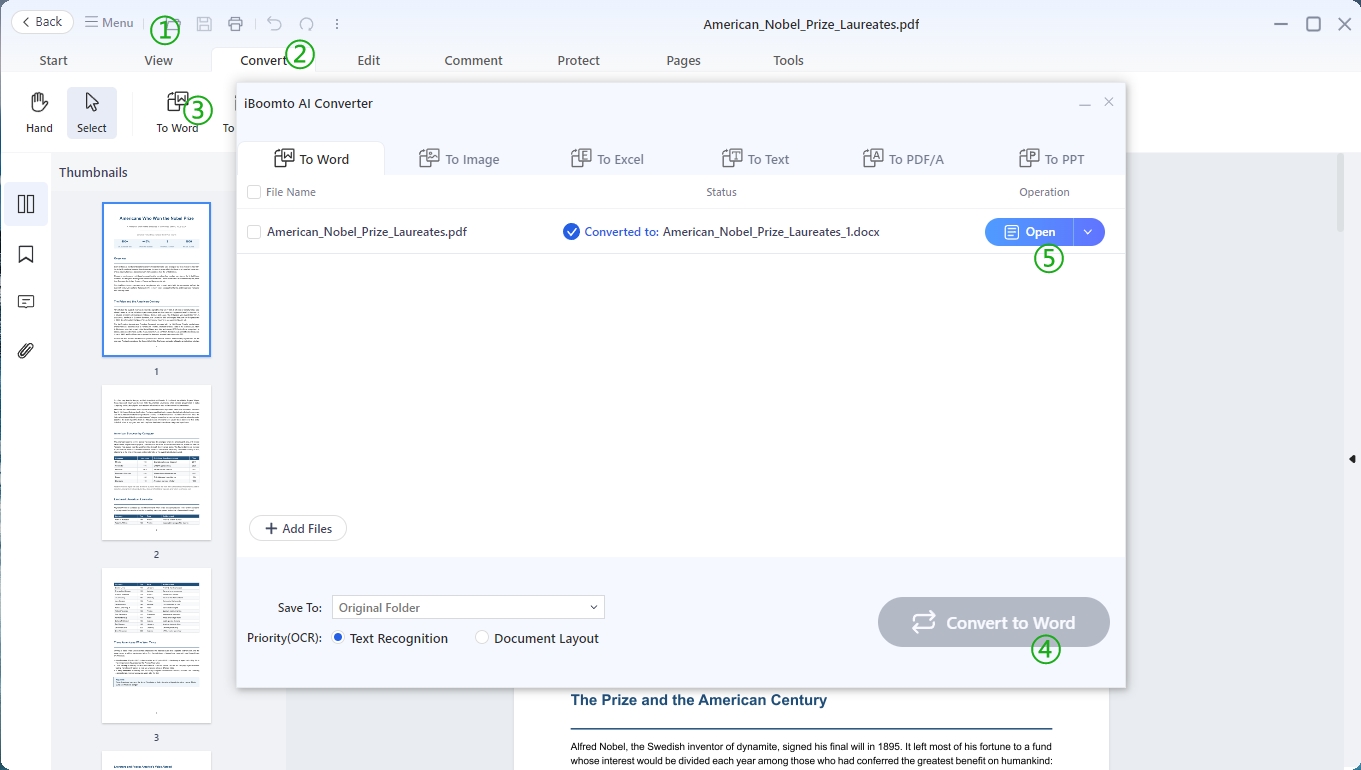
- Convert a PDF
- Open a PDF.
- Switch to the Convert tab.
- Click the To Word tool.
- Click the Convert to Word button on the pop-up window.
- Open the converted Word document.
Overall, editing PDFs with iBoomto AI is straightforward. Whether you need to edit text, add images, annotate documents, or manage PDF pages, iBoomto AI offers practical tools to help you get the job done. Download iBoomto AI for Windows today and start editing your PDFs with ease.
Was this helpful?
Thank you for your feedback!