
How to fix local model download and loading errors?
- The Download Cannot Start, or a Network Error Is Displayed
- The Download Is Slow or the Progress Stops
- Not Enough Storage
- Not Supported Model
- Slow Initial Model Loading or No Response After Switching Models
Running AI models locally gives you more control over your files, privacy, and AI workflows. However, you may occasionally encounter problems when downloading or loading a local model in iBoomto AI. If you encounter an issue during either step in iBoomto AI, refer to the common cases below and follow the recommended solutions.
The Download Cannot Start, or a Network Error Is Displayed
Please be advised that downloading a model requires a stable internet connection. A network interruption may prevent the download from starting.
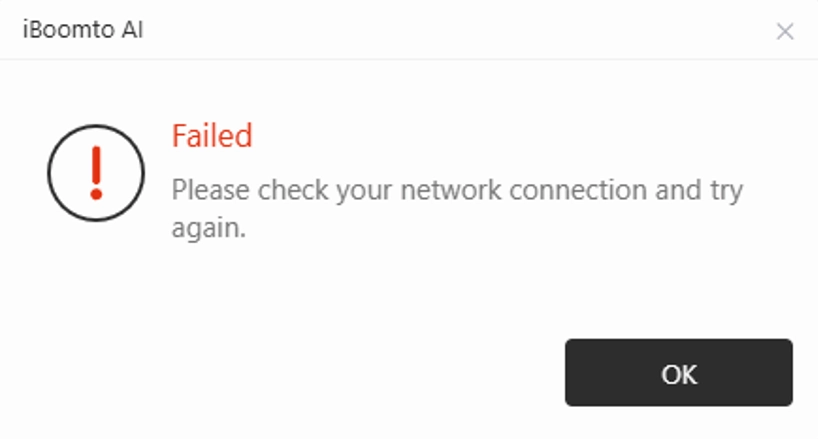
Solution:
1. Confirm that your computer is connected to the internet, for example by opening a webpage in your browser.
2. Retry the download.
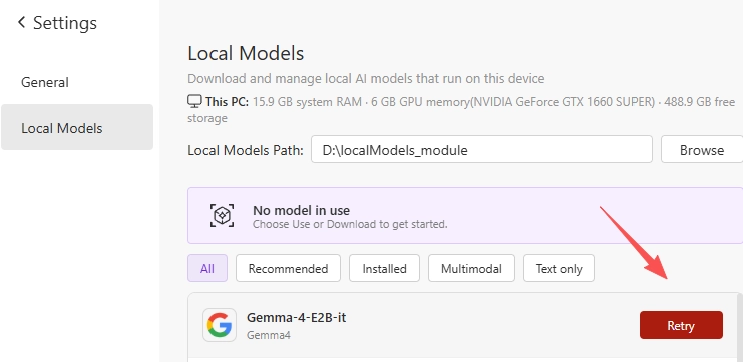
3. If the problem persists, try restarting your router or switching to a different network, such as another Wi-Fi network, and then try downloading the model again.
The Download Is Slow or the Progress Stops
The download may have been paused unexpectedly, or multiple models may be downloading simultaneously, or other applications may be using a significant amount of your network bandwidth.
Solution:
1. Open Task Manager, check the Network column, and close unnecessary applications that are using bandwidth.
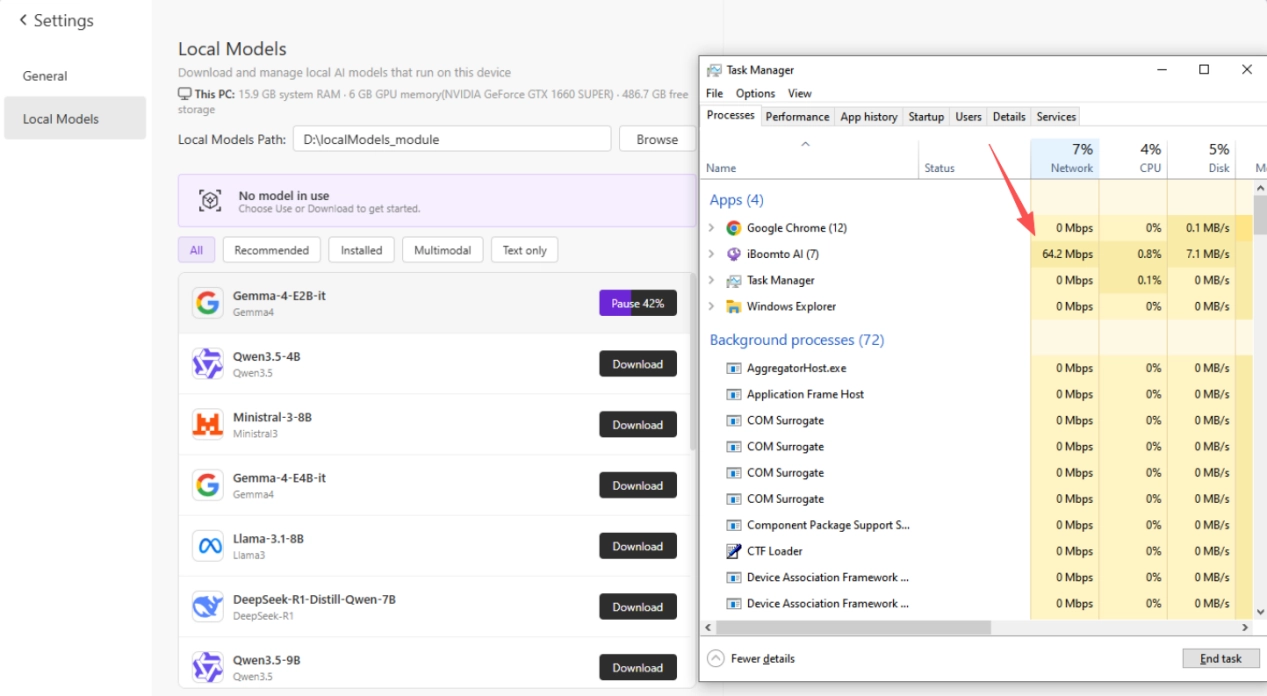
2. Download one model at a time. Some Model files are large, and downloading several simultaneously can slow the process.
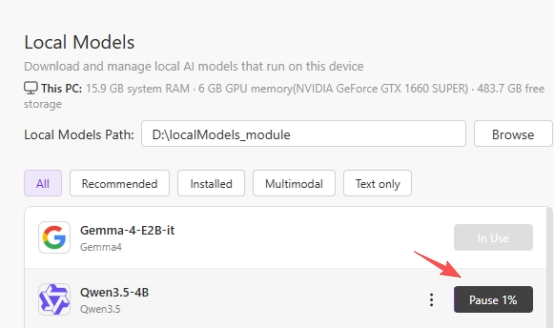
3. If the progress does not change for several minutes, click Pause and then Resume to try to refresh the download status.
Not Enough Storage
Your computer does not have enough free disk space to save the model.
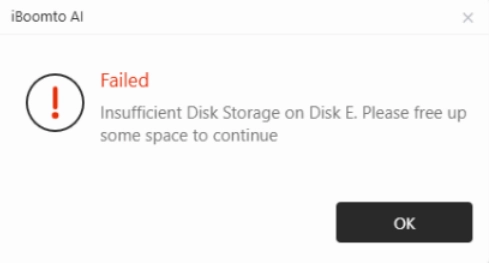
Solution:
1. Free up disk space by deleting unnecessary files from the drive where your local models are stored.
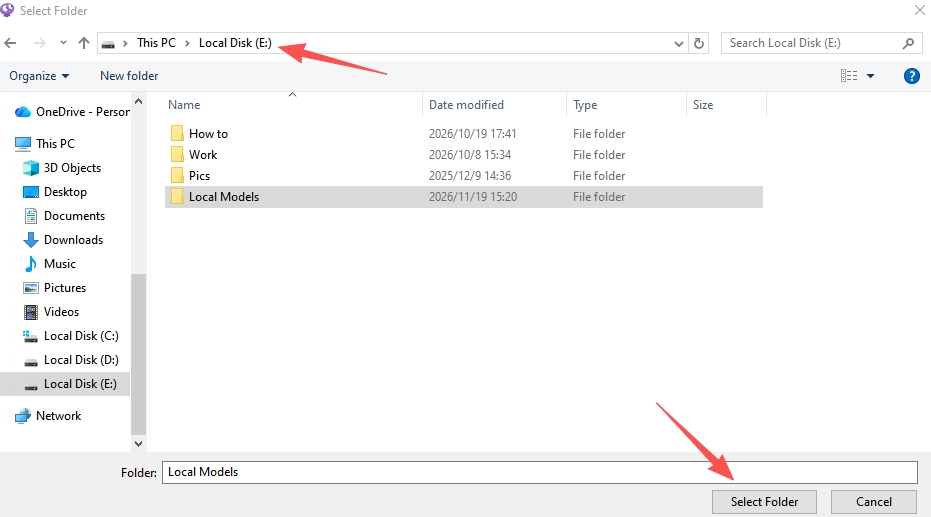
2. Change the model storage location to another drive with sufficient free space.
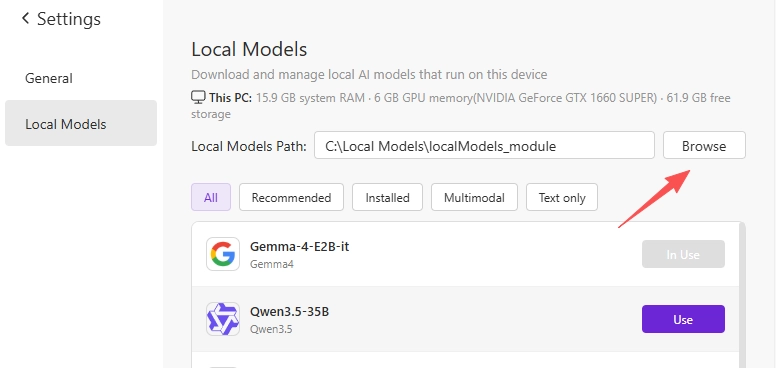
Rest assured that after you change the storage location, any previously downloaded models will be automatically migrated.
Not Supported Model
iBoomto AI checks your computer's hardware, such as memory and graphics card, against each Model's minimum requirements. "Not supported" means your computer does not meet the minimum for that Model.

Solution:
1. Choose a different model that is not marked "Not Supported".
2. If you need this specific model, switch the other one computer that meets its minimum requirements.
Slow Initial Model Loading or No Response After Switching Models
Loading a model and processing your questions will require some system resources. If you've just downloaded a model for the first time or if you're switching to a model with more parameters you may experience some temporary lag or slower responses when you start a conversation with it.
Solution:
1. Wait for the model to finish loading. After downloading a model or switching to another one, allow it to initialize completely before sending your questions.
2. Allow sufficient time for processing. Larger models have more parameters and generally require more system resources, which may result in slower loading and response times.
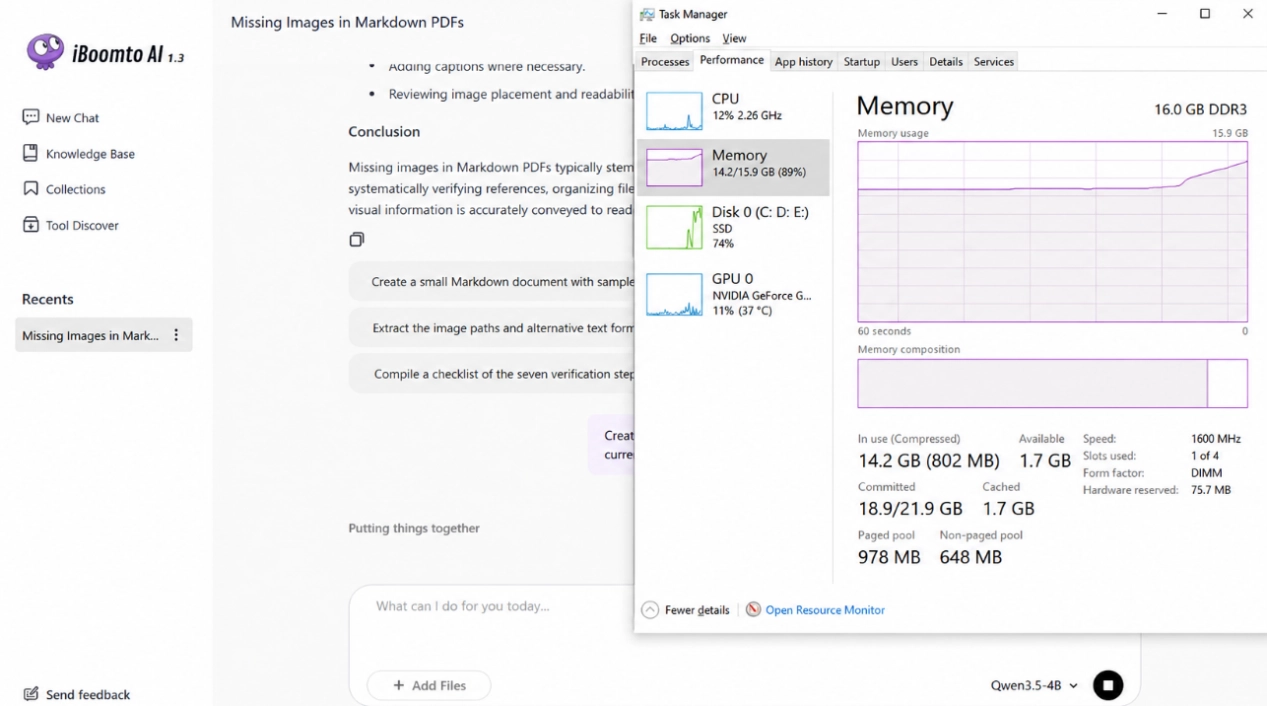
3. Check system resource usage. Press Ctrl + Shift + Esc to open Task Manager, then select the Performance tab. Monitor CPU, memory, and GPU usage. High or fluctuating resource usage may indicate that the model is still loading or processing your request. Please wait for the process to complete.
If the issue persists after you have followed the steps above, please contact our Customer Support Team.
Was this helpful?
Thank you for your feedback!