
How to manage iBoomto AI account profile?
- How to Access Your iBoomto AI Account?
- What You Can Manage in Your Account
You can use the iBoomto AI desktop software without signing in. However, signing in gives you access to additional account management features, including generated file records, subscription and purchase information, purchases to unlock more usage limits, and credit usage details.
This guide explains how to access and manage your iBoomto AI account, update your profile, check your subscription status, and review your credits and billing information.
How to Access Your iBoomto AI Account?
You can access your account in any of the following ways:
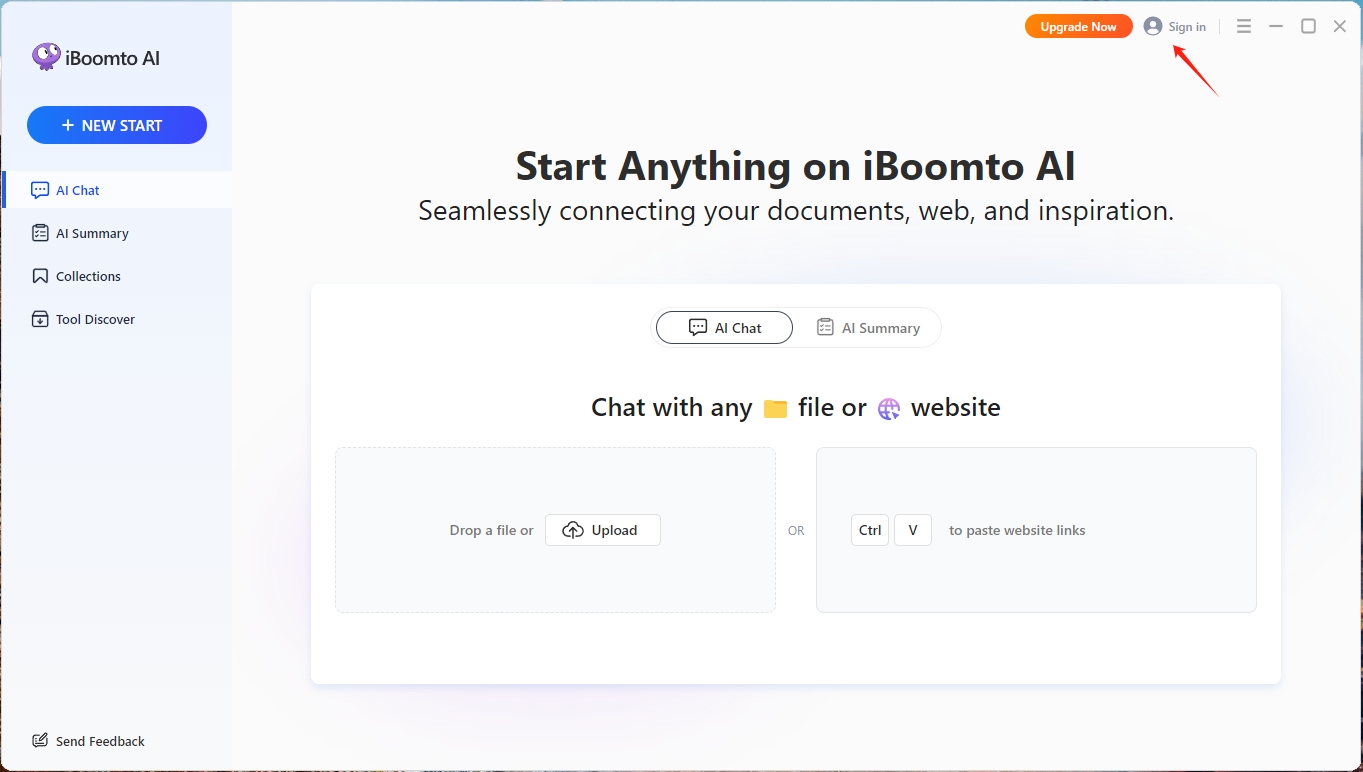
1. In the desktop software, click the circular User or Sign In button in the top-right corner, then select Account Information to open your account page.
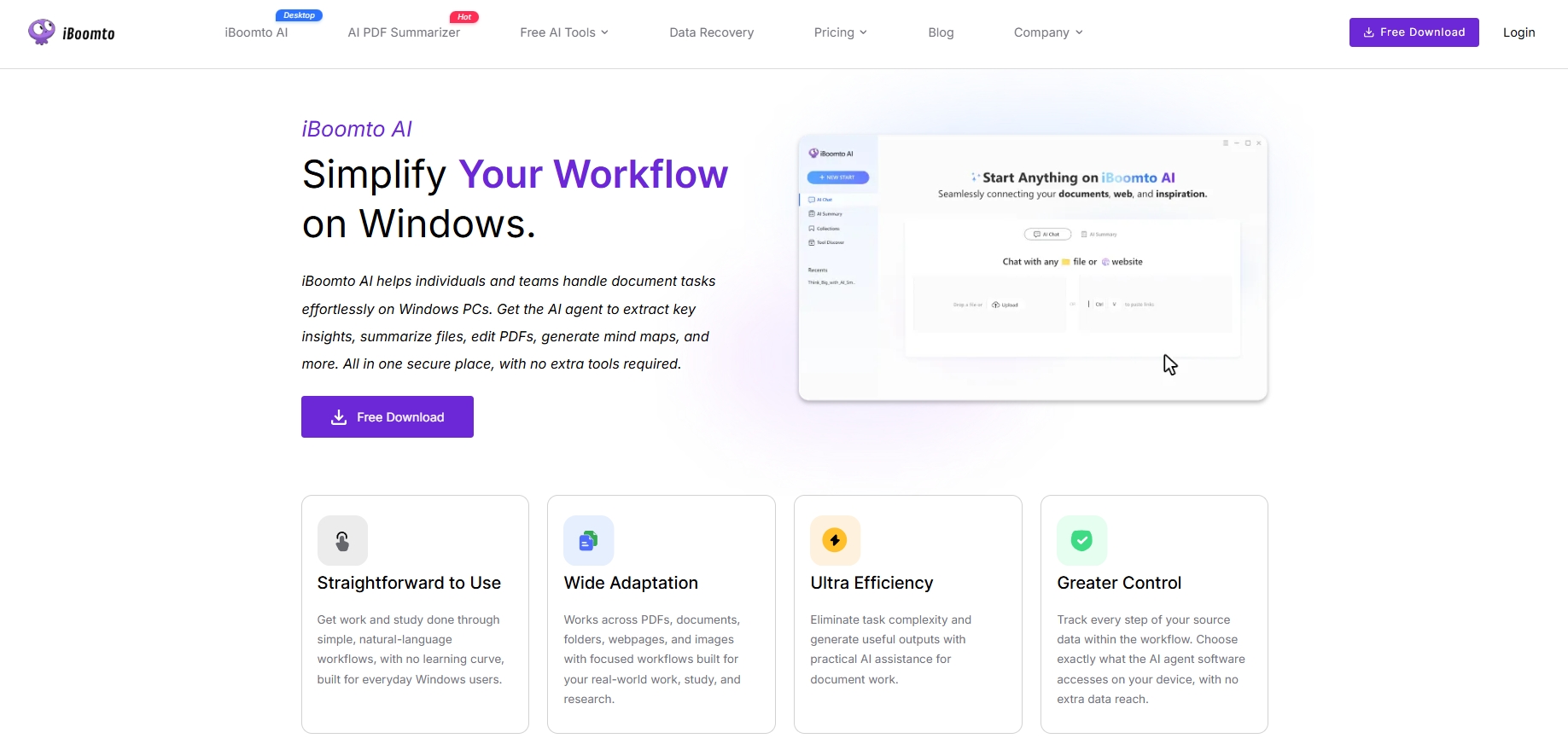
2. On the iBoomto website, click Login in the top-right corner. After signing in, click your email address to open your account page.
3. Or visit your account page directly: https://www.iboomto.com/account
What You Can Manage in Your Account
After signing in to your iBoomto AI account, you can manage the following information and settings.
- View account information
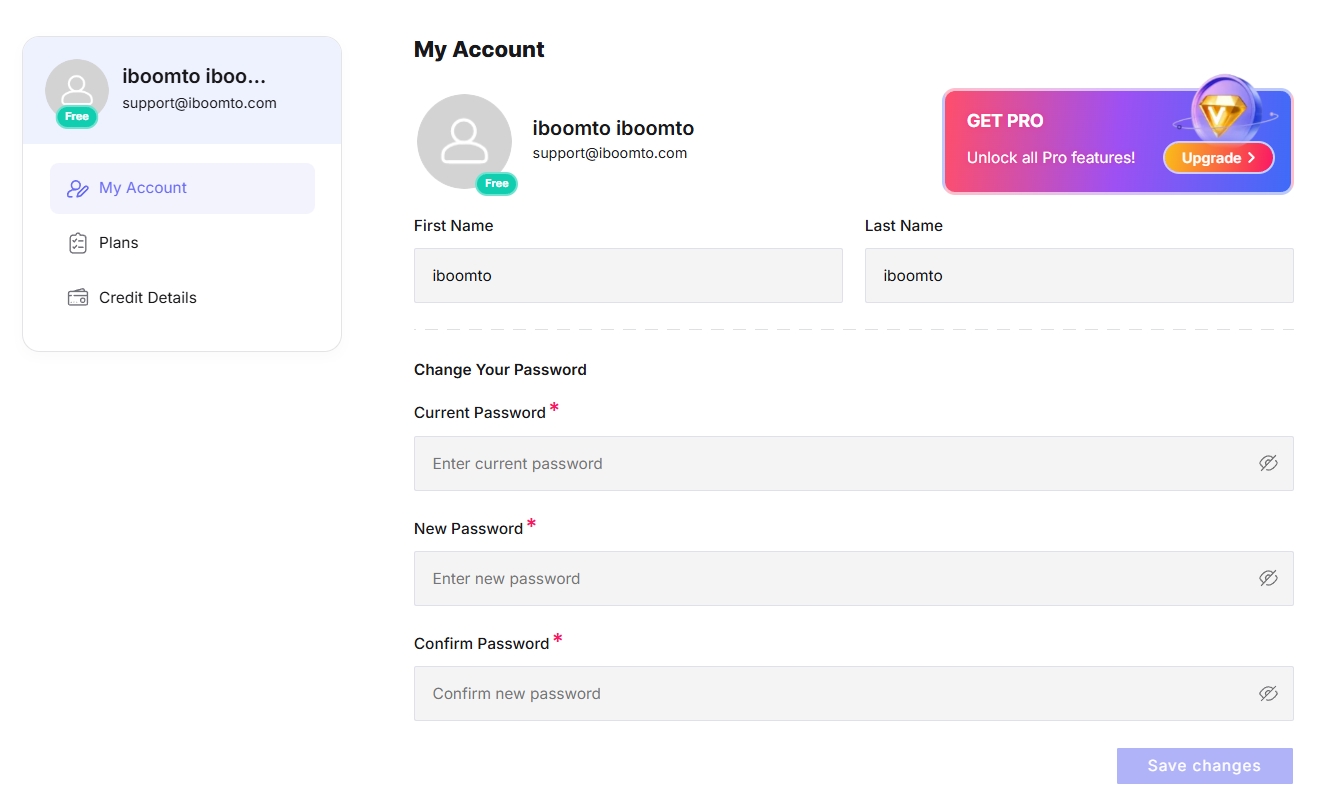
On your account page, you can view your email address, username, account status, profile picture, credit usage history, purchase records, and billing information.
- Change username
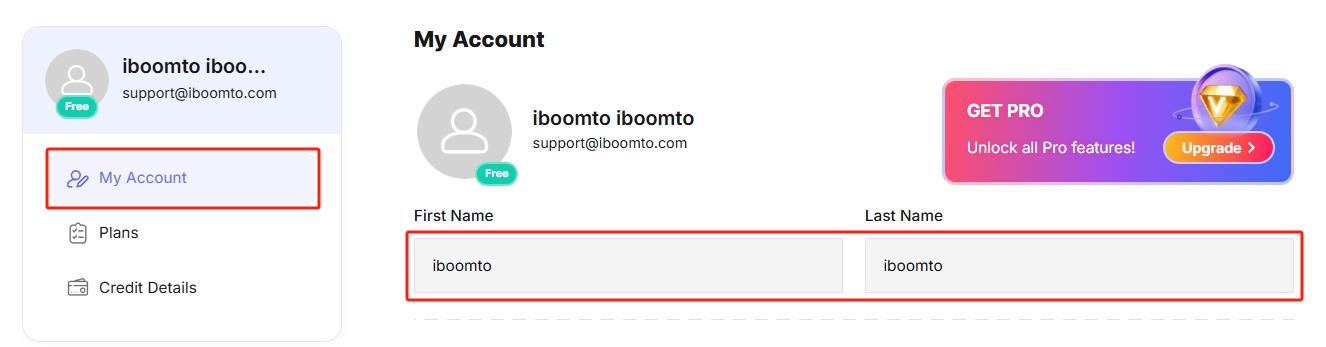
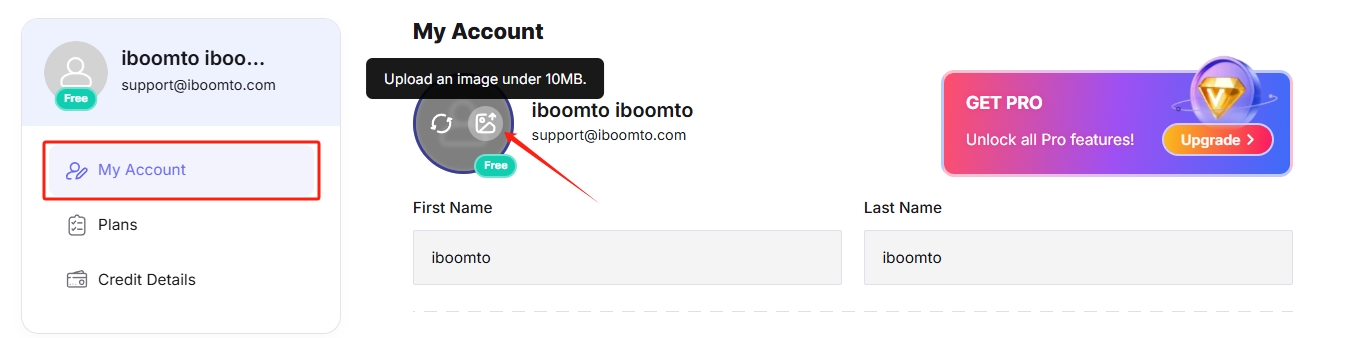
Open the My Account tab and edit the First Name and Last Name fields. Your changes will be saved automatically.
- Change profile picture
Open the My Account tab and hover over your round profile picture. Two options will appear: Reset to Default Avatar and Upload an Image. Select Upload an Image to upload a new picture (maximum file size: 10 MB), or choose Reset to Default Avatar to restore the default picture.
- View account type (Free / Pro)
Your account type is displayed in a badge on the circular User button. It shows whether your account is Free or Pro.
- Change your password
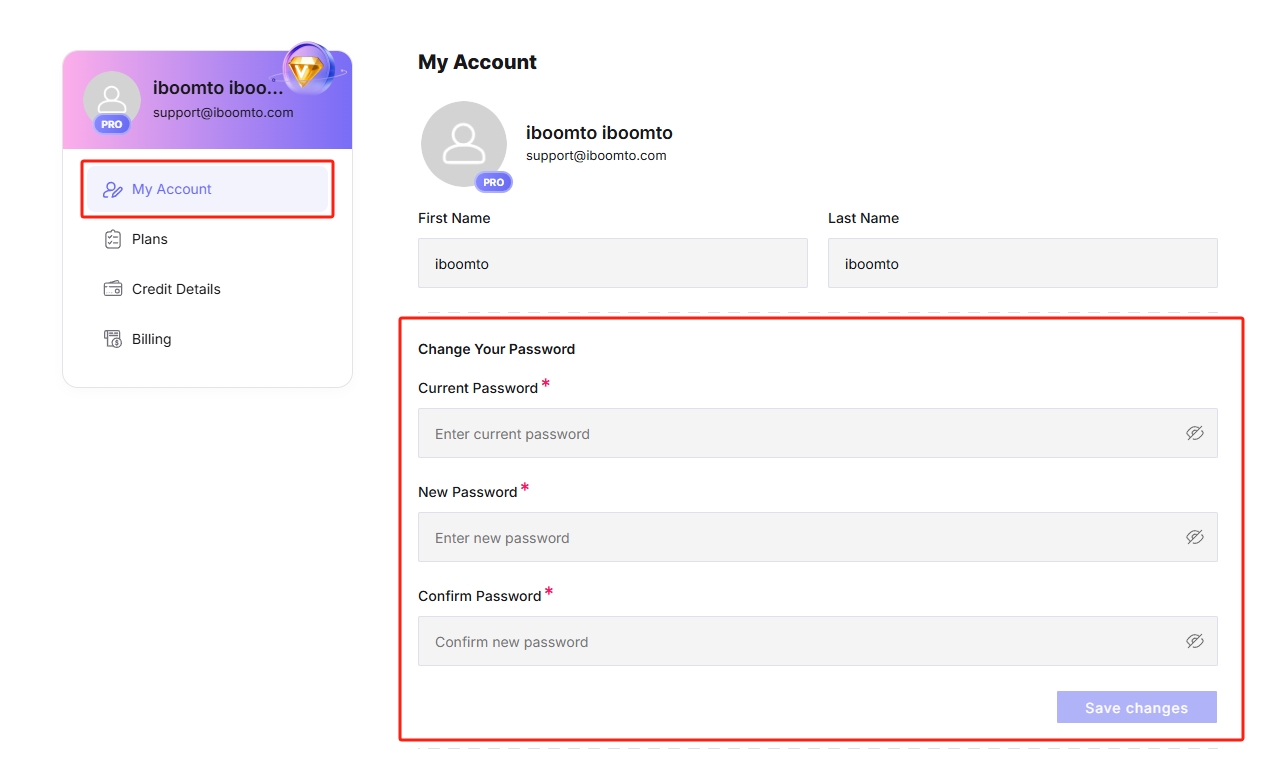
Open the My Account tab, then scroll down to the Change Your Password section. Enter your current password, new password, and new password confirmation in the corresponding fields, and click Save Changes. Once completed, your password will be updated successfully, and you can log in again using the new password.
- Delete your account
For instructions on deleting your account, see our separate guide: How to delete iBoomto AI account?
- View subscription status
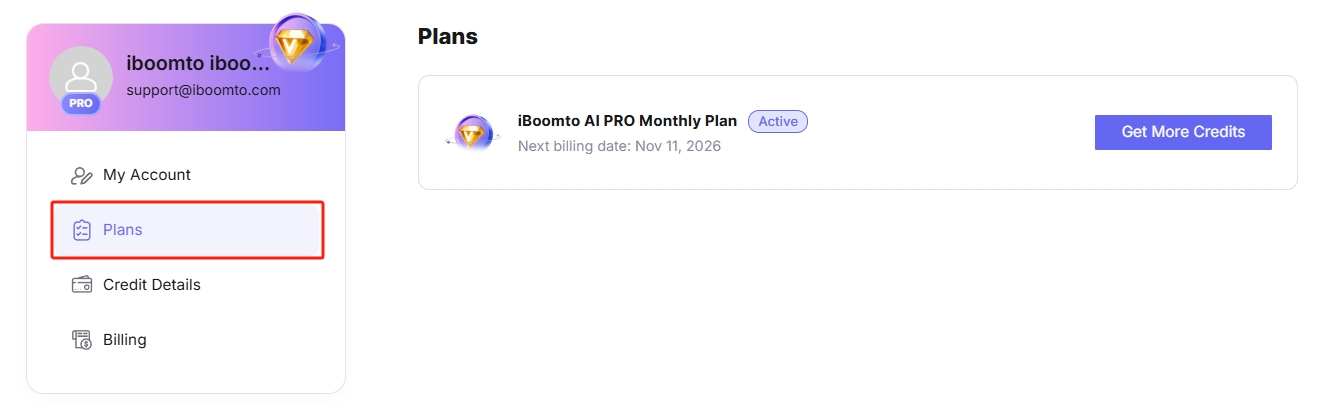
Open the Plans tab to view your subscription plan and its details.
- View credits details
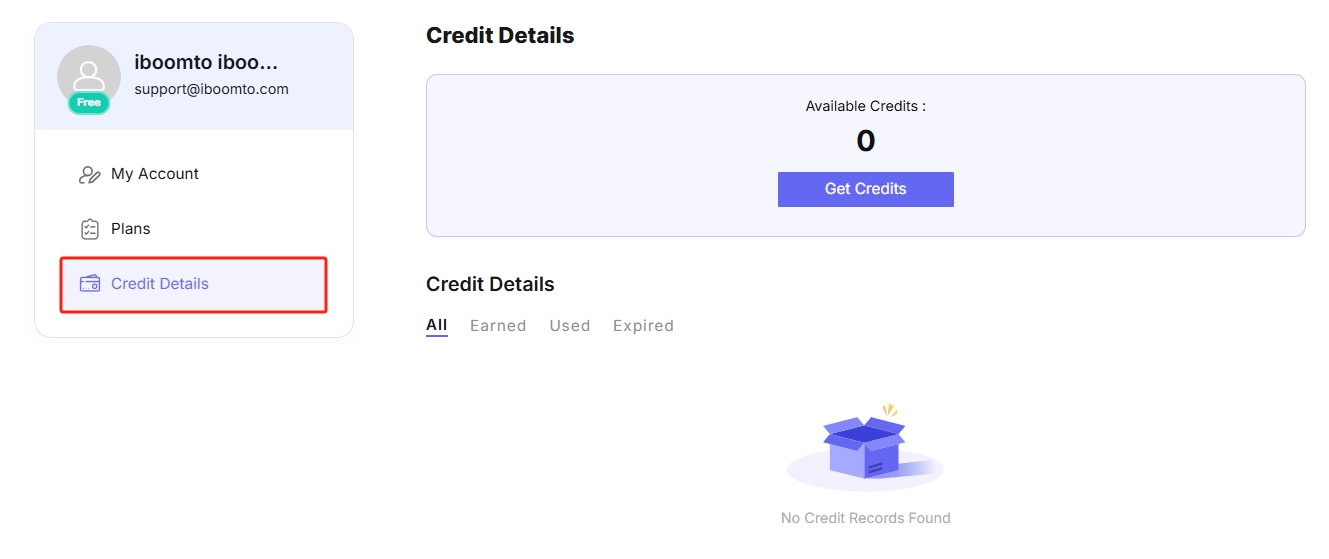
Open the Credit Details tab to check your available credits, click the button to get more credits, and review your credit details, including credits earned, used, and expired.
- View billing details
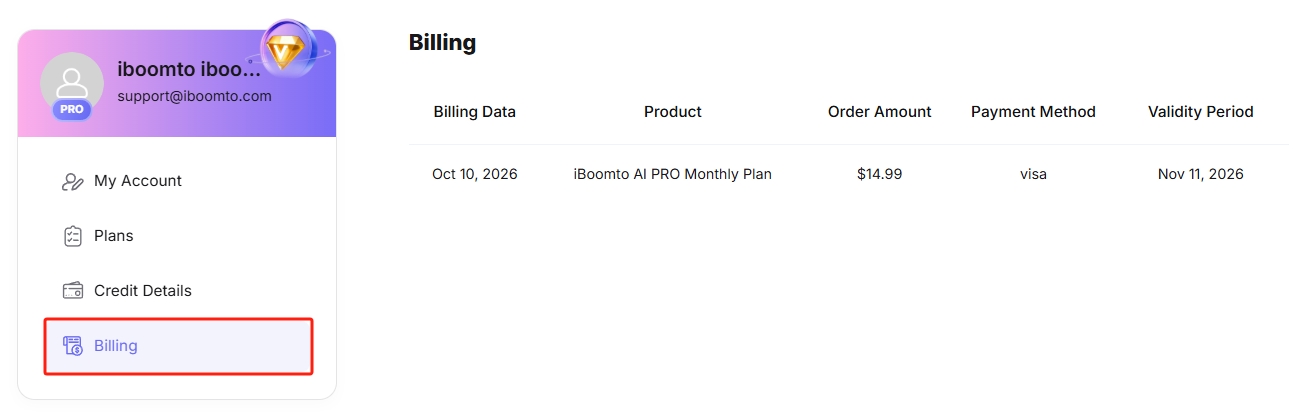
Open the Billing tab to review the billing information, including transaction date, product details, order amounts, payment methods, and subscription validity periods.
Was this helpful?
Thank you for your feedback!