
ChatGPT Can't Extract Text From Files Included in PDF? Real Reasons & Solutions
- Find the Cause for Why No Text Could Be Extracted from Your Files in 4 Questions
- Cause 1: Unsupported File Format
- Cause 2: Scanned or Image-Based Content (OCR)
- Cause 3: File Size and Token Limit
- Cause 4: PDF Structure and Layout
- Cause 5: Security and Access Restrictions
- Cause 6: Parsing and Processing Errors
- FAQs on ChatGPT Can't Extract Text From Files
ChatGPT can extract text from files, including scanned or image-based PDF documents. If you uploaded a file to ChatGPT but are seeing the error "No text could be extracted from this file", it's one of six factors: unsupported file format, scanned/image-based content, file size and token limits, complex PDF structure, security restrictions, or a parsing error. Check the file itself first before changing how you ask.
Find the Cause for Why No Text Could Be Extracted from Your Files in 4 Questions
Q 1. Can you select and copy the text in the file?
- No. The file may be scanned/image-based. Try uploading it as-is first. Vision-based reading often works on clean, printed scans across all plans. If results are poor or the error persists, run OCR yourself (see Cause #2).
- Yes. The file already has machine-readable text. Continue to question 2.
Q 2. Is the file very large (hundreds of MB or hundreds of pages)?
- Yes. Check file size and token limits (see Causes #3), then split the file into smaller sections.
- No. Continue to question 3.
Q 3. Did the extracted text come back incomplete?
- Yes. The document likely has a complex layout, including columns, tables, and images mixed with text (see Cause #4). Extract in smaller batches.
- No. Continue to question 4.
Q 4. Did the extracted text come back garbled, or did the file fail to process at all despite uploading successfully?
- Garbled. Likely a font-encoding or PDF-structure issue. Re-export the original document.
- Failed entirely. Likely a parsing error, damaged file, or security restriction (Causes #5 and #6). Re-upload, then re-export, then try OCR.
Cause 1: Unsupported File Format
ChatGPT supports common formats like PDF, DOCX, PPTX, XLSX, CSV, and TXT. E.g., Google Docs (.gdoc) aren't directly readable and need to be exported first.
How to Fix:
- Convert the file to PDF, DOCX, or TXT for general documents.
- Use CSV or XLSX for structured/tabular data.
- Re-export the file to rule out format corruption.
Cause 2: Scanned or Image-Based Content (OCR)
ChatGPT Enterprise/Edu has a dedicated feature called PDF Visual Retrieval for interpreting embedded images and charts inside PDFs. On other plans, ChatGPT's core vision capability can often still read clean, printed scans directly in a normal chat.
How to Fix:
- If the scans are clean and printed, directly try to extract text from them on ChatGPT.
- If the scans are blurry, skewed, low-resolution, or heavily compressed, improve the resolution to at least 300 DPI.
- If your documents are handwritten or otherwise hard-to-read, or the extraction result is missing text, garbled, or an error appears, use OCR to preprocess the files and re-extract text.
Also Read: Add a Searchable Text Layer to Your PDF >>
Cause 3: File Size and Token Limit
ChatGPT limits PDFs, DOCX files, and other documents up to 512 MB per file, with a maximum of 2 million tokens per file. Individual images can be up to 20 MB, while CSV and spreadsheet files are typically limited to around 50 MB.
How to Fix:
- Compress unnecessary images.
- Remove unneeded embedded objects.
- Split the document into smaller files and process them separately.
- Export in a more efficient format if the option exists.
Example: instead of uploading one 400-page PDF, split it into pages 1–50, 51–100, and 101–150, and extract each batch separately.
Cause 4: PDF Structure and Layout
ChatGPT fails to extract text accurately if you upload a PDF with complex internal structure, including multi-column layouts, tables, text boxes, footnotes, headers/footers, embedded fonts, or unusual text encoding.
How to Fix:
- Re-export the PDF from its original source application.
- Convert to DOCX if preserving editable text matters.
- Convert to TXT if you only need plain text.
- Run OCR on any pages that are scanned.
- If font encoding looks like the culprit, recreating the PDF from the source usually produces a cleaner text layer.
Cause 5: Security and Access Restrictions
ChatGPT can extract text from PDF files with permission restrictions but refuses to process password-protected PDFs.
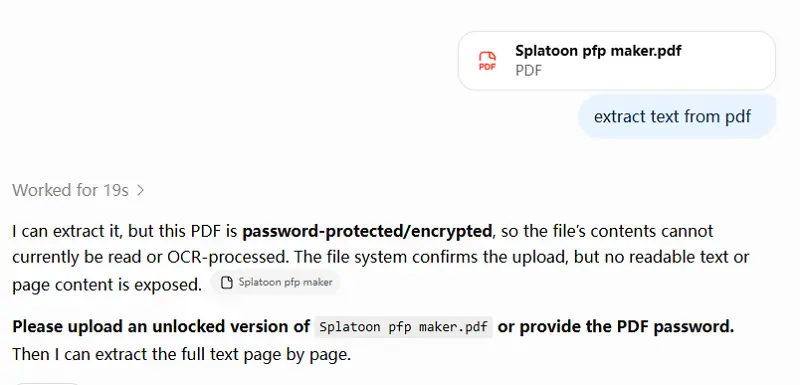
How to Fix:
1. Unlock the PDF file.
- Provide the opening password.
- Upload an unlocked version.
2. Prompt to extract text from the password-free file and copy-and-paste the text to anywhere.
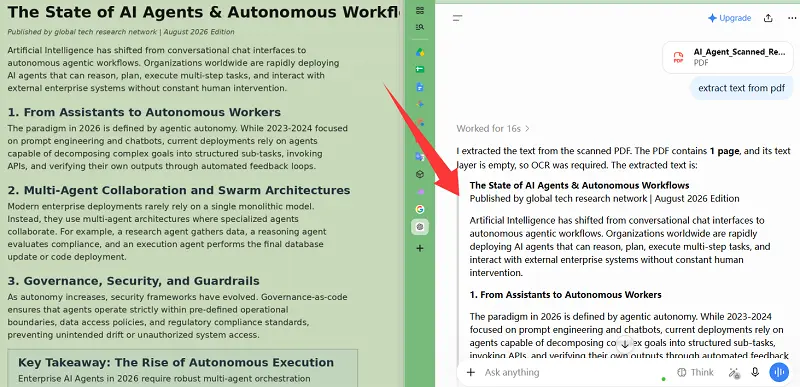
Notice: Do not attempt to bypass protection on a file you don't have permission to access.
Cause 6: Parsing and Processing Errors
Sometimes the file looks completely normal, but extraction still fails, usually due to an incomplete upload, a damaged PDF, an unusual internal structure, a document too complex to process cleanly, or a temporary system error.
How to Fix:
1. Re-upload the file.
- If that fails, re-export a fresh PDF from the original document.
- If it's scanned, run OCR.
- If it's very large, split it into smaller sections.
2. Extract each section separately.
FAQs on ChatGPT Can't Extract Text From Files
1. Does a bigger file always mean more extraction problems?
No. File size (MB) and text volume (tokens) are separate limits. A large, image-heavy file might have little text to extract, while a smaller text-dense file can hit the token limit faster. 2 million tokens is about to process 1.5 million English words, while code, tables, special symbols, and non-English languages usually consume more tokens.
2. Why does the extracted text come out in the wrong order?
This usually points to a complex layout—multi-column text or tables—rather than a missing text layer. Re-exporting from the original document or converting to DOCX/TXT often fixes it.
3. Is there another way to quickly extract text from documents more accurately?
Yes. Especially for private and sensitive documents, a local PDF text extractor is needed, for example, the iBoomto AI PDF documentation tool for Windows.
- Free to download it to your Windows device. Then, you can drag and drop your PDF files to it.
- Prompt like turning the PDF to a text-only Word version.
- After seconds, the text will be extracted no matter if it is a scanned PDF or an image-based PDF.
- Free to export it to your device.
Was this helpful?
Thank you for your feedback!