
Why Is My PDF Not Opening? Easy Fixes for Common Issues
- The File is Corrupted
- The PDF Has Permission Restriction
- Your PDF Reader Has Glitches
- Your App Doesn’t Support the PDF File
You may have been able to open a PDF before, but only to find that it suddenly won't open. Your PDF reader might display an error message explaining why it can't be opened a new PDF file you imported, or simply show a general message like, "We can't open this file." There are many possible cases of PDF not opening. Below are the most common ones and their proven fixes.
These fixes are shown using Windows. If you're on macOS or another operating system, the options and steps are sightly different.
The File is Corrupted
When you download an incomplete file or encounter writing corruption while exporting a PDF from a program, the damaged PDF will not open.
How to Fix PDF Not Opening?
1. Repair the PDF with a repair tool. ILovePDF and PDF24Tools are popular choices with built-in PDF repair tools.
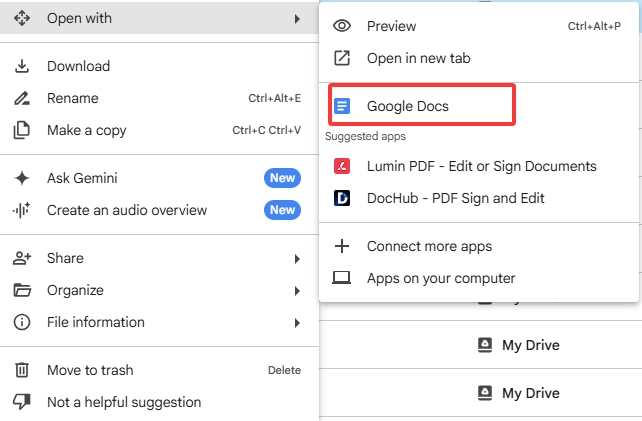
2. Print to PDF: You can re-save the file into a new PDF and open the new file to check whether the issue still exists. For example, upload the PDF to Google Drive, go to Open With > Google Docs, and save it as a new file to open.
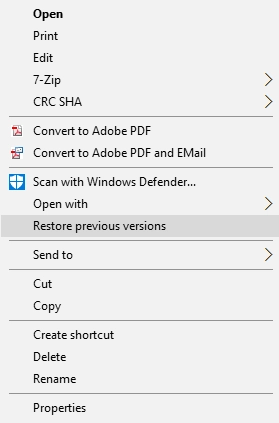
3. Back to an earlier version: If you could normally open the PDF before, you can also restore the previous version of it. On Windows, right-click on the file, select Restore previous versions or Properties > previous versions. Then choose the version you successfully opened the PDF in.
The PDF Has Permission Restriction
You should receive a notification like “the PDF file is protected” or “Access Denied” when you’re in this situation. The best practice is to obtain access permission from the person who sent the file.
Your PDF Reader Has Glitches
PDF not opening will also be caused by an outdated or malfunctioning AI PDF reader. Follow the steps below to troubleshoot the problem until it is solved.
How to Fix PDF Not Opening?
Step 1. End all background tasks and run the program again.
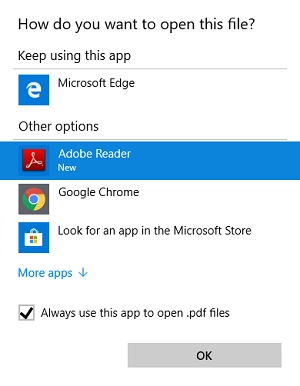
Step 2. Right click on the PDF and select Open with. Click Choose another app if your PDF reader isn’t listed in the box. Select the program, and check Always use this app to open .pdf file. This will set a PDF file association with your preferred reader app.
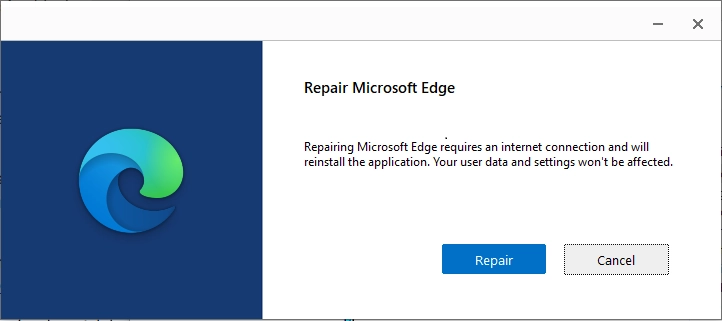
Step 3. Repair the app from the Windows Control Panel by right-clicking it and selecting Change > Repair if the issue persists.
Step 4. Make sure that you’re using the latest version of your PDF reader. Check for updates and install the newest release if one is available.
Step 5. If the problem still exists, switch to a more reliable PDF reader.
Your App Doesn’t Support the PDF File
If you need to open a PDF in a program that doesn't natively support the format, converting the PDF to a compatible file format is a practical workaround.
Causes and Fixes for Other Common PDF Not Opening Issues
Why Adobe Acrobat Won’t Open PDF?
Acrobat-specific PDF opening issues can stem from security restrictions, software conflicts, corrupted installations, or an outdated version of Acrobat. Follow the troubleshooting steps below to diagnose and resolve the problem.
- Update to the latest Acrobat version.
- End all tasks in Task Manager and restart Acrobat again.
- Scan the PDF file with the antivirus software on your computer. If you’re confident with the file, uncheck the Enable Protected Mode at startup option and continue.
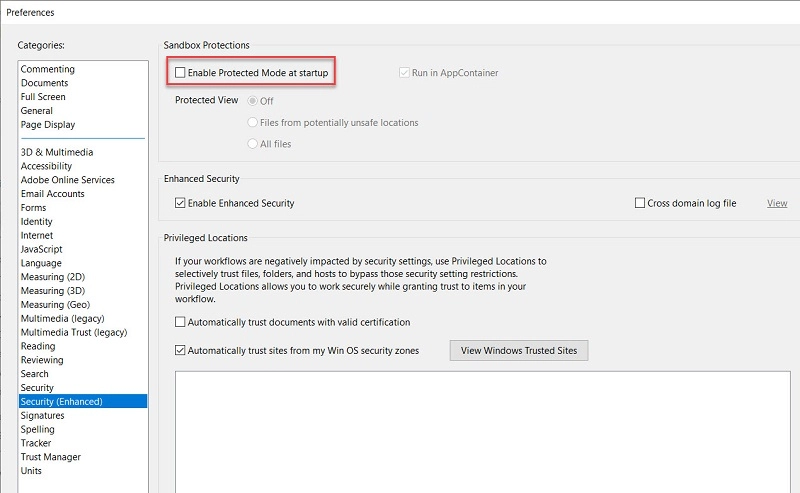
- Select Properties > Compatibility tab and check the box to run this program in compatibility mod.
Why PDF Will Not Open in the Chrome Browser
Modern browsers such as Google Chrome can open PDF files by default, allowing you to view PDFs without installing a dedicated PDF reader. However, if Chrome is misconfigured, browser extensions conflict, the cache is corrupted, or the browser is outdated, PDFs may fail to open in a tab. Try these fixes:
- Go to chrome://settings/content/pdfDocuments. Set the default behavior to Open PDFs in Chrome.
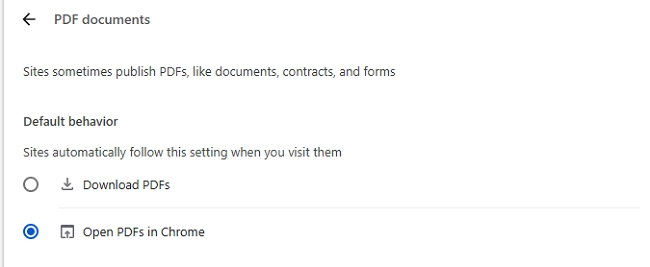
- Clear your browser's cache and cookies.
- Update Chrome to the latest version.
- Restart Chrome and try opening the PDF again.
- If the PDF not opening in chrome issue persists, disable all installed extensions and test the PDF again. If it opens normally, re-enable the extensions one by one to identify the conflicting add-on.
- If none of the above works, the PDF itself may be damaged. Re-download the file and try opening it again, as a corrupted PDF may fail to open in Chrome.
The causes of a PDF not opening vary depending on the device, browser, or PDF program you're using. A simple fix may solve the problem immediately, or you may need to try several troubleshooting methods before finding the one that works. This guide covers the most common causes and proven solutions to fix PDF files that won't open. Work through the methods now!
Was this helpful?
Thank you for your feedback!