
How Can I Print a Secured PDF with or Without a Password?
- Scenario 1: You Have Permission and Know the Password
- Scenario 2: You Have Permission but Don’t Know the Password
When a document's creator or owner sets a print restriction or password on a PDF, standard readers block the print function by default. This protects copyright, confidential information, or content that shouldn't circulate via copies or prints. So how do you print a protected PDF document when you have a legitimate need to?
Scenario 1: You Have Permission and Know the Password
Open the file in Adobe Acrobat, go to Properties > Security, and enter the password. This removes the print restriction so you can print normally.
Scenario 2: You Have Permission but Don’t Know the Password
If you're authorized to print the file but the password is missing or forgotten, try these approaches:
Way 1. Contact the file owner. Ask for a printable version or request that they lift the restriction.
Way 2. Recreate the file without restrictions. Convert the PDF to images, or print it through a virtual printer, like Google Drive Print to PDF, Microsoft Print to PDF, or Save As in Mac Preview, to generate a fresh, unrestricted PDF.
Example:
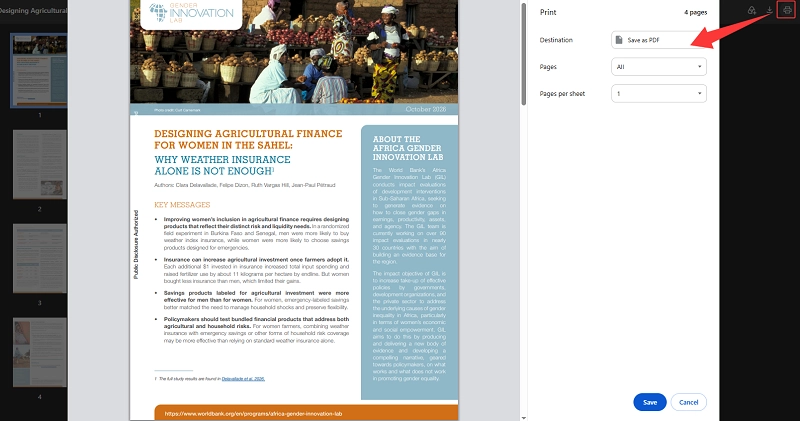
Upload the PDF to Google Drive, open it, and click the Print icon.
If you want an unrestricted copy that you can print anytime. Upload the PDF file to Google Drive and open it. Click the Print icon. In the print preview interface, click the print icon again, and save it as a new document on your device.
Way 3. Use an online unlock tool. If you've forgotten the permissions password, upload the PDF to a reputable unlocking service (such as Smallpdf, iLovePDF, etc.) to remove the password, then download and print it.
Example:
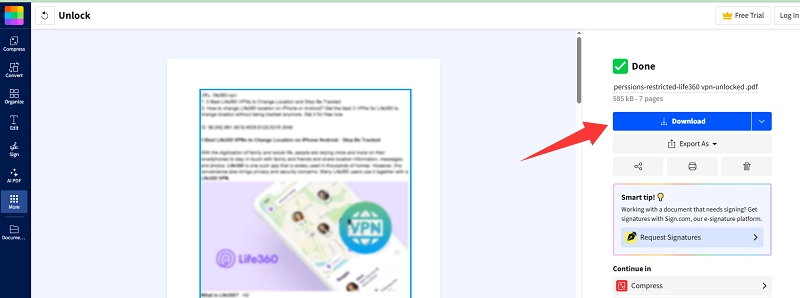
Choose PDF files and upload them to Smallpdf. Click the button to unlock them in seconds without passwords. Download the unrestricted PDF files and delete the files' backup.
Way 4. Use permission-management software. With proper authorization from the file owner, you can use the tools built for managing PDF permissions to lift the print restriction before printing.
Way 5. Screenshot for short documents. For just a few pages, use a screenshot tool, like Snipping Tool or a keyboard shortcut, to capture each page as an image, then print the images.
Tips:
If a PDF's print restriction was set by the file owner, bypassing or removing it without authorization may violate copyright law or the terms you agreed to when accessing the file. Always get proper authorization before unlocking or printing a restricted document.
Was this helpful?
Thank you for your feedback!