Login
Login
No fluff. Just free, new stuff. (Demos, credits, updates and the occasional thing we're proud of)
Thanks for subscribing! Stay tuned for demos, credits, and updates.

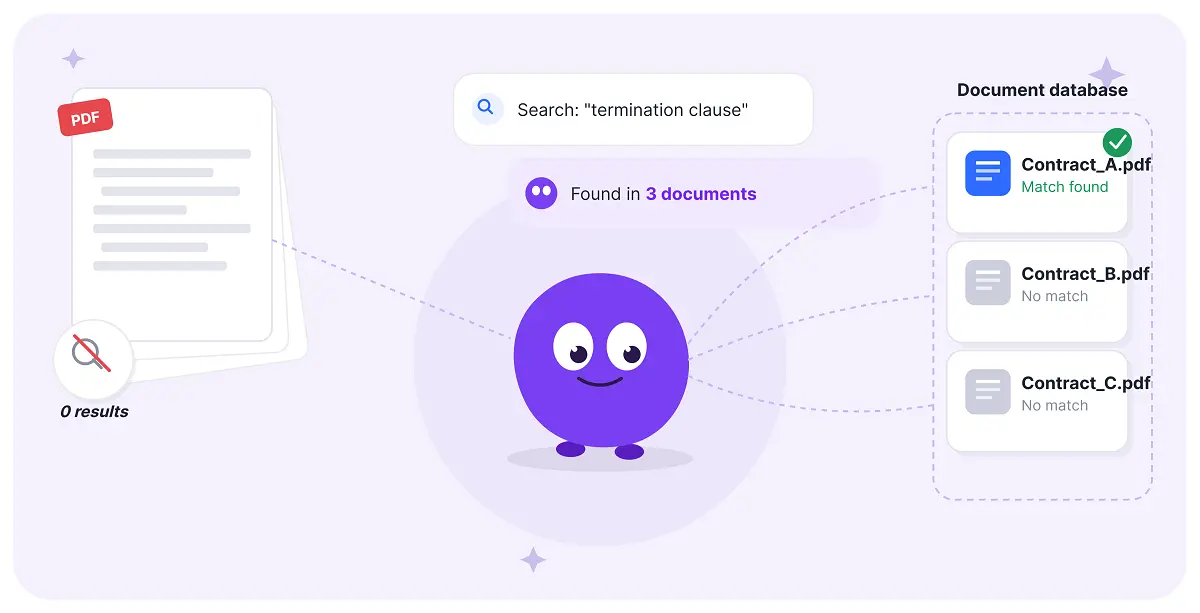
You can usually use the Ctrl+F shortcut or a direct search option in your PDF reader to search for specific names, numbers, or other keywords in a document. This saves significant time in acquiring key information, compared with reading through the entire document manually. However, a PDF may be non-searchable at times, depending on how it was created or for other reasons. When you enter a word, it shows no results, though you have already seen a matching instance on the current pages.
An additional step is required to work with these non-searchable PDFs normally. And this post shows you how to make a PDF searchable. Check out the details.
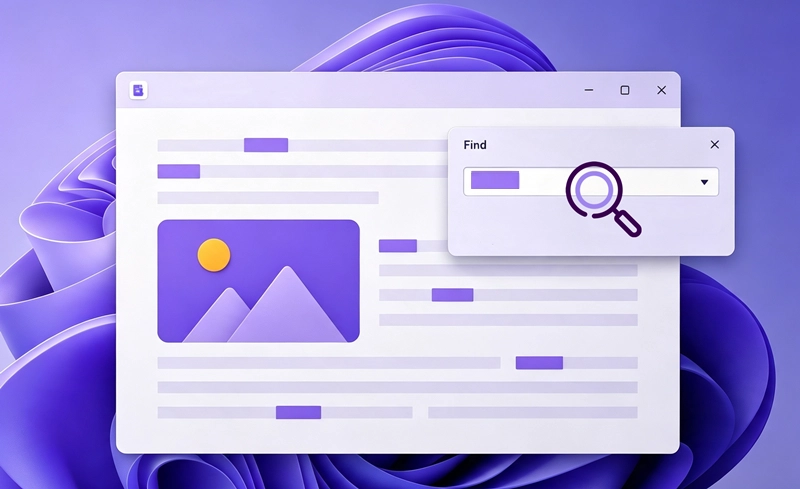
A searchable PDF is typically created from a text file and contains a real text layer. You can use the Search & Find feature to quickly locate and highlight specific words or phrases. With the appropriate permissions, you can also copy and edit the text.
When a PDF is created from physical paper scans, screenshots, or images, the text content may look normal but it is actually embedded in the image layer rather than stored as actual characters. Without extra processing, it is impossible to search, select, and edit the file.
There are various ways to verify practicability. Try this method on a Windows PC:
Step 1. Open the PDF file with your regular PDF reader.
Step 2. Move your cursor to any word or line and click on it. Alternatively, you can type a word displayed in the PDF into the built-in Search & Find textbox.
Step 3. If the PDF is searchable, the target word or phrase will be highlighted. Otherwise, the whole page will be selected.
How do I make a searchable PDF document? A common method is to apply text recognition to the PDF. Most PDF software and online services use OCR (Optical Character Recognition) technology to convert image-based content into machine-readable text, making it searchable, selectable, and editable. Continue reading to learn about some of the best PDF OCR tools and how to use them to make a PDF document text searchable.
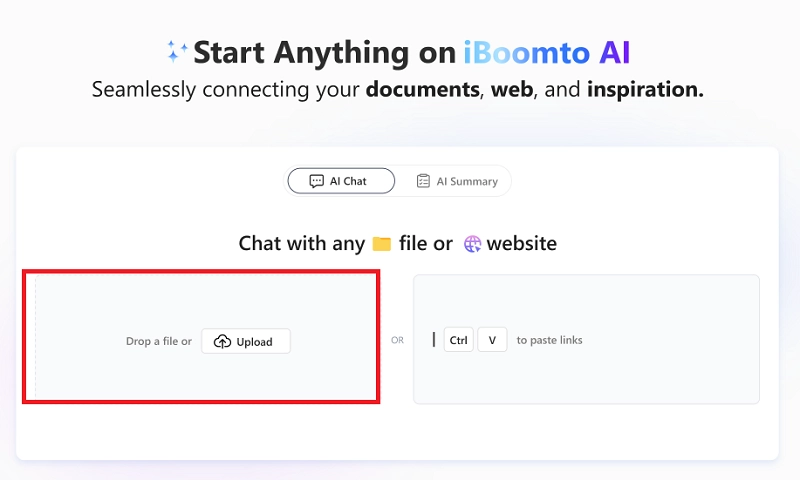
iBoomto AI is a modern AI document assistant designed for everyday tasks. It handles a wide range of PDF needs and brings everything into one smooth workflow. The built-in OCR models can automatically process PDFs to make them searchable.

 Free Download Now
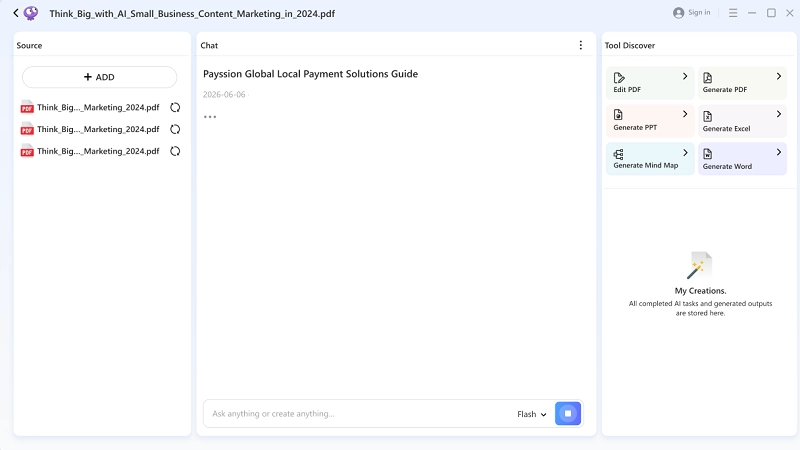
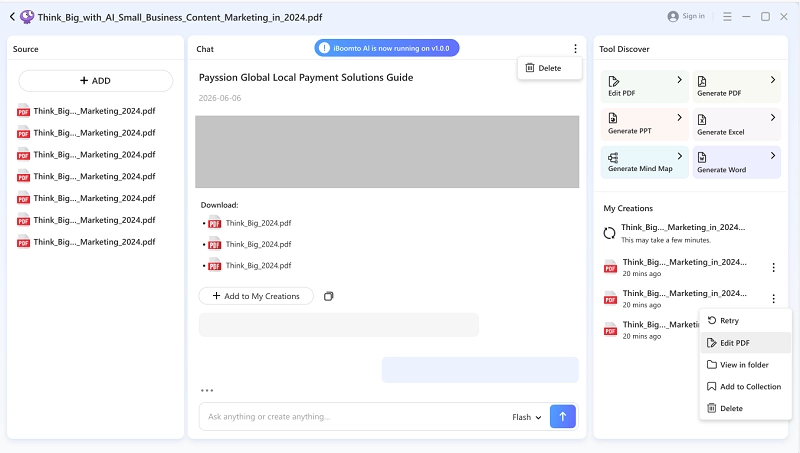
iBoomto is designed for ultimate goals, not just turning PDF into readable text via OCR. Whether you need to quickly find specific information, extract data from lengthy or complex layouts, or copy text for further use, simply chat with the PDF, and iBoomto helps you get the job done efficiently.
How to Use iBoomto to Make a PDF Searchable
Step 1
Step 2
Step 3
Step 4
Step 5

 Summarize My PDF Free
Adobe Acrobat is loaded with an OCR tool in its software, which enables users to create searchable files from scanned PDF documents. The OCR processing feature isn’t included in the free version. You need to purchase the Pro subscription to unlock its full capability. If you need to make a PDF searchable for custom editing and organization, Acrobat is a good choice.
The following shows how to make a PDF searchable with Acrobat.
How to Use Acrobat to Make a PDF Searchable
Step 1. Add the PDF file to Adobe Acrobat Pro.
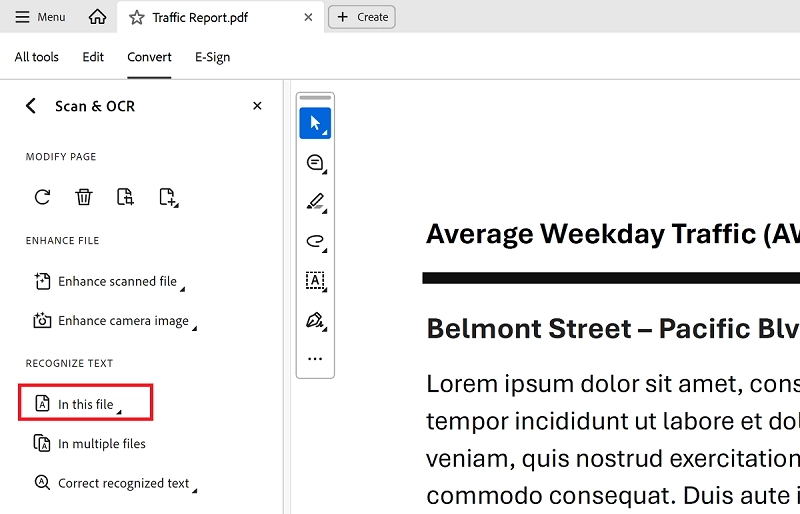
Step 2. Head to Tools in the top menu bar or find Scan & OCR on the left panel.
Step 3. Go to Recognize Text > In This File.
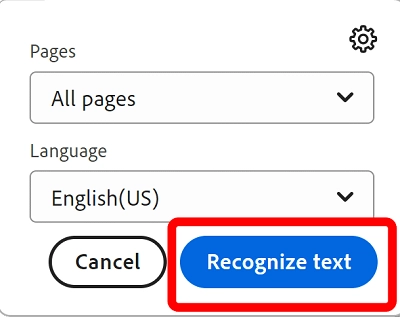
Step 4. Set the correct language for your PDF file, then click Recognize Text to apply OCR.
Step 5. Save the searchable text layer.
When it comes to small PDFs without sensitive information, an online PDF OCR tool is qualified. It skips over the step of software installation and runs on a browser quickly. iLovePDF is a unified PDF tool website and has a dedicated OCR PDF page where you can generate searchable PDFs from scans easily. The process is fairly simple.
How to Use iLovePDF to Make a PDF Searchable
Step 1. Visit the page: https://www.ilovepdf.com/ocr-pdf
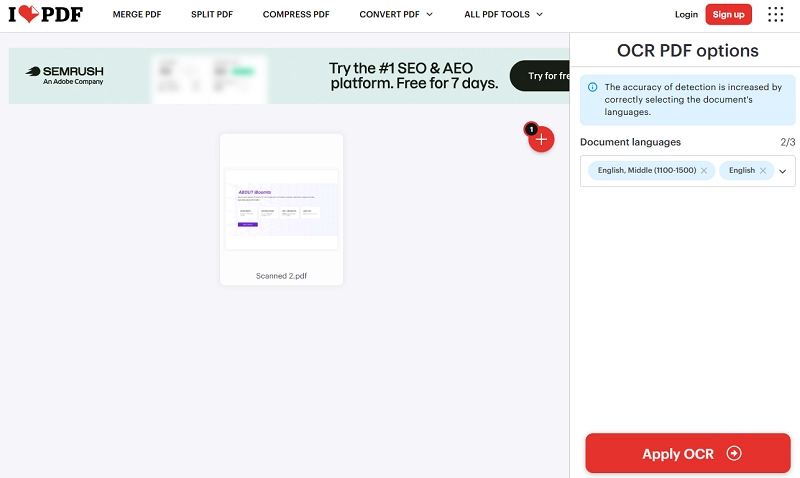
Step 2. Select a PDF from your device. The tool also connects to Google Drive and Dropbox for file importing.
Step 3. Pick the right language for the document. Then click Apply OCR.
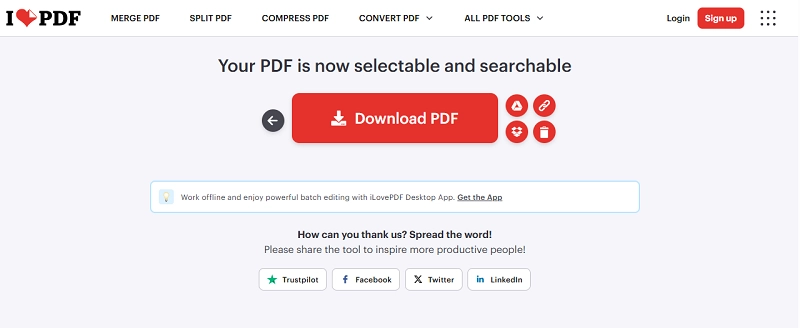
Step 4. Once finished, you will be directed to a new page. Click Download PDF to save the searchable PDF and find anything with the quick search option of your PDF reader.
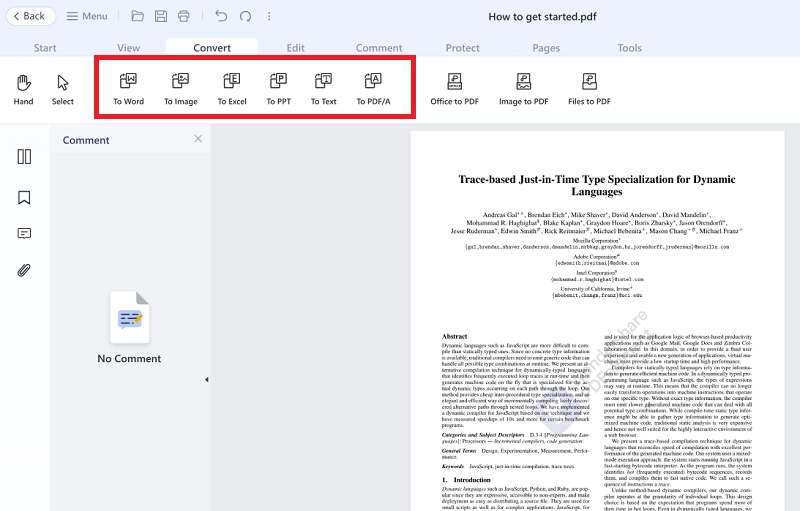
Sometimes, a PDF may contain selectable text yet still be difficult to search because of complex layouts, unusual fonts, or other formatting issues. If text recognition doesn’t work as expected, converting the PDF to a more accessible format, such as DOC or TXT, can be a practical alternative.
iBoomto AI includes a versatile PDF editor that lets you convert PDFs to Markdown, Word, TXT, and other popular document formats in just a few clicks.
The Bottom Line
This post has explained how to make a PDF searchable. In most cases, you need OCR to recognize the text and create a searchable text layer. If the PDF is already text-based but certain content still can’t be found, the issue may be caused by fonts, encoding, or complex layouts. Then converting the PDF to a plain text file can make the content easier to search and access.
Whether you need OCR or PDF-to-text conversion, iBoomto provides the right tools to help. Download iBoomto AI for free and give it a try.