
How to Split a PDF into Separate PDF Files: 5 Easy Ways
- How to Split a PDF File into Separate PDF Files in 5 Ways?
- How to Split a PDF into Separate PDF Files of Personalized Ranges?
- PDF Splitters’ Conclusion of Their Features
Splitting a PDF doesn’t always mean the same thing. It matters how you want to split a PDF file into separate PDF files. You can split a PDF document by one file per page, a file every few pages, custom ranges, chapter-based pages, or files that have a maximum size limit. Be clear about your demand first and go directly to the right match. This article provides quick guides, both online and offline, for each PDF splitting situation, as well as a comparison of the various PDF splitters. Read on.
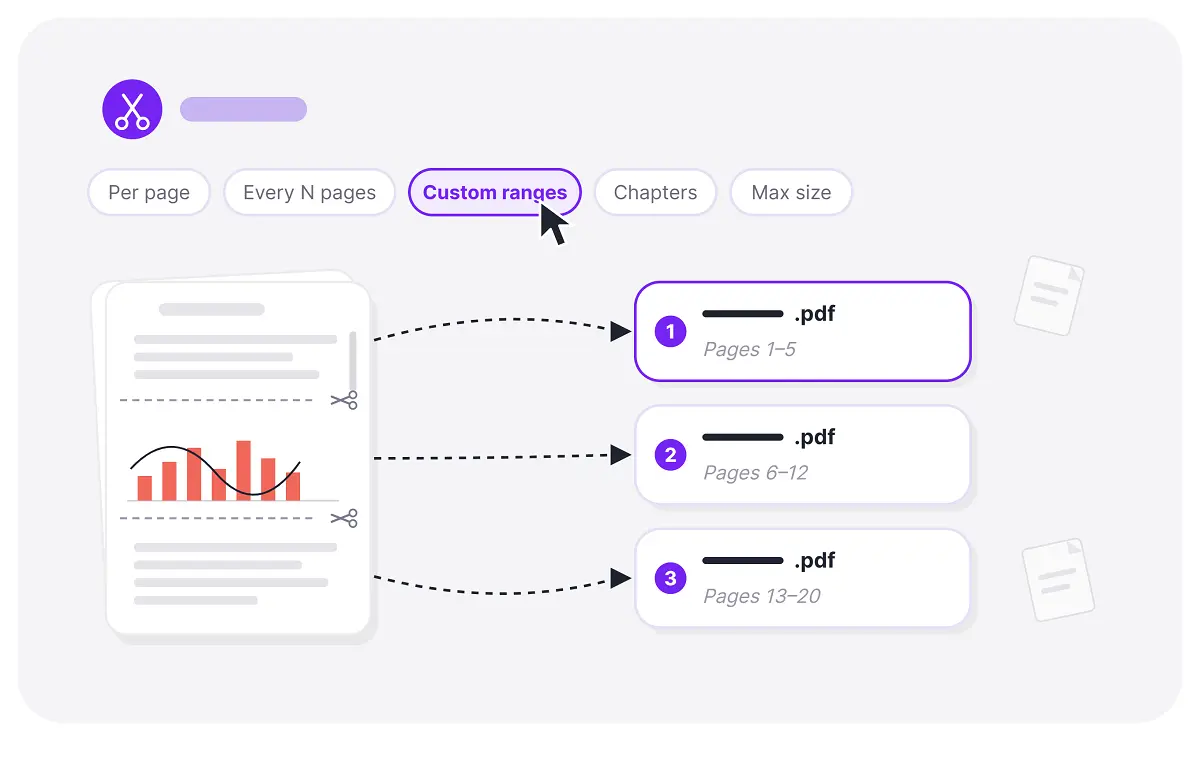
How to Split a PDF File into Separate PDF Files in 5 Ways?
Before starting, check 3 attentions in advance:
- Save a copy of the original PDF, especially when it contains annotations, forms, signatures, or bookmarks.
- Unlock the PDF if it is password-protected and permission-restricted.
- Keep in mind that online tools are suitable for occasional handling of non-sensitive files, whereas offline tools are better suited for large files, confidential documents, or frequent batch processing.
Way 1. Split Every PDF Page Into a Separate File
When every page of a PDF is an individual invoice, contact, test paper, resume, receipt, or certificate, this method helps to extract all pages into separate files.
Online: iLovePDF
1. Open iLovePDF > Split PDF > Upload your PDF.
2. Choose Range > Extract all pages > Click on the Split button.
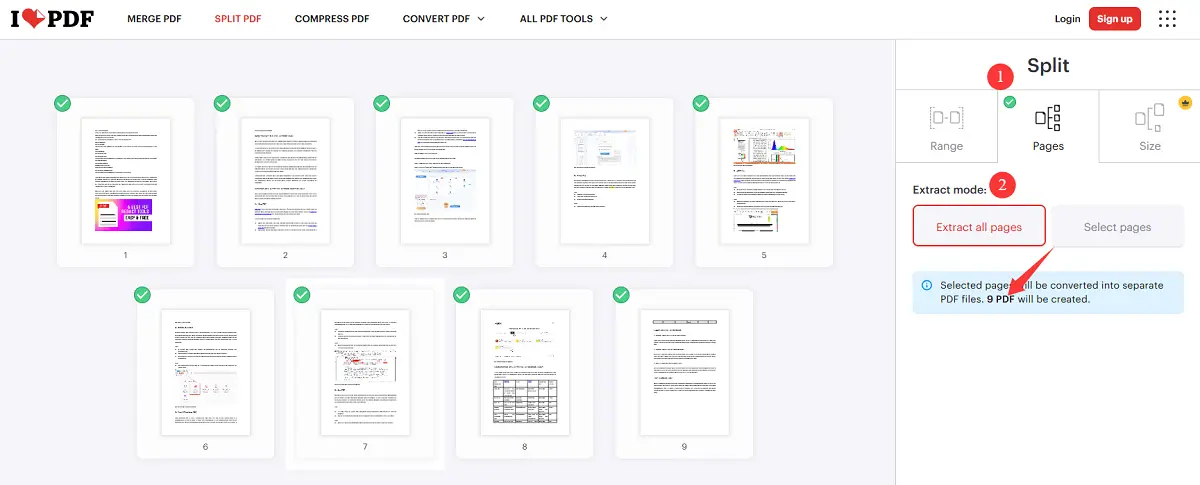
3. The ZIP file containing one PDF per page will be auto-exported to your device.
Besides splitting all pages into separate PDF documents, iLovePDF can fulfill the above 5 listed split demands.
Offline: PDFsam Basic
1. Download and install PDFsam Basic on your device.
2. Open Split in the navigation list > Select the PDF from your device.
3. Check the "Split by every page" and the split settings. Also, you can choose the output folder, compress the files, discard the bookmarks, and generate PDF documents with a name prefix before outputting.
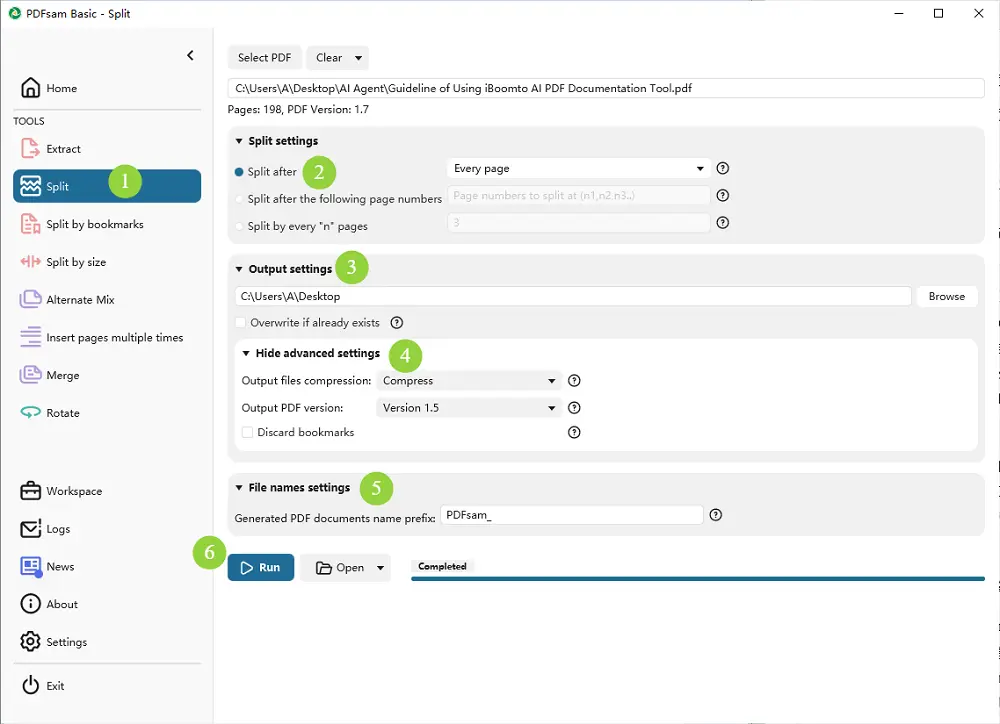
4. Click Run, and the PDF will be split into one file, one page, and auto-saved in seconds.
PDFsam Basic works locally on Windows, macOS, and Linux. It does not require file uploads and has no watermarks or stated file-size limit. It can also split PDFs by a maximum number of pages, file size, or top-level bookmarks.
Way 2. Split a PDF Every Few Pages
If you have a long, large document, such as 80 pages of training materials, a 100-page textbook, or a 120-page scanned archive, and you need to split it into smaller PDF files of 10 or 12 pages each for easier sharing, the following steps will help you do so with ease.
Online: PDF Guru
1. Go to PDF Guru > Click on the Edit & Sign > Split PDF > Upload a PDF to its working space.
2. At the top editing bar, change the number of “Split after every N page” to your need.
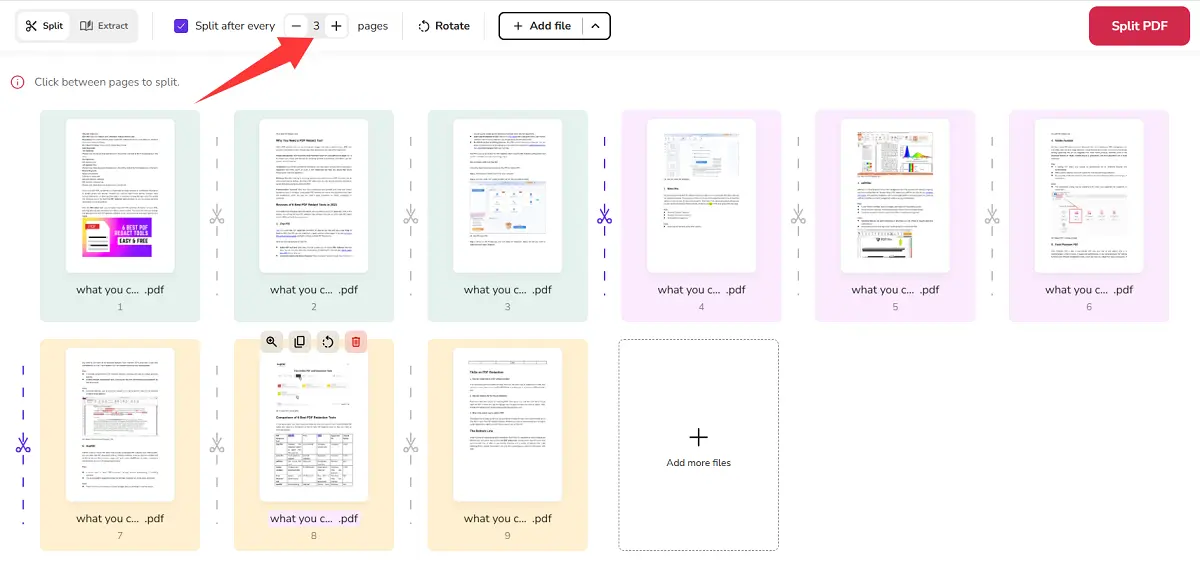
3. After it splits the PDF, you have to enter your email to download the result.
PDF Guru supports a predictable PDF splitting of a fixed page range, and it also allows a manual selection of page ranges.
Offline: PDFgear
1. Download PDFgear to your device. Click the Merge & Split > Split PDF > Add a file from local storage.
2. Click split mode > Choose the fixed range > Enter the page count > Select the storage location > Check the preview option if needed.
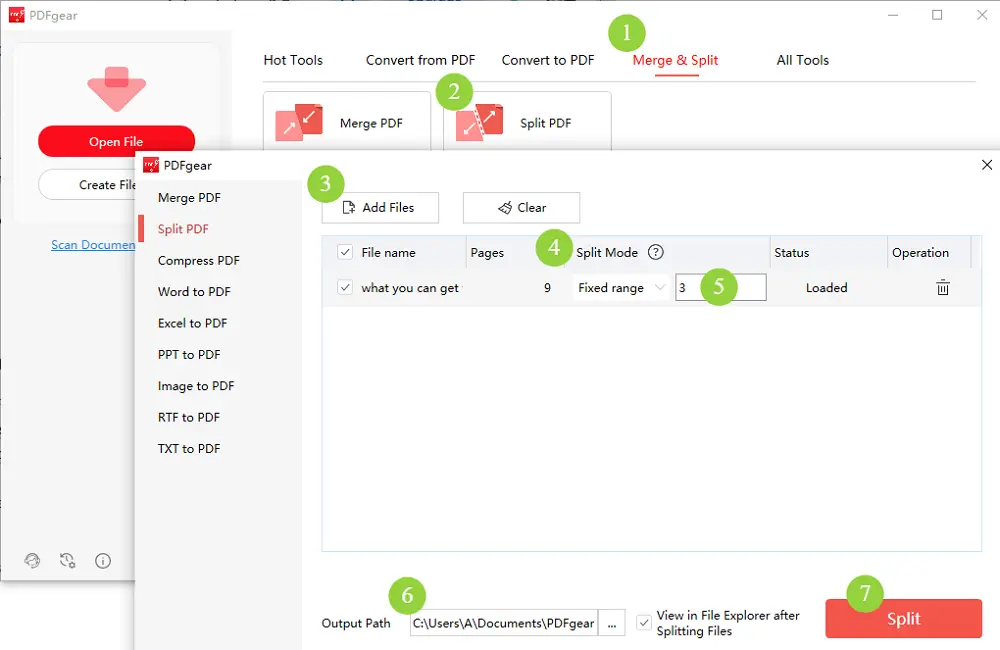
3. Confirm to split, and the PDF will be separated into N pages for every PDF file.
PDFgear can split PDFs by a custom page count as well.
Way 3. Split a PDF by Custom Page Ranges
If you only need to extract specific pages from a large file, such as contract attachments, a specific chapter from educational materials, or designated invoices or forms, then splitting the PDF and saving the selected page ranges as new, separate PDF files is the best solution.
Online: ihatePDF
1. Open ihatePDF > Find Split PDF in its navigation features > drag and drop your PDF file to the selection bar.
2. Confirm your choices of “Split by pages”, “Pick pages”, and highlight the page numbers you want. You can add one or multiple custom ranges as needed.
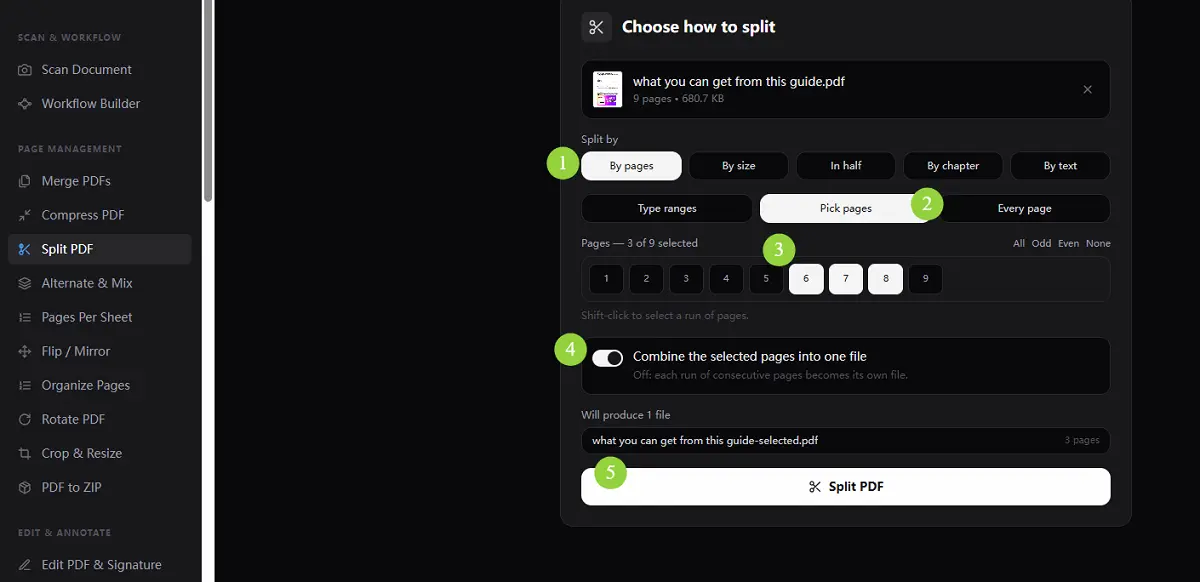
- Enable the button to make sure the selected pages are in one file;
- Or keep the button unable to ensure each run of consecutive pages becomes its own file.
3. Click to split the PDF and download it for free.
ihatePDF is a versatile, free, and easy-to-use PDF splitter that can meet almost all your demands.
How to Split a PDF into Separate PDF Files of Personalized Ranges?
Step 1
Step 2
Step 3
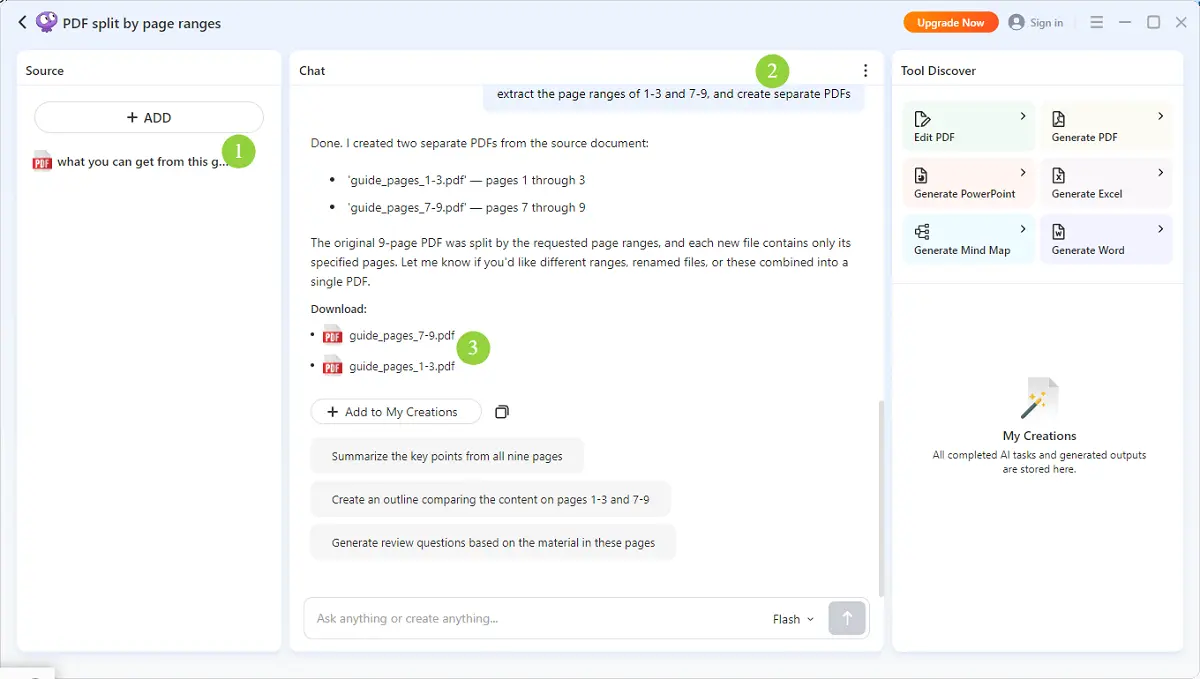
iBoomto AI is a creative and underestimated tool if it is for splitting PDF documents only. Explore more of what you want it to do, whether extract tables to Excel, turn PDF to Word, calculate data, answer questions across documents, etc.
Way 4. Split a PDF by Chapters Using Bookmarks
If you want to split PDF files so that each customized-level bookmark can become a separate PDF, such as e-books, research reports, technical documents, or product manuals, there are specific methods available for doing so.
Online: DigiParser
DigiParser is a simple, free, online PDF splitter that is suitable for separating a PDF based on its chapter structure.
1. Open the PDF in DigiParser > Resources > Free PDF Tools > Go down to the PDF Tools > Split PDFs.
2. Upload your PDF and set the bookmark level for splitting. FYI, 0 for top-level, 1 for second-level, and so on.
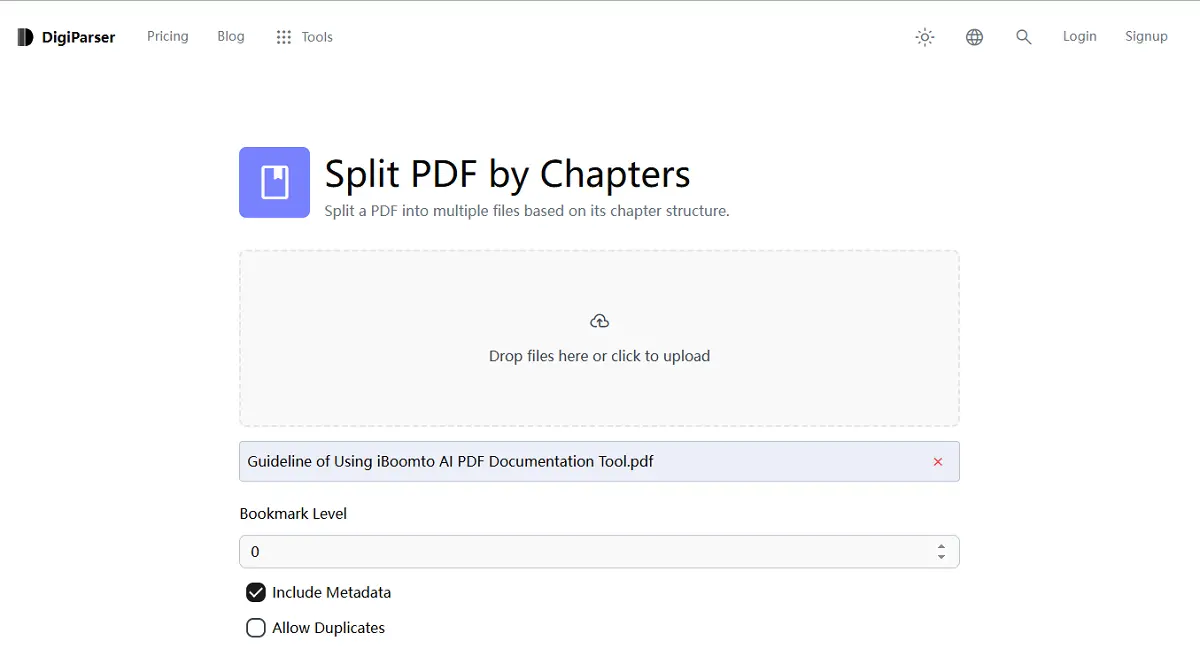
3. Check the following two boxes as you need:
- Include metadata: If checked, the original PDF's metadata will be included in each split PDF.
- Allow duplicates: If checked, multiple bookmarks pointing to the same page are allowed to generate their own separate PDFs.
4. Split the PDF by bookmark level and save each chapter as a new single PDF file.
Tips:
When splitting a bookmarked PDF, choosing the top-level bookmark can avoid fragmenting chapters excessively.
Offline tool: iBoomto AI & PDFsam Basic
Basically, the above-mentioned PDF splitters can handle this type of PDF splitting need. Thus, you don’t have to download more software, consuming the device memory.
For iBoomto AI:
Simply upload the PDF and ask iBoomto to split it by top-level bookmark or child-level bookmark, and save each of them as a separate PDF.
For PDFsam Basic:
Add the bookmarked PDF > Select Split by bookmarks > Choose the top-level bookmark depth, usually Level 1 > Choose an output folder > Run the split.
Note: A visible table of contents is not enough. The PDF must contain actual, clickable bookmarks in its document outline. If it does not, use custom page ranges instead.
Way 5. Split a PDF Into Files By Size (Under 10 MB Per File)
If you need to upload large files to platforms with size limits, such as email services, learning platforms, cloud storage, or recruitment systems, you can split the files by setting a size restriction as well.
Online: DeftPDF
1. Upload the PDF in DeftPDF > All Tools > Split > Split by size.
2. Recommended for large or scanned PDFs. Processing may take longer.
3. Set the maximum size to 10 MB. Check the “Allow compression” box if the original document contains high-resolution scans or large images. This can reduce the total number of output files, but always check that text and images remain readable.
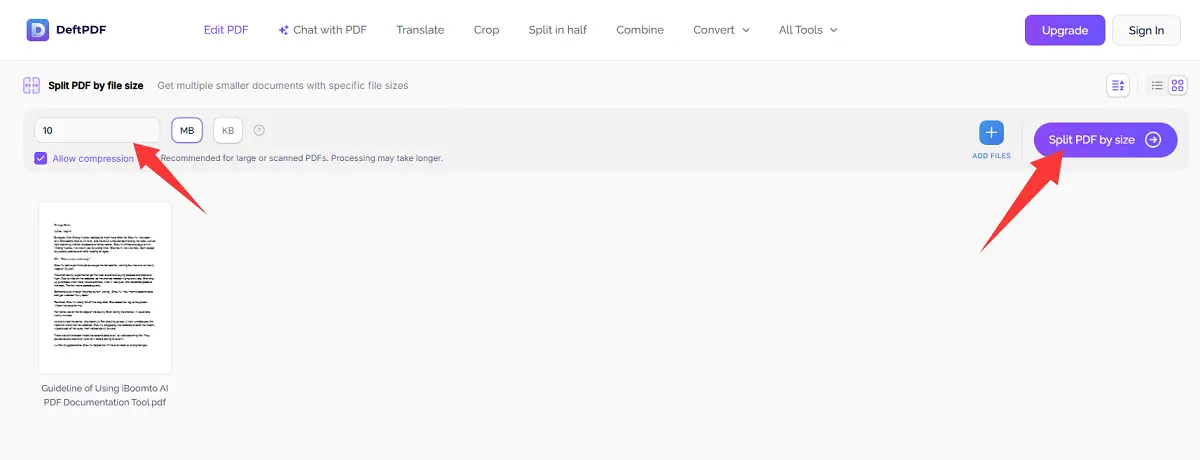
4. (Optional) If you are in need, you can add more files to process them in batch at once.
5. Split and download the output files.
Offline tool: PDFsam Basic, iBoomto AI
Similarly, iBoomto AI can split PDFs by setting an explicit file-size target because of it flexibility, which is the same as PDFsam Basic. And both of them can process the document locally rather than uploading it to a website.
Note and Tip: File-size splitting is not always perfectly exact. Fonts, images, metadata, and PDF structure can make an output file slightly larger or smaller than the target. If a portal enforces a strict 10 MB limit, aim for around 9 MB instead.
PDF Splitters’ Conclusion of Their Features
Here is a list of the features for the recommended PDF splitters. Have a clear look at them.
| Tool | Online/Offline | Every page | Every N pages | Custom ranges | top-level bookmark | Size limit of 10 MB | Batch Procession |
| iLovePDF | Online | √ | √ | √ | × | √ | × |
| PDF Guru | Online | √ | √ | √ | × | × | √ |
| ihatePDF | Online | √ | √ | √ | √ | √ | × |
| PDF Parser | Online | √ | √ | √ | √ | √ | × |
| DeftPDF | Online | √ | √ | √ | √ | √ | × |
| PDFsam Basic | Offline | √ | √ | √ | √ | √ | × |
| iBoomto AI | Offline | √ | √ | √ | √ | √ | √ |
| PDFgear | Offline | √ | √ | √ | × | × | √ |
Conclusion
There are 8 PDF splitters, including quick online tools and safe offline local choices, to solve the problem of how to split a PDF into separate PDF files for different usages. Your best PDF splitter depends less on the tool and more on the rule you need to apply. For quick online page-range splitting, iLovePDF is straightforward; for structured bookmark splitting, target-size limits, large files, and privacy-sensitive documents, local tools such as iBoomto AI are often the more flexible option.
Was this helpful?
Thank you for your feedback!