
How to Unencrypt a PDF in Firefox (with or Without a Password)?
- Way 1. “Print and Save” Workaround (Know the Password)
- Way 2. Online PDF Unlocker (Don't Know the Password)
You can unencrypt a PDF in Firefox and completely remove a password or restrictions from PDF files easily and fast. Open the file, enter the password if it's needed, and save it as a new copy. Here's what you can do step by step.
Way 1. “Print and Save” Workaround (Know the Password)
If you have an opening password but no permission to fill in the form fields, add highlights and annotations, and rotate the page direction in Firefox's built-in PDF viewer, you can try the tutorial below.
1. Drag and drop your file to Firefox's Window tab, or open the encrypted PDF with Firefox and enter the password.
2. Click the Print button in the Firefox PDF viewer toolbar (or press Ctrl + P on Windows / Cmd + P on Mac).
3. In the print settings window, choose Save to PDF (choose the PDF printer/destination instead of a physical printer).
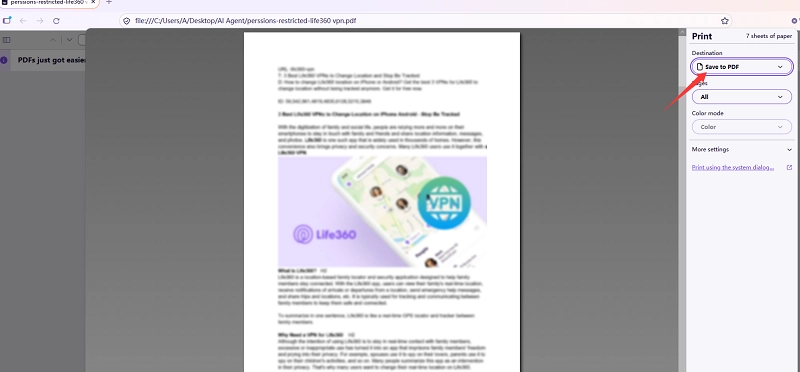
4. Click Save to generate a decrypted version of this PDF file.
Also Read: How to Print Password-Protected PDF Files >>
Tips:
If the PDF file only has a permissions lock that restricts printing/copying, the above method will produce an unrestricted copy on Firefox.
Way 2. Online PDF Unlocker (Don't Know the Password)
If the PDF file restricts printing, or you forget the password but own the file, way 1 doesn't work. Alternatively, you can remove the password and permission limitations of the PDF file from an online/offline PDF unlocker directly inside your Firefox browser.
1. Upload your encrypted PDF file to a safe and reliable PDF unlocker (ILovePDF, Smallpdf, etc.).
2. Click to start the decryption process.
3. Download the unencrypted PDFs and delete the file backup from the tool.
Tips:
Avoid uploading sensitive or private documents to third-party online servers. If your PDF documents run long, iBoomto AI is better for free use, with no size and no page account limitations.
If you need help with anything else about AI document processing, effective workflow, or local chat, feel free to contact iBoomto's support team.
Was this helpful?
Thank you for your feedback!