
How to Copy Text from a PDF: Every Method Explained
- How to Copy Text from a Selectable PDF?
- How Can I Copy Text from a Scanned or Image-Based PDF (OCR or Screenshot Required)
- Method 4: Third-Party Online PDF Text Extractor - iBoomto
- How Can I Copy Text from a Password-Protected or Restricted PDF?
- How to Copy PDF Text on Mobile (iPhone and Android)?
- How to Fix Formatting After Pasting?
- FAQ
How to copy text from a PDF? You can copy and paste text from a PDF in 4 steps. Open the PDF file, select the text, press Ctrl+C (Windows) or Cmd+C (Mac), and paste with Ctrl+V (Windows) or Cmd+V (Mac). If the text can't be selected, the PDF is a scanned image and needs OCR (Optical Character Recognition) first. If the PDF file is password-protected and needs to be opened with a password before text can be extracted. This guide introduces free and no-installation ways for every situation.
How to Copy Text from a Selectable PDF?
The PDFs created from Word, Google Docs, or websites usually contain real, selectable text.
Steps:
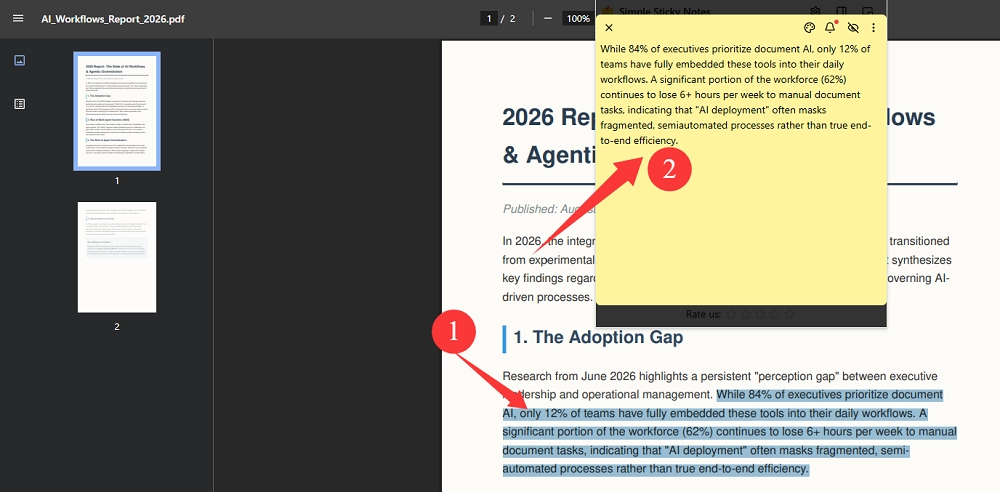
- Open the PDF in a PDF reader or a browser (Chrome, Firefox, or Edge).
- Click and drag your cursor over the text you need, or press “Ctrl+A / Cmd+A” to select the entire page.
- Copy the text with “Ctrl+C / Cmd+C”.
- Paste into your destination document with “Ctrl+V / Cmd+V”.
How Can I Copy Text from a Scanned or Image-Based PDF (OCR or Screenshot Required)
Why can't I copy text from a PDF? If the text can't be selected, the PDF is actually a scanned image or a true picture of a page. These are common with scanned contracts, old documents, or photos saved as PDFs. You need to convert the image into readable, copyable text using OCR software first.
Check the 4 free, installation-free ways below.
Method 1. Google Drive for Windows & Mac
Steps:
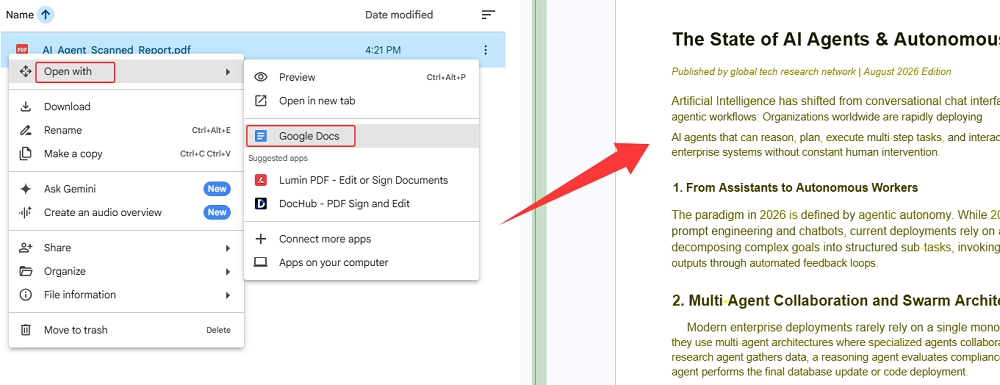
- Upload the PDF > right-click it and choose "Open with Google Docs". Google automatically runs OCR and creates an editable text version.
- Follow the steps in Method 1 to copy and paste it.
Method 2. Microsoft Snipping Tool + Text Actions (Windows 11 only)
Steps:
- Press “Shift + Windows Key + S” to screenshot the text you need in the image PDF.
- Click the screenshot preview notification to open the Microsoft Snipping Tool.
- Click the Text Actions button to select text in the scanned PDF screenshot or copy all text.
- Press “Ctrl+V” to paste it anywhere.
Method 3: Preview + Live Text (for Mac)
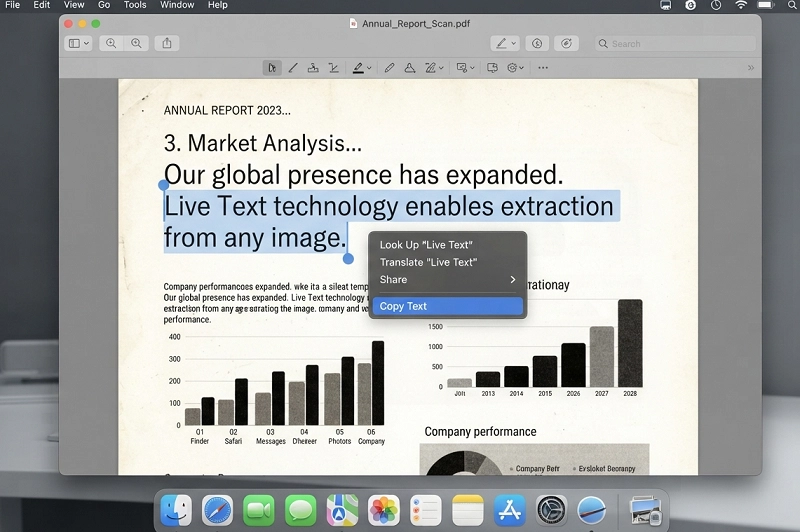
Apple Preview is a built-in application running on every macOS system. While Live Text is only available for macOS 12 Monterey or later, iOS 15 or later, and iPadOS 15 or later.
Steps:
Open the scanned PDF in the Apple Preview app > select the text > click the selection > choose "Copy Text" or press Command + C.
Method 4: Third-Party Online PDF Text Extractor - iBoomto
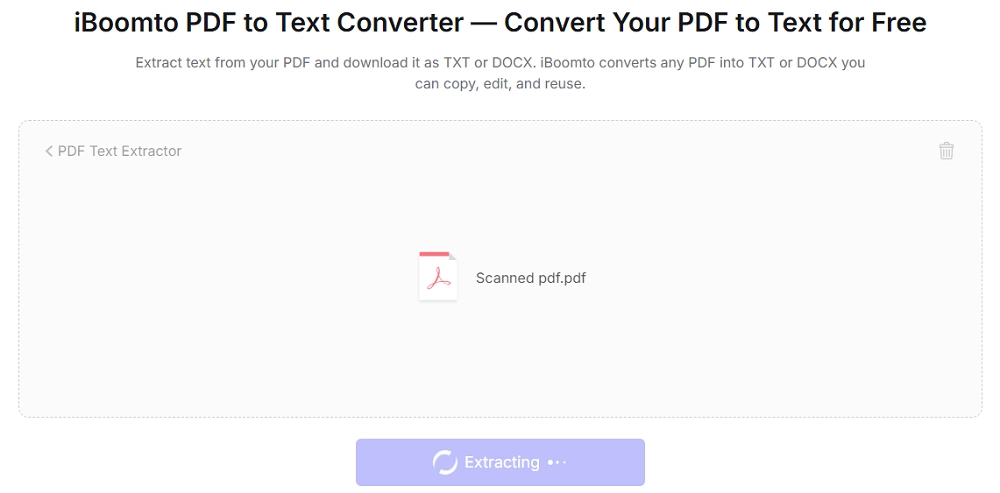
iBoomto has an online PDF text extractor for quick use. Everyone can extract text from a scanned PDF and download it as TXT or DOCX for copying, editing, and reusing.
Step 1
Step 2
Step 3
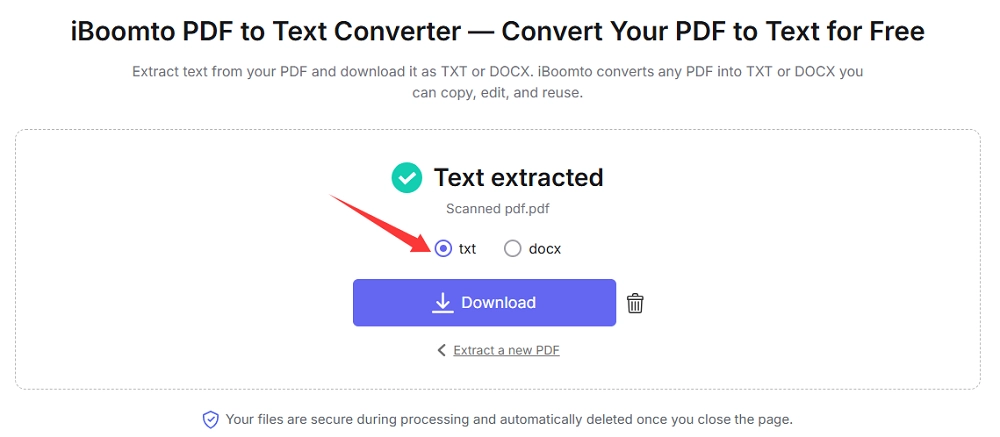
Step 4
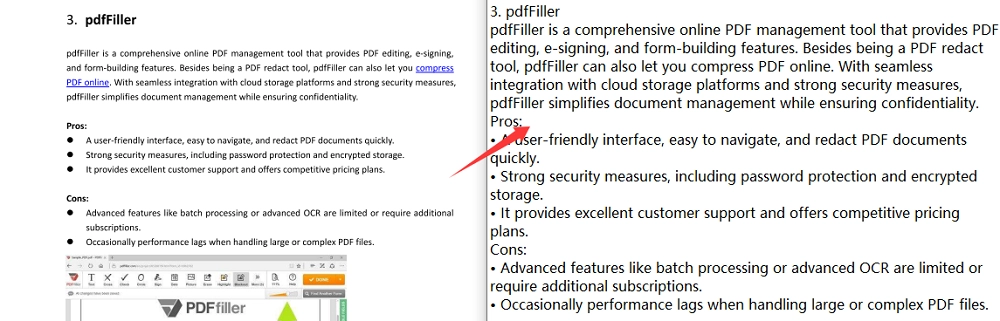
Except for the online tool, iBoomto AI has a desktop version for Windows, and you can deploy a local chat model on your device if needed. This is safer for extracting sensitive text from scanned PDFs.
How Can I Copy Text from a Password-Protected or Restricted PDF?
Can I copy text from a PDF that says "copying is not allowed"? Locked PDFs disable copying. The owner encrypted the PDF files with passwords or added restrictions to them. You need to unlock the PDF and remove the restricted permissions first.
What you can legally do:
Case 1: If you own the document, open the PDF with a password.
Case 2: If you have the authority to copy, edit, or print the PDF, ask them to resend an unrestricted version, or directly ask for the password.
Case 3: If you are the owner or have the permissions and you can view the file but forgot or are too bothered to ask for the permission password, you can
Way 1.
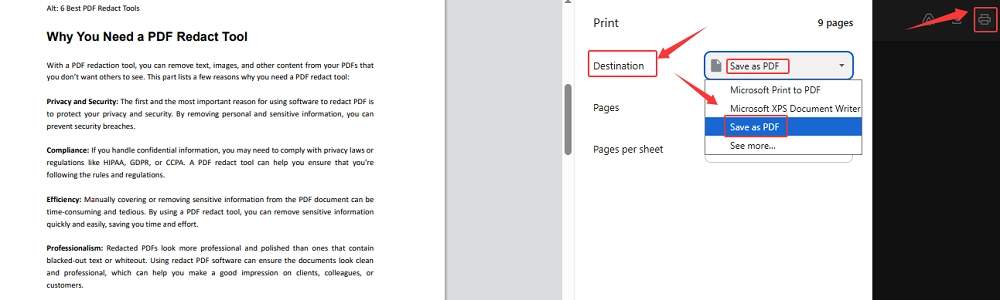
- Open the locked PDF via a web browser.
- Ctrl + P on Windows or Cmd + P on Mac > Click the Print icon.
- Select “Save as PDF” or “Microsoft Print to PDF” in the Destination Settings.
- Click Save or Print, and you’ll get an unrestricted version.
Way 2.
- Use a free online PDF unlocker to remove the permission restrictions. Here, take iBoomto PDF Unlocker for example.
- Open the tool and drag the locked PDF to it (enter the view password if it has), and it automatically eliminates the restrictions.
- Download the unlocked PDF and then copy text from it.
How to Copy PDF Text on Mobile (iPhone and Android)?
For iPhone
1. Copy text from a selectable PDF:
Open the PDF in the Files app or a browser > tap and hold on the text until selection handles appear > drag to select > then tap "Copy".
2. Extract text from a scanned PDF:
Use the Notes app's built-in scanner with "Live Text" (limited to iOS 15 or later) to recognize text in images automatically.
For Android
1. Copy and paste text from a PDF:
Open the PDF in Google Drive or Chrome > tap and hold the text > drag the handles to select the text range > then tap "Copy".
2. Copy text from a PDF image:
Google Lens (built into the Google app) can extract text from any image, including PDF screenshots, for free.
How to Fix Formatting After Pasting?
Copied PDF text often pastes with random line breaks, extra spaces, or lost paragraph structure. To quickly fix it in Word, follow the steps below.
1. Paste without formatting: Successfully copy the text from PDF and click Ctrl+Alt+V.
Note: If you already pasted normally and the formatting is already messy, press Ctrl+Z to undo first and re-paste using the unformatted method above.
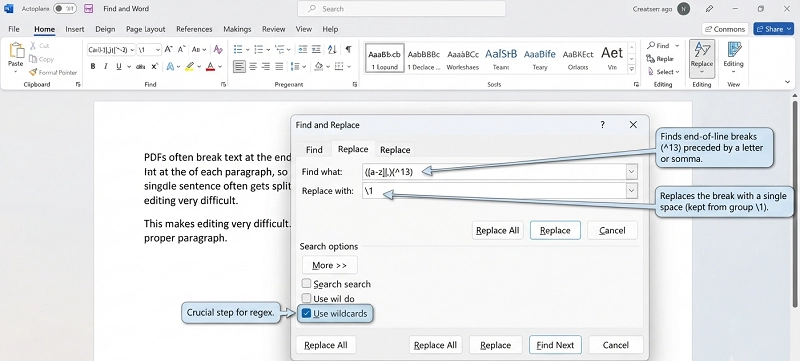
2. Fix the line breaks inside sentences: Click “CTRL+H” to open Find & Replace > enable "Use wildcards"> input
- Find: ([a-z]|,)(^13)
- Replace: \1
FAQ
Was this helpful?
Thank you for your feedback!