
How to Make a PDF Not Password Protected? - Proven Methods
- Method 1. Remove Password Protection with Google Drive
- Method 2. Remove Password Protection with Software
- Method 3: Make a PDF Not Password Protected Online Free
- Can I Make a PDF Not Protected Without Knowing the Password?
The methods for removing password protection from a PDF depend on whether you know the password. If you have the password for your own file and hope to remove it for more convenient access, try one of these methods:
Method 1. Remove Password Protection with Google Drive
Step 1. Go to Google Drive and sign in.
Step 2. Upload the password-protected file.
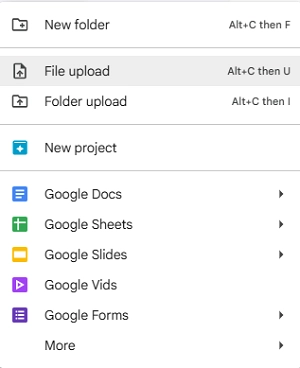
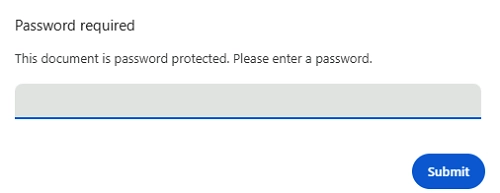
Step 3. Double-click the file twice to preview it and enter the password
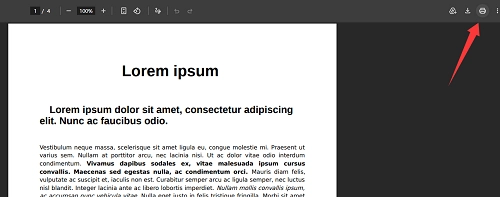
Step 4. In the top right, click the print icon. This will open a new window.
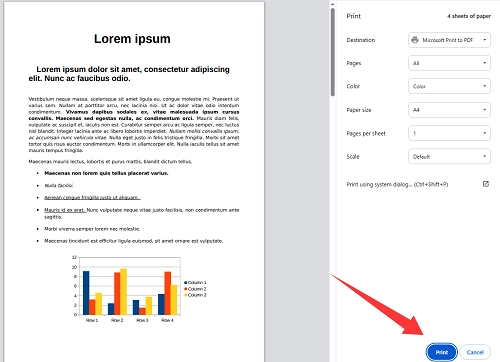
Step 5. Click Print. Enter a name for the file, choose a location, and save the unlocked version.
If you don't want to upload your PDF to a cloud storage service, you can still remove its password using Google Chrome. Simply drag and drop the PDF into the Chrome browser, then follow the steps above to save an unprotected copy.
Method 2. Remove Password Protection with Software
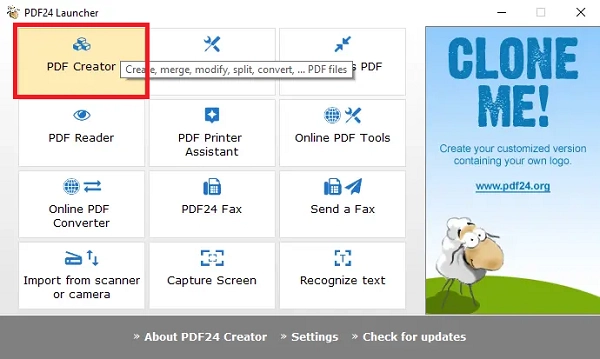
PDF24 is a free PDF toolkit for Windows that lets you remove passwords from PDFs. If you're prompted to enter a password every time you open a PDF, you can use PDF24 to save an unprotected copy.
Step 1. Open the PDF24 Launcher on your computer.
Step 2. Select PDF Creator and add your PDF file to the program.
Step 3. Enter the password for the PDF.
Step 4. Go to the Security tab in the side menu.
Step 5. Uncheck the option that requires a password to open the PDF.
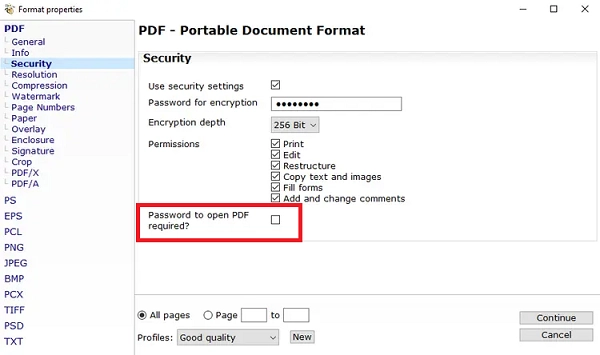
Step 6. Click Save or export to choose a new location for your unlocked file.
Method 3: Make a PDF Not Password Protected Online Free
Another instant free solution to how to remove a password from a PDF is iLovePDF. With this tool, you can easily make your document accessible without any restriction. Learn how to use it now.
Step 1. Open the Unlock PDF webpage on iLovePDF. Click Select PDF File and upload the target file from your device.
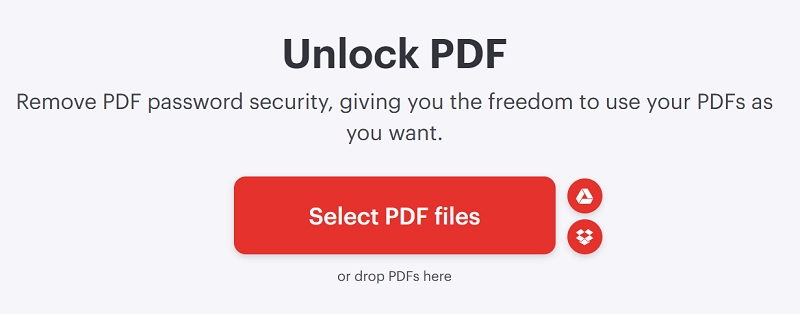
Step 2. If the file is encrypted with a password, you’ll be prompted to enter it first. Enter the correct password, then click the Unlock PDF button in the lower-right corner.
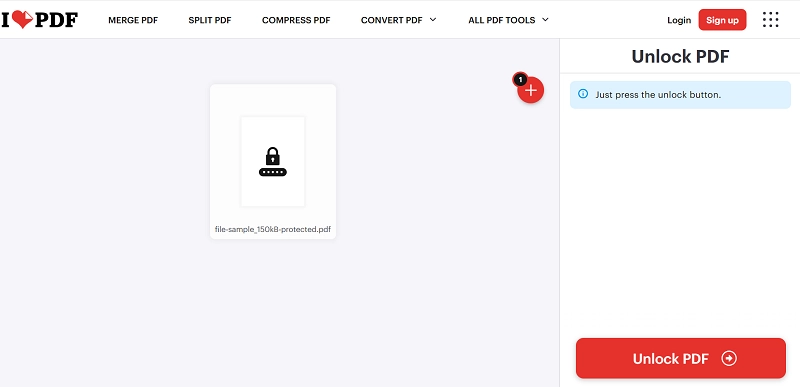
Step 3. Download the password-free new PDF to your device.

Can I Make a PDF Not Protected Without Knowing the Password?
Usually, the answer is no. For security reasons, most PDF software and online tools won’t let you remove a password without entering it first, especially if it’s the opening password. However, there are some exceptions. If you can already open the PDF but need a permission password to edit, print, or copy its contents, you may be able to remove those restrictions, and a dedicated tool such as Adobe Acrobat or PDF24 is helpful.
It’s all about how to make a PDF not password protected. You are recommended to remove a password after getting the owner’s permission. We do not encourage unauthorized password removal in any way.
Was this helpful?
Thank you for your feedback!