
How to Convert Bank Statement to Excel: 8 Methods Compared
- The 8 Ways to Convert a Bank Statement to Excel
- Method 1: Export Bank Statement to Excel from Online Banking Service
- Method 2: Convert Bank Statement PDF to Excel with Dedicated AI Converter
- Method 3: Convert Statement to Excel via Accounting Automation Platform
- Method 4: Convert Bank Statement PDF to Excel via General AI Chatbot
- Method 5: Online PDF-to-Excel Converter with OCR Features
- Method 6: Extract Tables from PDF to Excel via Online PDF Table Extractor
- Method 7: Get Statement Data from PDF via Excel's Power Query
- Method 8: Copy Statements from PDF and Paste Them to Excel
- Full Guide to Convert a PDF Bank Statement to Excel
Most online banking services offer a direct CSV, Excel, OFX, QBO, or QFX export for recent statements. For bank statements from a few years ago, you can only obtain them in PDF or a paper copy. To convert a bank statement PDF to Excel, whether it’s selectable text or a scanned image, you can pick proper options like a PDF to Excel converter, Excel's built-in Power Query, ChatGPT, and OCR combined with manual copy-and-paste.
The 8 Ways to Convert a Bank Statement to Excel
|
Method |
Best for |
Handles scans |
Reconciliation check |
Cost |
Setup time |
|
Direct bank export (CSV/OFX/QBO/QFX) |
Recent statements, no PDF involved |
N/A |
N/A |
Free |
1 minute |
|
Dedicated AI bank statement converter |
Batch files, scans, need reconciliation, want an Excel file |
Yes |
Yes, built-in |
Free–paid tiers |
30 sec–2 min |
|
End-to-end accounting automation platform |
Recurring monthly processing, want data pushed straight into your books |
Yes, varies by provider |
Usually, as part of review step |
Subscription |
Longer initial setup, then minutes per batch |
|
General AI chatbot (ChatGPT, Claude, etc.) |
One-off, short statement, willing to double-check manually |
Yes, with limits |
No — manual only |
Free–subscription |
2–5 min + manual checking |
|
Generic online PDF-to-Excel converter |
Simple text-based table, not bank-specific |
Rarely |
No |
Free–paid |
1–3 min |
|
Online PDF table extractor (e.g., iBoomto) |
Pulling batch tables, selectable PDFs, technical/free-tool users |
Yes |
No |
Free (open-source) |
2–5 min |
|
Excel Power Query |
Single digital PDF, budget-conscious users |
No |
No |
Free |
5–10 minutes |
|
Manual copy-paste |
1–2 page statement, one-off use |
No |
No |
Free |
10–30 minutes |
Method 1: Export Bank Statement to Excel from Online Banking Service
Most banks let you export recent transactions as CSV, Excel, OFX, QBO, or QFX directly from online banking. If you are performing routine reconciliation for a single bank account without making adjustments and need to import the data directly into financial software like QuickBooks or Xero, this is the best approach.
Method 2: Convert Bank Statement PDF to Excel with Dedicated AI Converter
AI bank statement converters are built specifically for bank statement layouts using OCR and layout recognition technology. This can reliably handle scanned/photographed statements, password-protected PDFs, multi-page statements with repeated headers, non-standard bank layouts, and automatic balance reconciliation without manual checking.
Take DocuClipper as an example:
- Drag and drop the PDF from any bank, any layout, scanned or digital, with no template setup needed.
- The AI parses the document automatically, with no manual rules or column mapping required.
- Review the extracted transactions side-by-side against the original statement and correct anything flagged as a discrepancy.
- The tool reconciles automatically by comparing extracted transactions against the statement's opening and closing balance, flagging any mismatch.
- Export as .xlsx, CSV, or a bank-feed-ready format (QBO for QuickBooks, OFX for Xero, or CSV for Sage or NetSuite).
Method 3: Convert Statement to Excel via Accounting Automation Platform
Mature automated accounting platforms like Hubdoc can directly complete the whole process. Start from a PDF bank statement > AI + OCR extraction > convert to structured data in Excel > your review and edits > export to QBO or OFX or even use an API to import the data to accounting software.
Take Hubdoc as an example:
- Upload or email a statement to Hubdoc.
- After the transaction data are extracted, you can review and correct them online.
- Finally, Hubdoc can convert documents and the extracted data into CSV format and directly publish them to accounting software like Xero, QuickBooks Online, and Bill.com.
- This way is good for monthly statement processing. Review before publishing is necessary.
Method 4: Convert Bank Statement PDF to Excel via General AI Chatbot
You can upload a bank statement PDF directly into a general-purpose AI chatbot and ask it to extract the transactions into a table. This works reasonably well for a short, one-off statement, but it has real trade-offs.
- Data-leaking concerns.
- No automatic reconciliation.
- Length limits on scanned, multi-page statements.
Method 5: Online PDF-to-Excel Converter with OCR Features
General-purpose PDF-to-Excel or PDF-to-CSV tools can work on simple, text-based statements.
Take Smallpdf as an example:
- Upload the PDF.
- Choose a conversion method that supports basic conversion for selectable and editable PDFs, while the advanced OCR conversion is for scanned or image-based PDFs (OCR is a paid-tier feature).
- Click Convert and download the resulting Excel file.
- Open the file and manually check column alignment, headers, and number formatting before using it.
Tips:
These tools aren't trained on bank statement layouts; they're more likely to misread transaction columns and pull header rows into the data, and they don't reconcile the extracted total against the statement's balance.
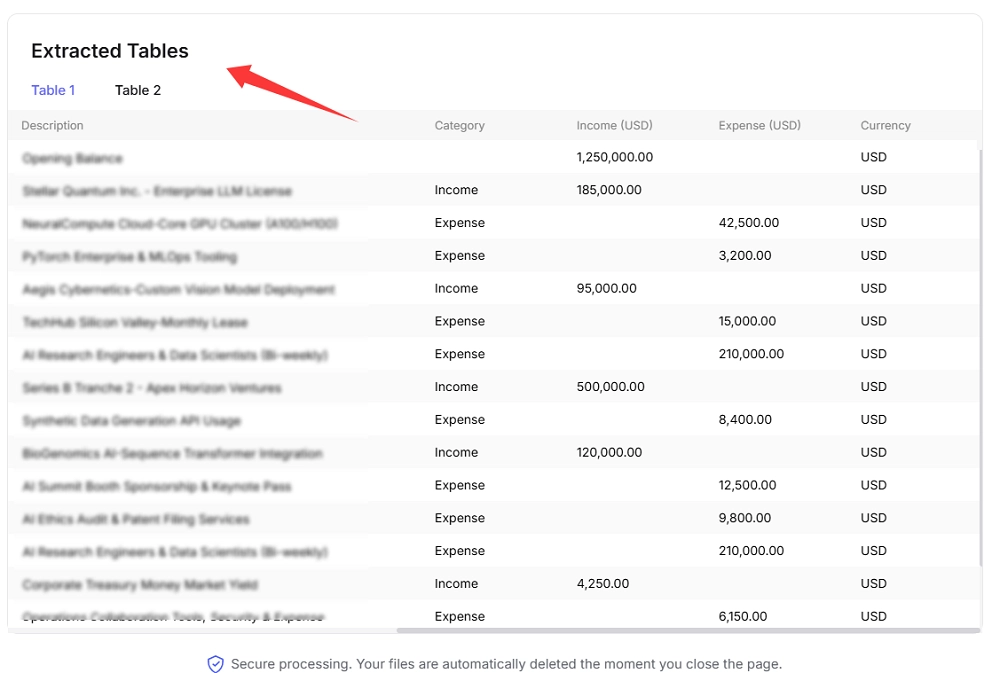
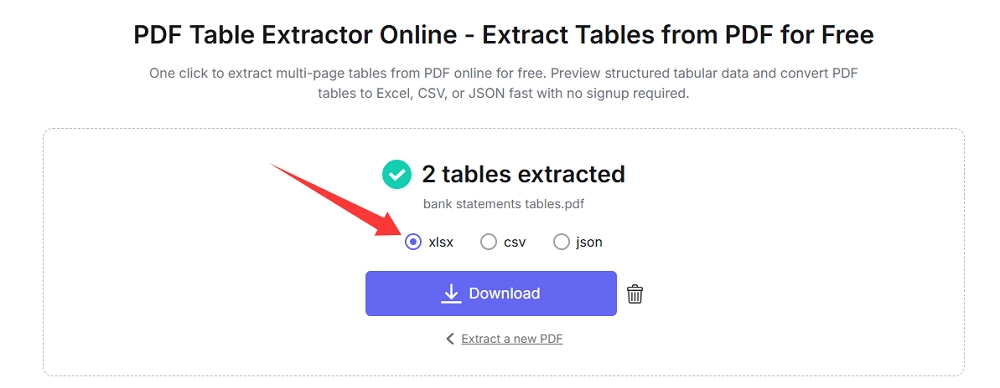
Method 6: Extract Tables from PDF to Excel via Online PDF Table Extractor
Online PDF table extractors are built to pull out just the table structure from a PDF, rather than converting the whole document. And they only work on selectable, text-based PDFs, not scans.
Take iBoomto PDF Table Extractor as an example:
Step 1
Step 2
Step 3
If you are not assured with online tools when dealing with sensitive data, iBoomto has a local chat version that enables you to deploy models on your device and extract tables from PDF to Excel faster, safer, and easier.
>> Run AI Model with iBoomto to Extract Tables from PDFs Locally
Method 7: Get Statement Data from PDF via Excel's Power Query
For a single, text-based, selectable PDF, Excel's native Power Query can extract tables directly:
- Open Excel > Data tab > Get Data > From File > From PDF.
- Select your bank statement PDF.
- In the Navigator pane, choose the detected table.
- Click Transform Data to clean up columns before loading.
- Load into a new worksheet.
This works well for one-off digital statements but tends to break on scanned files, multi-page statements with repeated headers, or non-standard table layouts.
Method 8: Copy Statements from PDF and Paste Them to Excel
This way is only recommended for a 1–2 page statement you'll use once. Not practical for scanned statements or anything beyond a couple of pages.
- Copy the transaction table from the PDF viewer and paste it into Excel.
- Manually fix misaligned columns and reformat amounts.
Full Guide to Convert a PDF Bank Statement to Excel
Steps:
- Check your bank's export options first. If a direct CSV/OFX download is available for the date range you need, use it and skip the rest of this guide.
- Identify your PDF type. Is it scanned or text-based? Choose the proper method for it.
- Verify the totals. After conversion, check that the sum of extracted transactions matches the statement's stated opening and closing balance.
- Fix number formatting. If amounts show a green error triangle or won't SUM correctly, they're likely stored as text. Fix it by selecting the column, using Data > Text to Columns > Finish, or wrapping the cell in a formula like =VALUE(SUBSTITUTE(SUBSTITUTE(A2,"$",""),",",""))
- Save and proceed to your next step: categorization, import into accounting software, or tax prep.
Was this helpful?
Thank you for your feedback!