Login
Login
No fluff. Just free, new stuff. (Demos, credits, updates and the occasional thing we're proud of)
Thanks for subscribing! Stay tuned for demos, credits, and updates.
PDF watermarks are commonly used to protect content, display ownership, reinforce branding, or mark document status. However, unwanted watermarks can interfere with document readability and presentation, which drives people to find an efficient tool to remove watermark from PDF.
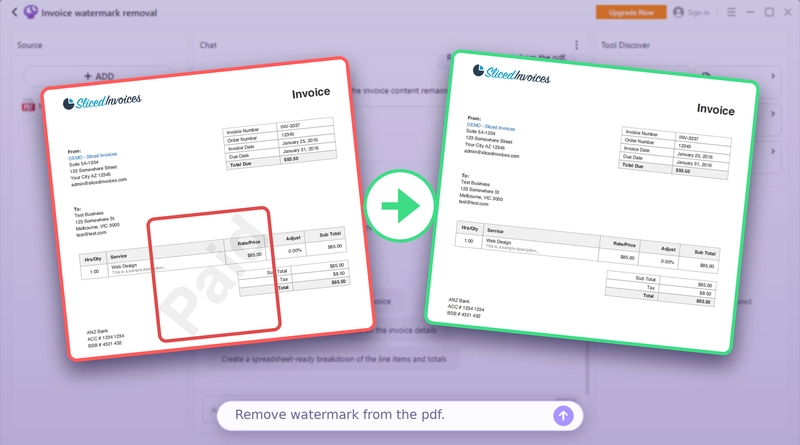
Not sure which PDF watermark remover to choose? This guide shows you how to remove watermarks from PDFs across platforms. Whether you’re using a desktop, mobile device, or online tool, here are easy methods for removing different types of watermarks.
Watermarks show up in PDFs in a few different ways. Let’s go through the main types.
Text watermark: A text watermark places readable words, numbers, or other readable characters on the page in a semi-transparent layer. People often use it to flag a document’s status or usage restrictions, such as “Draft”, “Sample”, or “For Review Only”, or to credit the owner, author, or copyright holder.
Image & logo watermark: An image or logo watermark is a graphic placed on the page instead of text. It might be a company logo, brand emblem, seal, or signature, positioned across pages. Businesses and professionals may use these watermarks to brand their documents, claim ownership, and discourage unauthorized reuse.
Stamp watermark: A stamp watermark imitates the look of a physical rubber stamp. It is typically a bold, bordered, or angled mark, such as “Approved”, “Paid”, “Confidential”, or “Void”, usually in red or blue ink. Stamps are often seen in approval and review workflows, where they show at a glance where a document stands.
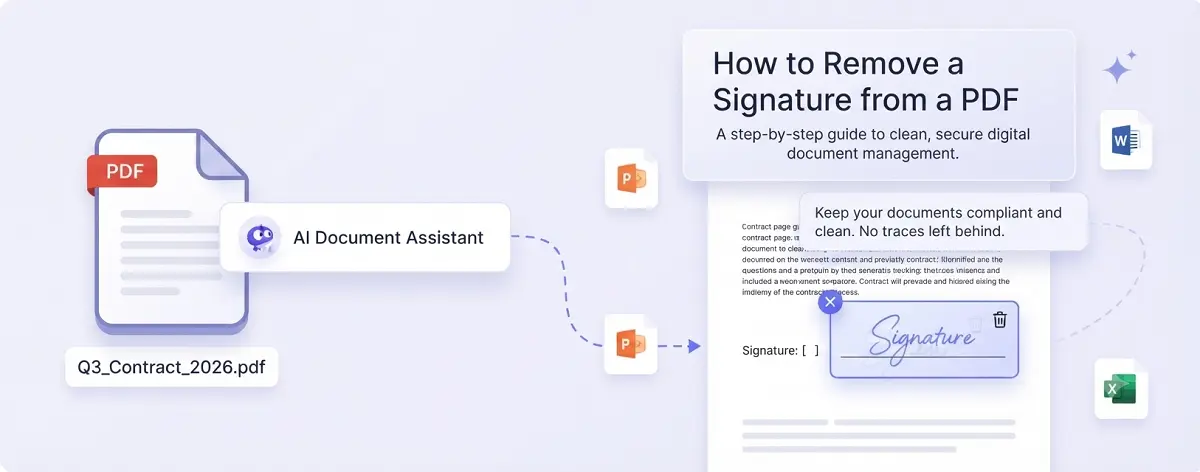
Signature watermark: A signature watermark adds a handwritten signature or personal mark to a document. It may feature an author’s scanned signature, a stylized name, or initials. It brings a personal touch while indicating who created or approved the document.

Removing a watermark can help in multiple situations. For any of these purposes, you can achieve it by PDF watermark removal:
Increase Readability: An intrusive watermark can cover the main content of a document and make it hard to read. Removing it leaves a clean page that is easier to read and print.
Share the Final Version: Whether it says “Draft” or “For Review Only”, a watermark leaves the impression that a document isn’t finished. If you want to make it a polished copy that is ready to send or publish, you can remove the watermark from the PDF directly without extra alteration.
Remove Outdated Labels: When document statuses change or your branding gets updated, old watermarks may no longer be relevant. Removing the outdated information keeps the PDF consistent with your current needs.
Reuse Templates: You can also save time on document preparation by removing watermarks from reusable templates. By doing this, you can keep the layout you need and adapt the content to suit each new project.
Whatever your purpose, there are multiple ways to remove a watermark from a PDF. The sections ahead cover simple methods that protect your content, eliminate ghosting, and keep your layout intact. Let’s go into the details.
If you work with sensitive PDFs or prefer a desktop workflow, an on-device tool powered by local LLMs is the safest choice. It runs entirely on your computer, doesn’t require file uploading, and never stores your data.
iBoomto AI is a free option for Windows users to carry out local document processing . It is built upon both cloud and local LLMs, enabling you to chat with PDFs for kinds of purposes in a private, secure environment. Powered by conversational AI, the desktop app can remove watermark from PDF free with ease. There is no need for manual adjustments or complicated settings. It completes this task via simple chatting. In addition to standard watermark layers, iBoomto AI can handle watermarks placed over detailed backgrounds or embedded into images by AI reconstruction. Download iBoomto AI to get started.

 Free Download Now
Step 1. Add the Watermarked PDF
Launch iBoomto AI and select the watermarked PDF from your computer.
Step 2. Ask AI to Remove Watermark from PDF
Describe how you want the AI to remove the watermark from your PDF. The more detail you give, the more accurate the result will be.

Step 3. Download the Unmarked File
Wait while the AI processes the document. Then it will send a watermark-free file in the chatbox. Download the cleaned file to your device.
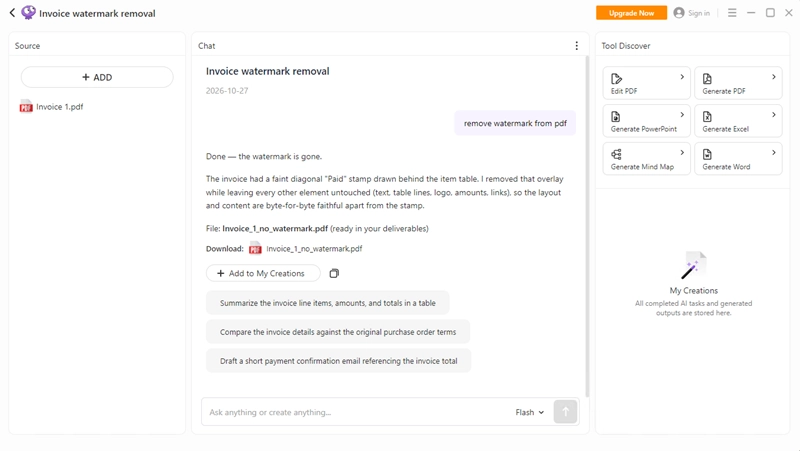
Step 4. Work with the PDF Further
You can keep working with the same PDF. iBoomto AI can summarize key points, extract data, answer questions about the content, and generate drafts. With the Local Chat tool, you can also run local LLMs for unlimited, free document processing. To use it, switch to Local AI, add your PDF, and choose a local model that runs well on your device and is capable of doing the specific task.
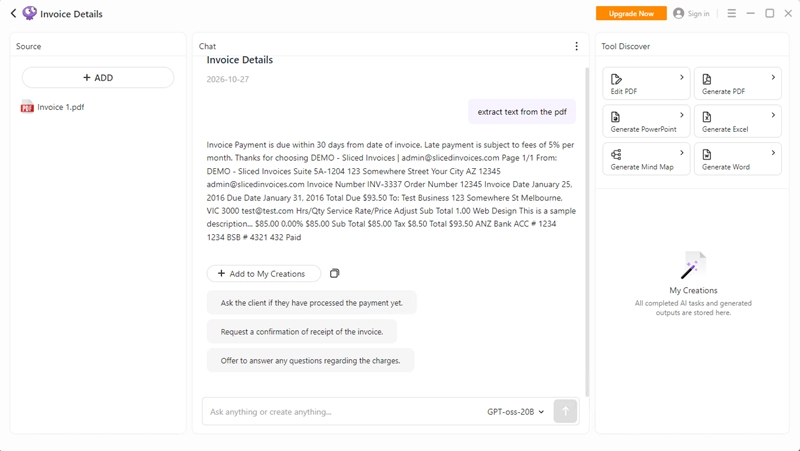
Here is how to extract text from a watermarked PDF using OpenAI gpt-oss-20b. Pick the right model and enter the prompt: extract text from the PDF.

The AI responds quickly to your commands, just as it does in the Chat tool. Copy the extracted text and use it in other projects.
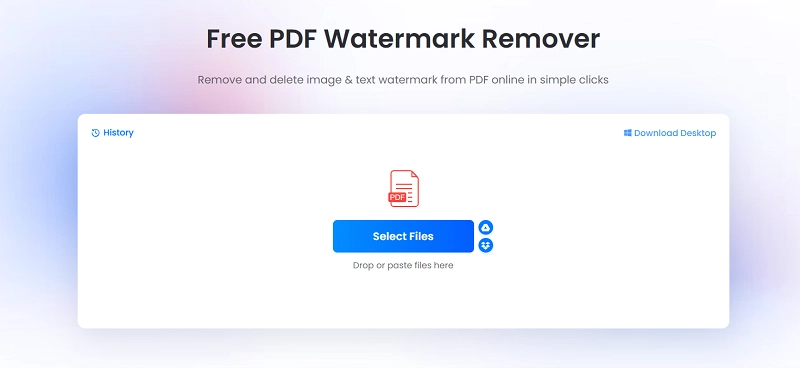
If your PDF has no sensitive content, an online remover is the fastest route. LightPDF Free PDF Watermark Remover needs no installation and has a clean, easy-to-use interface. You can remove a watermark from a PDF online for free in just a few clicks using the tool. Check out the process.
Step 1. Go to the tool page: https://lightpdf.com/remove-watermark
Step 2. Click Select Files and add the watermarked PDF to the workspace.
Step 3. LightPDF offers Auto and Manual modes. Use Auto mode to detect and remove watermarks throughout the document, or choose Manual mode to erase watermarks from specific areas on selected pages.
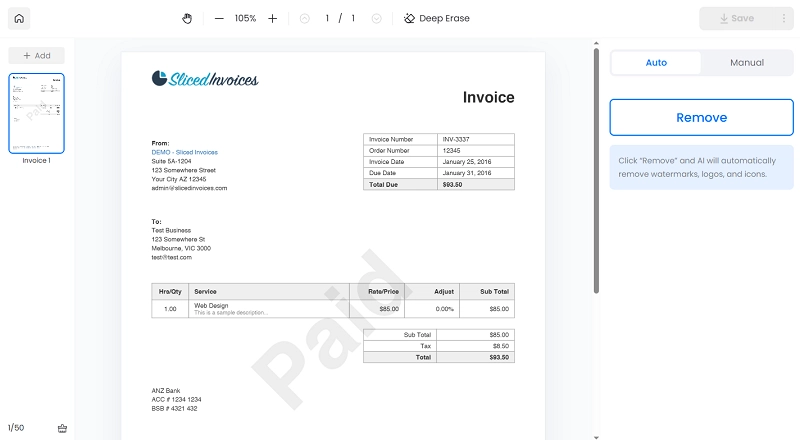
LightPDF also features AI-powered Deep Erase, helping remove watermarks even from complex backgrounds and scanned PDF pages.
Also Read: How to Make a PDF Searchable >>
For Mac users, Adobe Acrobat Pro offers a straightforward way to remove watermarks from PDFs. Its built-in editing tools let you remove many types of watermarks while preserving the document’s original layout and details. Follow the steps below to remove watermarks from a PDF on macOS and get a clean, distraction-free document.
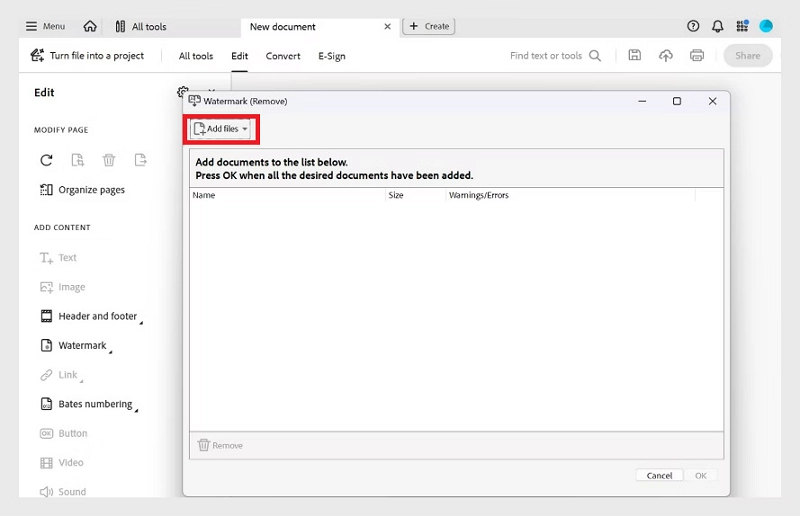
Step 1. Launch Adobe Acrobat Pro. Click the Home icon, select See all tools, and then choose Edit a PDF.
Step 2. In the editing pane, click Watermark and select Remove.
Step 3. Select the PDF file you want to remove the watermark from, then click OK to confirm.
Step 4. Choose the output folder and click OK to save the watermark-free PDF to your Mac.
There are many kinds of mobile apps available for free and on-the-go PDF watermark removal, available on app stores. If you have no idea which to opt for, here are two recommendations.
UPDF for Android
UPDF for Android is an all-in-one PDF tool that brings multiple document features together in one app. Its watermark removal feature is useful for creating clean copies of drafts or scanned documents. The process is simple: open the PDF, select the watermark removal option, and confirm your choice.

PDF Watermark Expert for iOS
PDF Cleaner is a dedicated iOS app for clearing PDF watermarks, passwords, and metadata. Its watermark removal feature targets background watermarks, logos, and draft marks, helping you create clean copies while preserving the original page layout and formatting. It is a convenient option for removing unwanted marks without using a full-featured PDF editor. The app is free to download, with premium features available through in-app purchases. To remove a watermark, simply import your PDF, select the watermark removal tool, and process the file.

The Bottom Line
How to remove watermark from PDF? The best method depends on whether the watermark is a separate object in the file, which device you’re using, and what you prefer to work with. The methods above should cover most needs in daily work and study. Besides choosing the right PDF watermark remover for your case, keep two points in mind. For confidential files, it is highly recommended to use a desktop app that runs locally; and only remove watermarks from documents you own or are authorized to edit.
Free Download Now