Login
Login
No fluff. Just free, new stuff. (Demos, credits, updates and the occasional thing we're proud of)
Thanks for subscribing! Stay tuned for demos, credits, and updates.

Read-only protection is an effective way to preserve the integrity and security of PDF files. However, it can become inconvenient when you need to make legitimate changes, such as correcting errors, updating outdated information, or revising content. By design, a read-only PDF can be viewed but not edited. So, how to edit a read only PDF? This guide covers all the practical ways to make a PDF editable in different situations. Let’s see how to convert read only PDF to editable PDF and modify the file easily.
Not all read-only PDFs are the same. A PDF may become non-editable for several reasons, and the best way to make it editable depends on what caused the restriction. Identifying the reason first can save you time and effort. Below are the most common situations that make a PDF read-only.
This section shows what to do when you struggle with editing a read-only PDF under different situations. Quickly skip to the exact method if you know the root or try each one by one until you find the one fit in your case.
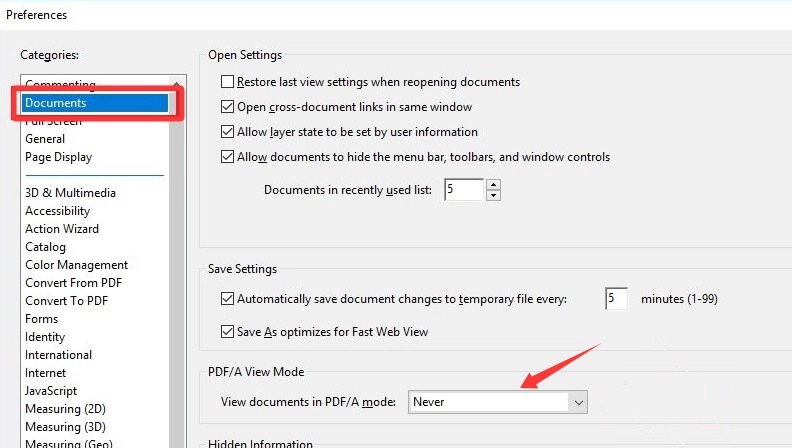
If you were able to edit a PDF but suddenly cannot make changes, the issue may be related to your system or PDF editor settings. Many PDF programs support the PDF/A mode feature, which is designed for long-term document preservation and may limit certain editing features. Check whether PDF/A mode is enabled in your PDF editor. Here is how you can turn it off in Acrobat.
Step 1. Open the PDF in Acrobat and go to Preferences.
Step 2. Switch to Documents and set the PDF/A View Mode to Never.
Step 3. Click OK to save the change and edit the PDF again.
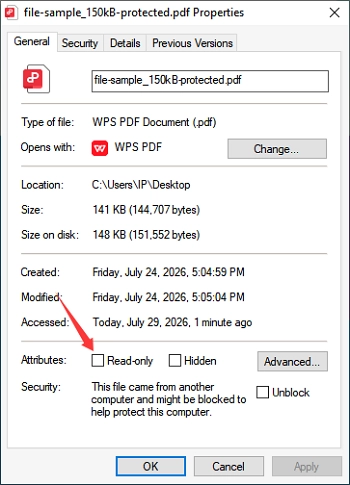
Likewise you can close the read-only option for your PDF with the built-in feature in your operating system, as follows.
Step 1. Right-click on the PDF file and select Properties.
Step 2. Uncheck the box next to Read-only.
Step 3. Click Ok.
Check out whether the read-only restriction is deleted now.
If a PDF is protected with custom access or editing permissions, simply disabling read-only settings will not remove the restriction. In this case, you need to request permission from the document owner or use a PDF unlocking tool to remove the editing block of your own file.
When you click on a scanned PDF to select text, the entire page is highlighted instead of individual words or lines. This happens because a scanned PDF is essentially a flat image. As a result, you cannot directly modify it. To update the content, a practical workaround is to capture screenshots of the PDF pages and use Optical Character Recognition (OCR) to extract the text for editing. After making the necessary changes, you can still save the updated content as a new PDF file.

A screenshot tool with built-in OCR capabilities can make this process much easier. For Windows users, Snipping Tool is a convenient option, while TextSniper is a useful choice for macOS users. If you are working on a mobile device, the built-in screenshot and text recognition features can also help extract text from scanned PDF files.
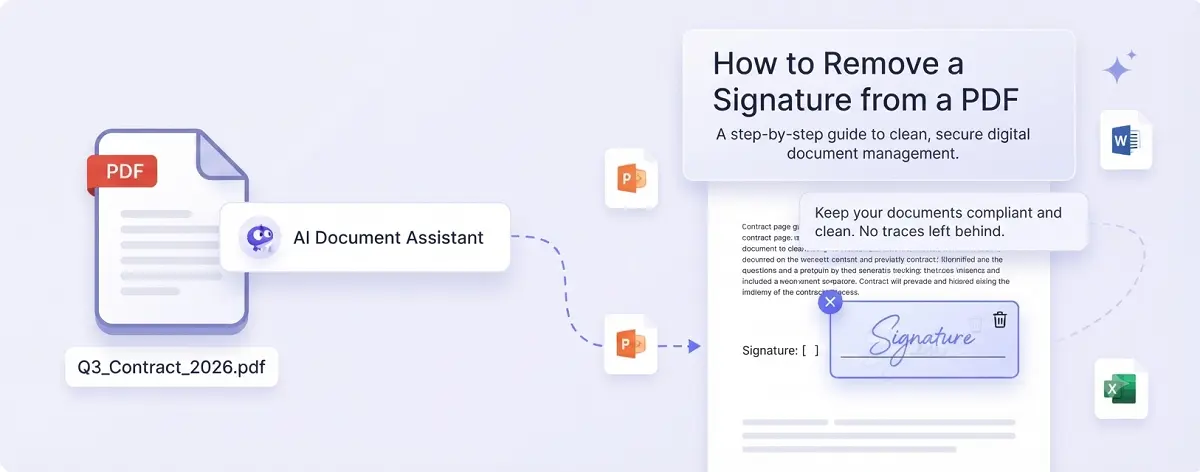
When a PDF contains a digital signature that verifies the signer's identity, confirms approval, or protects the document from unauthorized changes, it is locked and non-editable. To edit the document, you first need to remove the signature.
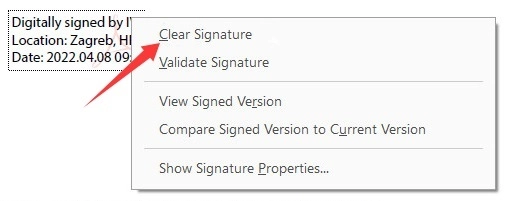
You can ask the signer for an unsigned copy. Or if you are the only original signer, you may be able to remove the digital signature with a PDF editor. The practicality heavily depends on the signature type and the capability of your tools.
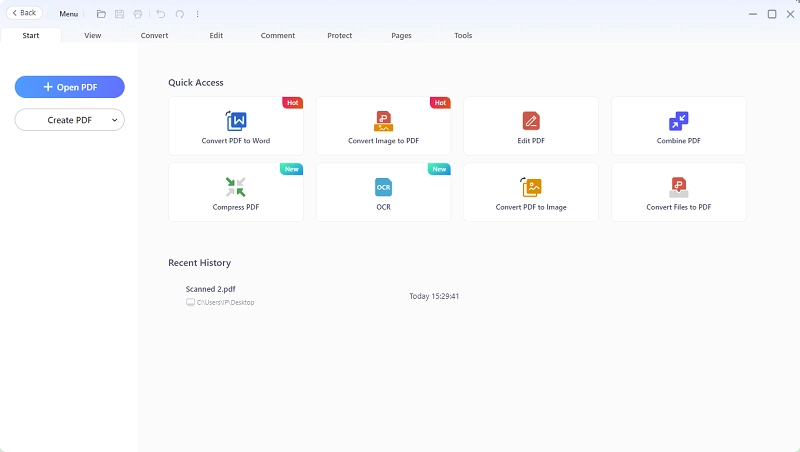
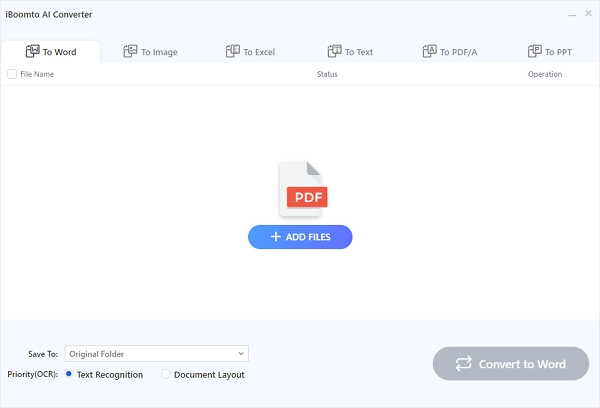
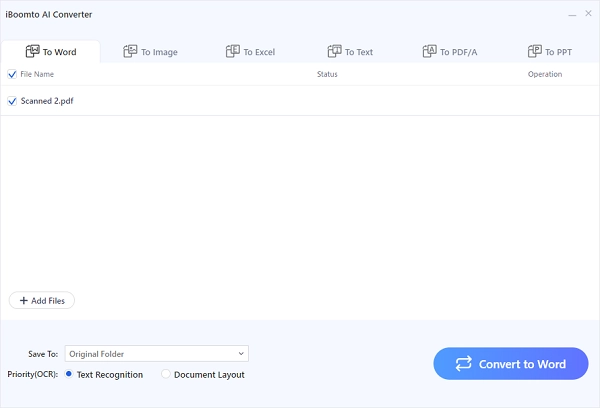
Another effective method is to convert the PDF into an editable format, such as Word or PowerPoint. This approach works well for PDFs with garbled text or files that cannot be properly recognized by your PDF editor due to compatibility issues. Many online PDF converters and office applications support file conversion, yet for dealing with important files, a local file converter is more recommended. iBoomto AI is fully local document software for multi-task processing in one place. Its built-in PDF converter supports converting PDF to Word, image, and other more editable file formats. In this example, we'll show you how to edit a read-only PDF by converting the file format using iBoomto.

Step 1
Step 2
Step 3
Step 4
If you have tried all the methods above but still cannot edit the PDF, the issue may lie with your current PDF editor. In this case, try opening the file with a different editor, which may provide better compatibility or support for editing the document. iBoomto AI is also loaded with a built-in PDF editor that is available for local, free use. You can give it a shot.
How to Edit a PDF with iBoomto AI
Step 1. Launch iBoomto AI, go to Tools Discover > Edit PDF.
Step 2. Click the Add button at the upper left section and import the read-only PDF.
Step 3. Start editing the PDF to see if it works.
Are you looking for a PDF editor for editing read only PDF? This part shows you a free and installation-free solution - iBoomto AI PDF Editor. PDFgear is a complete PDF processing service that includes a wide variety of AI PDF reading, editing, unlocking, and conversion tools. It allows you to remove permissions from a PDF and edit it freely.
Step 1. Go to PDFgear Unlock PDF to make your PDF editable.
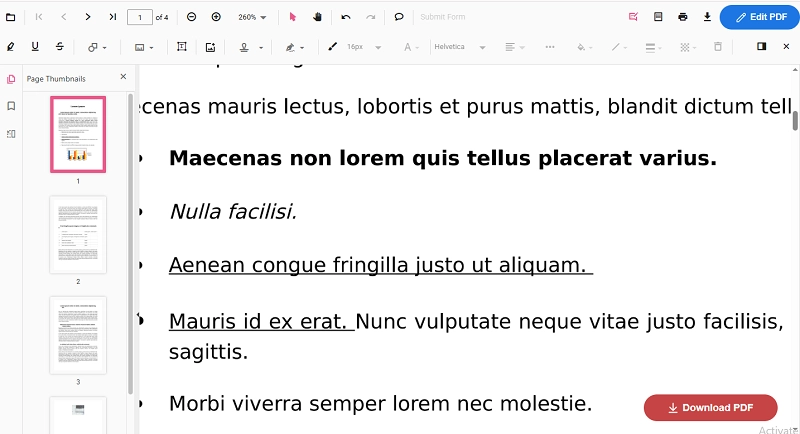
Step 2. Head to the PDFgear PDF Editor Page to apply further changes. You can highlight text, add shapes, fill and sign the PDF, modify the information, etc.
Step 3. Once you’re satisfied with the editing, click on Download PDF at the lower right side to save the new version.
The Bottom Line
This post has covered how to edit read only PDFs in different situations. Identify the cause of your issue and choose the solution that best fits your case to make your document editable in seconds. Hopefully, one of these methods helps resolve the problem. If you're unsure where to start, try converting the PDF first, then edit it freely without restrictions.