Login
Login
No fluff. Just free, new stuff. (Demos, credits, updates and the occasional thing we're proud of)
Thanks for subscribing! Stay tuned for demos, credits, and updates.
Editing PDFs often involves hiding certain content, and PDF white out is one of the most common ways to do it. Whether you want to conceal text, images, tables, or graphics, the white-out feature lets you quickly place a solid white box over specific items. This keeps the unwanted sections out of sight while leaving the document intact without making extensive changes to the rest.
How to white out PDF? This post will guide you through the detailed processes. Practical fixes to PDF white out not working will also be included. Try these methods to edit your PDFs and make the files private & easy-to-read as you wish.
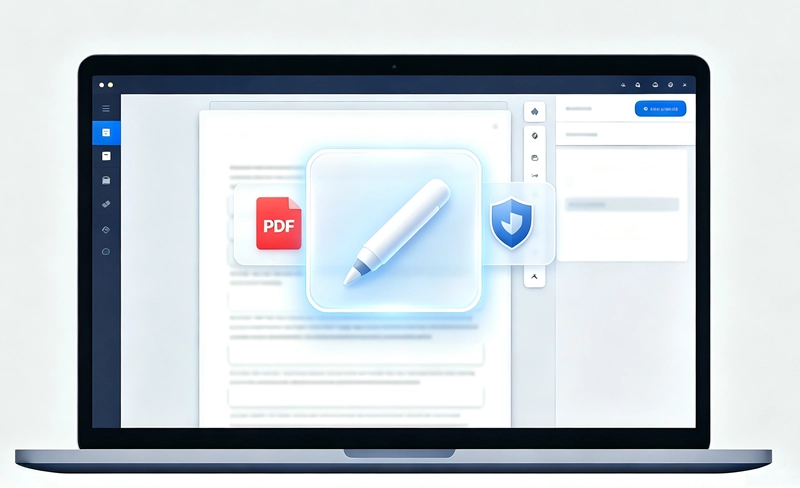
People usually white out PDFs to make certain content unassailable by others, which benefits multiple sides.
Before sharing PDFs containing confidential or personally identifiable information, such as invoices, financial statements, contracts, or legal documents, you can white out signatures, personal details, account numbers, addresses, and other sensitive data to keep privacy and security.
Some PDFs include content that isn't relevant to your viewers. Covering the unnecessary parts helps keep the focus on the information that matters most.
If there are data mistakes, typo errors, incorrect figures, and any other oversights you hope to erase from a PDF, you can cover them with a white box to make them unseen.
White-out is also useful for removing redundant elements or empty visual clutter without rebuilding the structure. It's a simple way to make a PDF look cleaner and more professional.
Tips:
Whitening out a PDF only hides content visually. The process doesn’t delete the underlying content, so it may still be recoverable. If you need to permanently remove sensitive information, use a dedicated PDF redaction tool instead.
If you only need to white out daily PDF documents, web-based tools are competent enough. The best part of online PDF white out tools is free from installation and easy to run. PDFCandy is a nice option at the array. It doesn’t require installation or a fee during the entire process of PDF white-out.
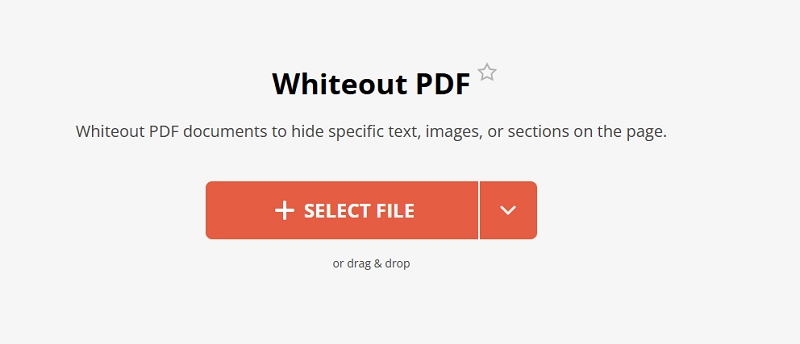
Step 1. Go to the tool page: https://pdfcandy.com/whiteout-pdf.html
Step 2. Click SELECT FILE and select a PDF file from your device.
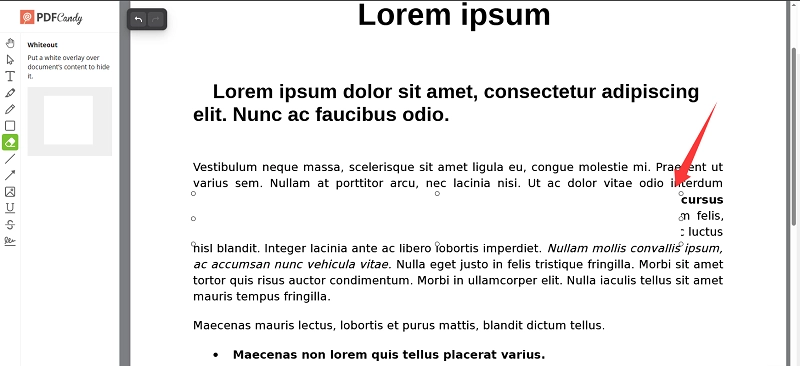
Step 3. It will direct you to the PDF editing workspace. Locate the content you want to hide, press and hold the left mouse button, and drag the white box to select the area.
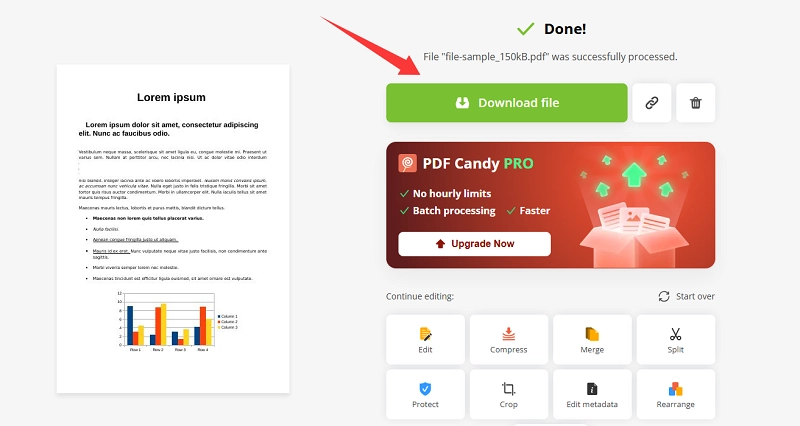
Step 4. When you finish whitening out the PDF, head to the Export File button at the upper right section. Depending on the file size, the PDF white out tool will take a few seconds to process the file. After processing, it will offer a download option.
Now save the PDF file to a local folder.
For anyone who needs to white out confidential files, desktop programs offer more robust solutions as they usually work on the local server and come with multiple-layer protections to protect sensitive user data from leakage and hackers. This section will show you two tools to white out PDF.
Adobe Acrobat is undoubtedly the top choice to use. If you have installed the software on your PC, follow the instructions to white out PDFs for good.
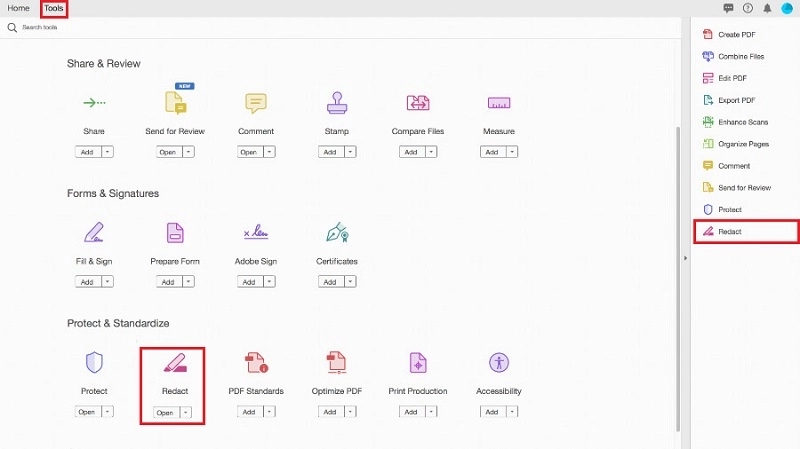
Step 1. Launch Acrobat, go to Tools, and select Redact.
Step 2. Adobe offers three redaction methods: manually selecting text and images, redacting entire pages, or searching for keywords for redaction. This guide uses the Text & Images option. Go to Mark for Redaction at the top menu bar, and select Text & Images.
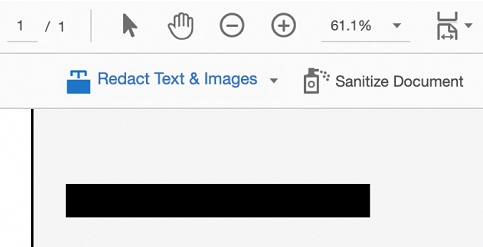
Step 3. Select the area you want to white out. Then open Redaction Tool Properties and set Redacted Area Fill Color to White.
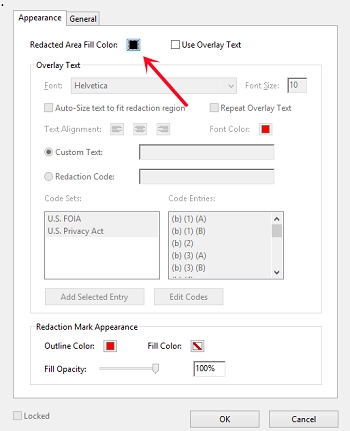
Step 4. Click OK, then Save to apply the white-out changes.
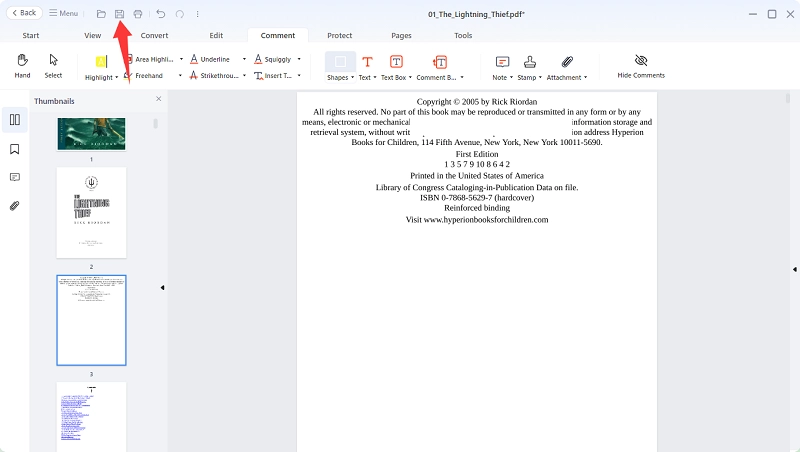
You can also white out text with iBoomto AI for Windows. iBoomto AI is a full-featured local document assistant that allows you to add white boxes to text and images in PDF file easily within its built-in PDF editor. Here is how.

Step 1
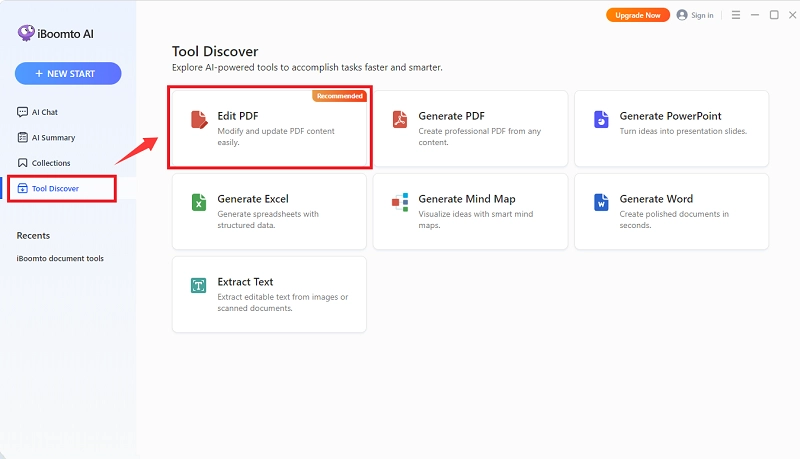
Step 2
Step 3
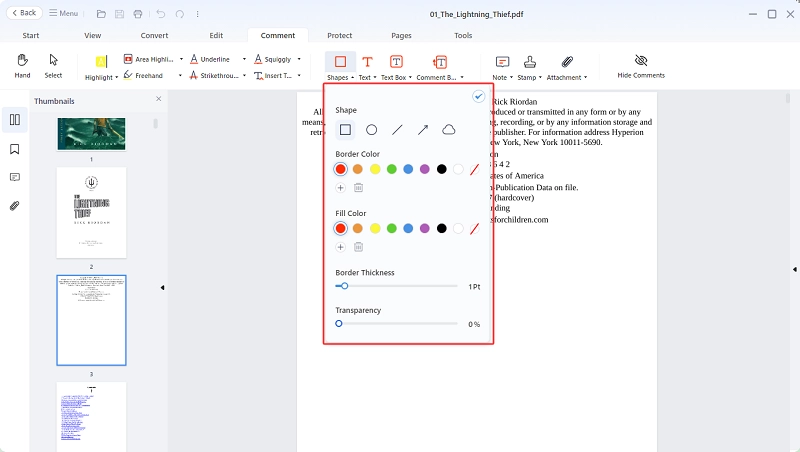
Step 4
Here are answers to some of the most common questions about PDF white out.
The Bottom Line
When people use PDF white out, they often want to permanently remove sensitive information to protect their privacy. However, a simple white overlay only hides the content and may still leave it recoverable. That's why PDF redaction is a more stable choice. This guide has shown you how to both white out and permanently redact PDFs using different tools. Feel free to deal with PDFs in your preferred way.