
Login
Login
No fluff. Just free, new stuff. (Demos, credits, updates and the occasional thing we're proud of)
Thanks for subscribing! Stay tuned for demos, credits, and updates.

Just signed a document and spotted a mistake? Need to strip an old signature before reformatting or archiving a file? Worried a scanned signature image could be copied or misused if you forward the document as-is? Or maybe you want to turn a signed contract into a clean, reusable template? Whatever the reason, removing a signature the right way matters because you don't want to damage the file or accidentally void its legal standing.
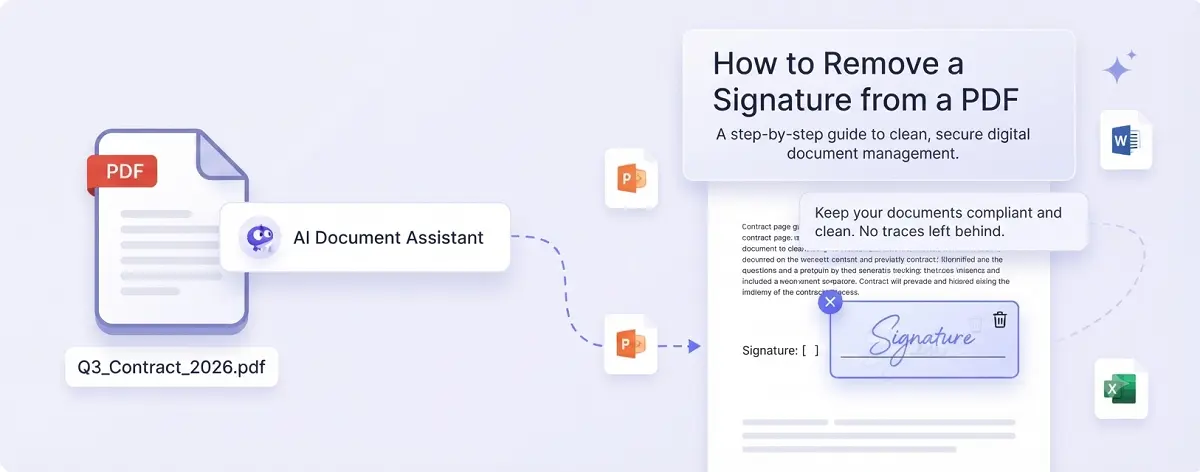
This guide walks through exactly how to remove a signature from a PDF file, safely and quickly, no matter what type of signature or PDF you're working with.
Yes, but how you do it depends on the type of signature and who added it.
Electronic signatures are the easiest to deal with. These are typically just images placed on top of the page, often being a typed name, a scanned handwritten signature, a stamp, or a signature drawn with a mouse or stylus. Since they're inserted like any other image or text box, most PDF editors can delete them directly.
Digital signatures are different. They're backed by an encrypted certificate and a hash value that verifies the document hasn't been altered. If you signed it yourself, you can usually undo the signature using the same software you used to sign it. If someone else signed it, don't try to delete it manually. Digital signature platforms log every change on their servers, and tampering with the signature field will invalidate the document. The correct move is to ask the signer to resign an updated version.
Tips:
Not sure if a PDF has a digital signature? Open it in a program like Adobe Acrobat Reader, which checks automatically. If a digital signature is present, a blue message bar appears at the top of the document, reading as "Signed and all signatures are valid". Click the Signature Panel button in that bar to see full details on every signature attached to the file.
Say you're prepping a blank quote template for a supplier, and it still has the signature image of a sales manager who's since left the company. Here's how to clear it out, as long as you can open the file and have editing permissions.
1. Open the document in a PDF editor and click on the signature image. A selection box should appear around it.
2. Right-click the image and choose Delete.
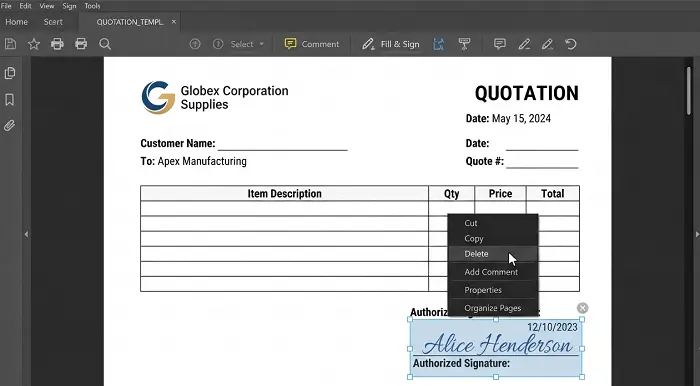
3. Check the signature block for any leftover text boxes or blank fields.
4. Save the file under a new name once everything looks clean.
If the file is protected by an open password or a permissions password and you've lost track of it, don't worry. You don't need the original password to move forward. Get a free PDF Unlocker, which can strip the protection in seconds without touching the layout, file size, or any of the underlying data.
1. Open the PDF Unlocker and upload your file.
2. Click to remove the password protection (no password required).
3. Download the unlocked PDF. Your file is deleted from the tool automatically once you close the page.
4. Open the unlocked file in a PDF editor and follow the steps in Part 2 to remove the signature.
The methods above work for editable PDFs. But what if you're sending a signed application form to a friend as a reference sample, don't want your handwritten signature visible, and the PDF has been flattened—meaning the signature area can no longer be selected? Try one of these instead.
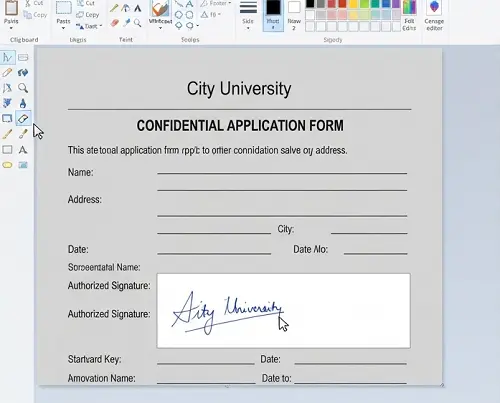
Option 1: Take a screenshot of the full page, then use an image editor (like Photoshop or even a basic paint tool) to erase the signature area before exporting it again.
Tips:
If you still have the original Word or Excel file, it's faster to edit that directly and export a fresh PDF.
Option 2:
1. Go to an online PDF editing tool like Smallpdf or iLovePDF and upload your file.
2. Use the whiteout tool to draw a solid white box over the signature or use the eraser tool to paint over it directly.
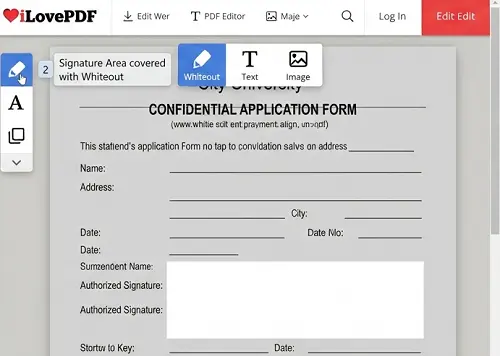
3. Download the edited file.
Tips:
Online tools are best for non-confidential documents only.
The three methods above only apply to plain electronic signatures. Removing a true digital signature is different. You can only do it if you're the one who signed the document, and it usually needs to happen on the platform where you signed it.
Here's how it works in Adobe Acrobat, assuming you're the file's creator or signer. Note: if someone else has locked the document with a permissions password, you won't be able to remove the signature at all.
Case A: You just signed the document and haven't saved or closed it yet.
Right-click the signature field where the box showing your name and signing details is, and then choose Clear Signature (or Delete Signature) from the menu. The field instantly resets to blank.
Case B: The file is already closed or locked, and you need to remove the signature now.
Click the Signature Panel button in the message bar at the top, find your signature entry in the side panel, right-click it, and choose Clear Signature.
Case C: You want to remove your signature from a shared or work computer so future users can't access it.
Open the PDF, go to Fill & Sign > Sign Yourself, then click the minus (–) button next to your signature to clear it.
Note: Digital signatures exist to create an audit trail. Even after you delete a signature locally, the signing platform's server still keeps a record of it. If a contract dispute comes up, that cloud audit log, from Adobe Sign or a similar service, counts as legal evidence. If your goal is really to fix a mistake and resign, using the platform's built-in Cancel/Void feature is a cleaner, more compliant option than manually clearing anything.
Removing signatures after the fact can get messy. A few habits can save you the trouble:
Conclusion
Whether you're dealing with a simple electronic signature, a locked file, a flattened PDF, or a true digital signature in Adobe Acrobat, there's a safe way to remove it without breaking your document or its legal standing. Match the method to your signature type, and when in doubt, keep an unsigned original on file. It's the easiest way to avoid needing to remove a signature from a PDF ever again.