Login
Login
No fluff. Just free, new stuff. (Demos, credits, updates and the occasional thing we're proud of)
Thanks for subscribing! Stay tuned for demos, credits, and updates.

Only need a few pages, consecutive or scattered, from a hundred-page document, merged into one new file? Or maybe you've got a stack of study materials you want split by chapter for easy printing and distribution? Knowing how to extract pages from a PDF lets you trim files down to exactly what you need, multiplying your efficiency for everyday office work, studying, and administrative approvals.
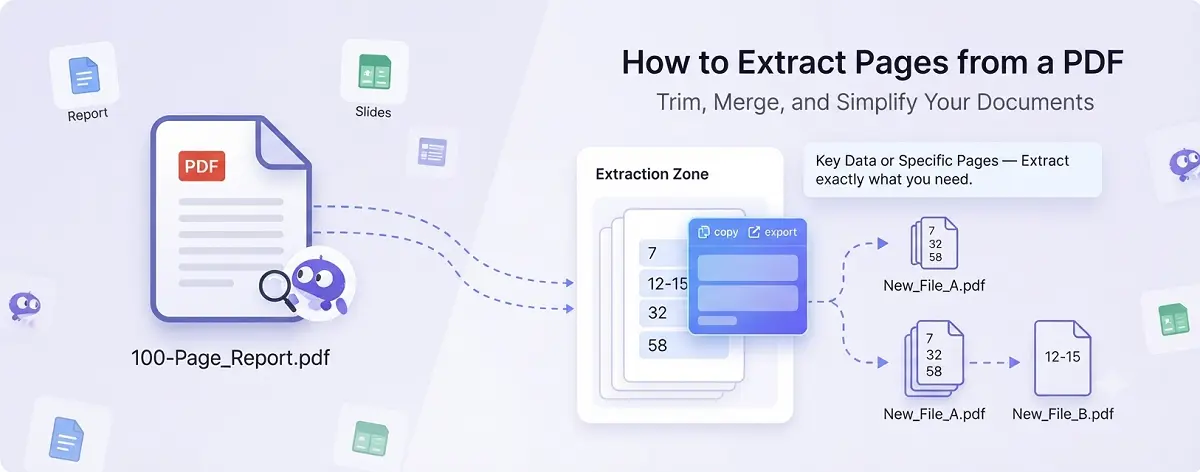
Whether you're pulling out key data and charts, exporting a specific page like a contract signature page, or splitting a PDF however your workflow requires, this guide has a solution on how to extract pages from PDF in safe and easy methods.
It’s easy to split PDF pages and extract one or several certain pages from it. But if the PDF file has an open/user password but you don’t know or forgot it, you'll be strapped.
Everything you can do is to ask the owner for a password or the unencrypted version. The worst situation is you own the document but have forgotten its password. When it comes to this, try a PDF unlocker to fix it in 3 steps.
Disclaimer: By using the above suggestion to decrypt a secured PDF, you have to ensure you own it or are authorized to use it. And if the PDF is protected by a digital signature, removing the password will make it lose legal validity.
How to do it—a general guide:
Step 1. Land on an online or offline PDF unlocker. Drag and drop one or multiple protected PDF files.
Step 2. The safe document processing tool will try its best to auto-decrypt them and remove the permission restrictions. If the document is strongly encrypted, you have to enter the password.
Step 3. Download the files and delete the uploading files and unencrypted backups manually. Of course, once you exit the page, the use trace will be eliminated completely.
After secure PDF password removal, you can easily extract the important information or pages from a large number of messy PDF documents. Need a quick, stopgap solution? The fastest method is to extract certain pages or auto-split PDF files using a browser, such as Chrome, Edge, or Firefox, or a built-in preview tool on your computer.
How to do it:
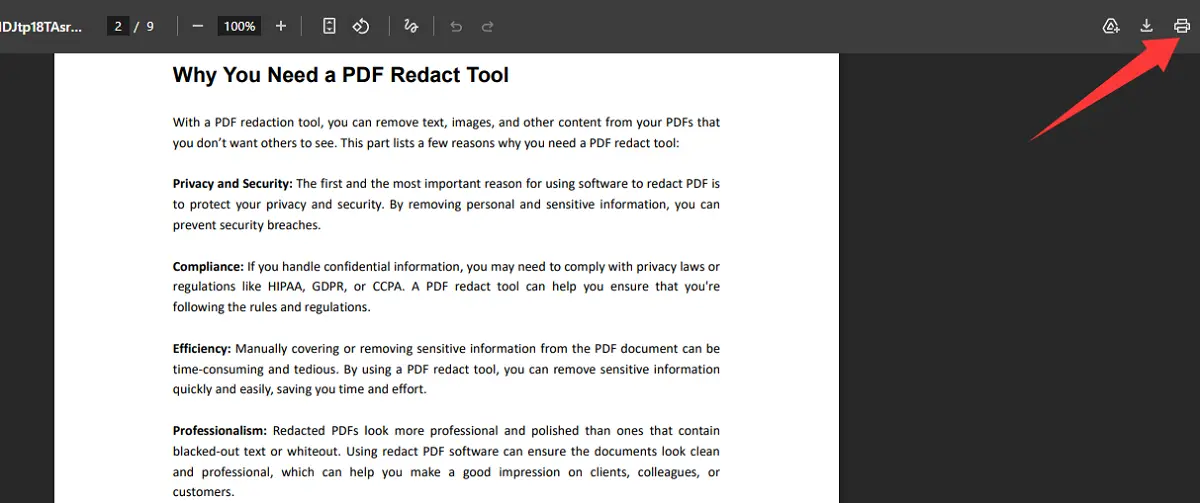
1. Open the PDF file in Google Chrome.
2. Click the Print icon or the hotkeys (Ctrl+P for Windows and Cmd+P for Mac).
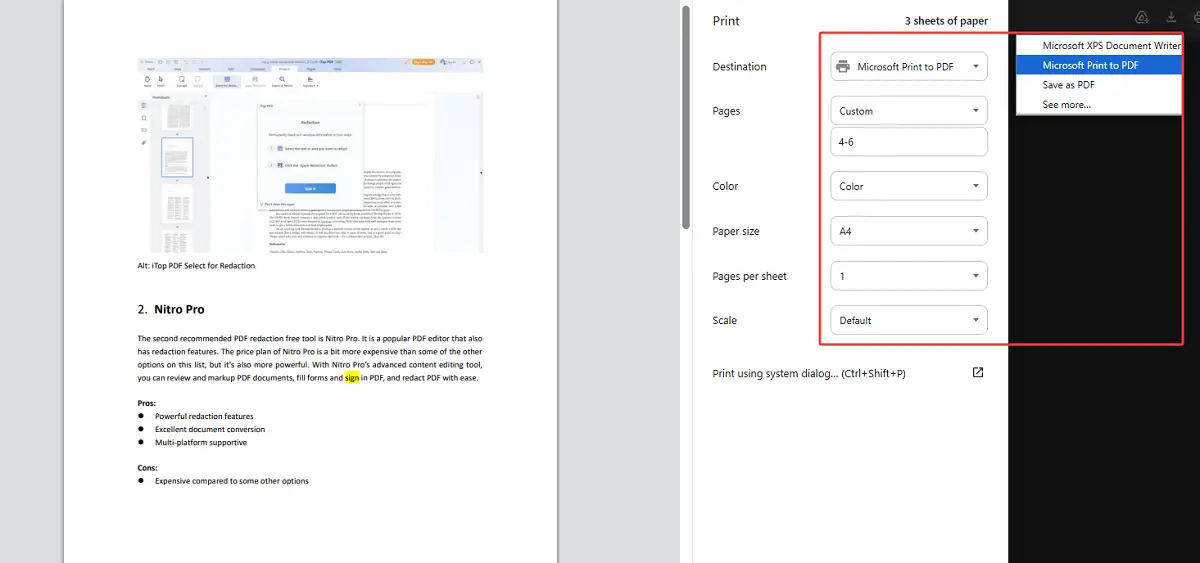
 On the pop-up print wizard, click the drop-down menu of the “Destination” choice. Here you can select “Save as PDF” or “Microsoft Print to PDF”. Both enable you to extract any page from a PDF.
If you select "Save as PDF" > “Pages” > “Custom” > then enter the page number or the range of pages you want to extract from the PDF file. They can be continuous, like 2-5 pages, or discontinuous, like 3, 5, and 7.
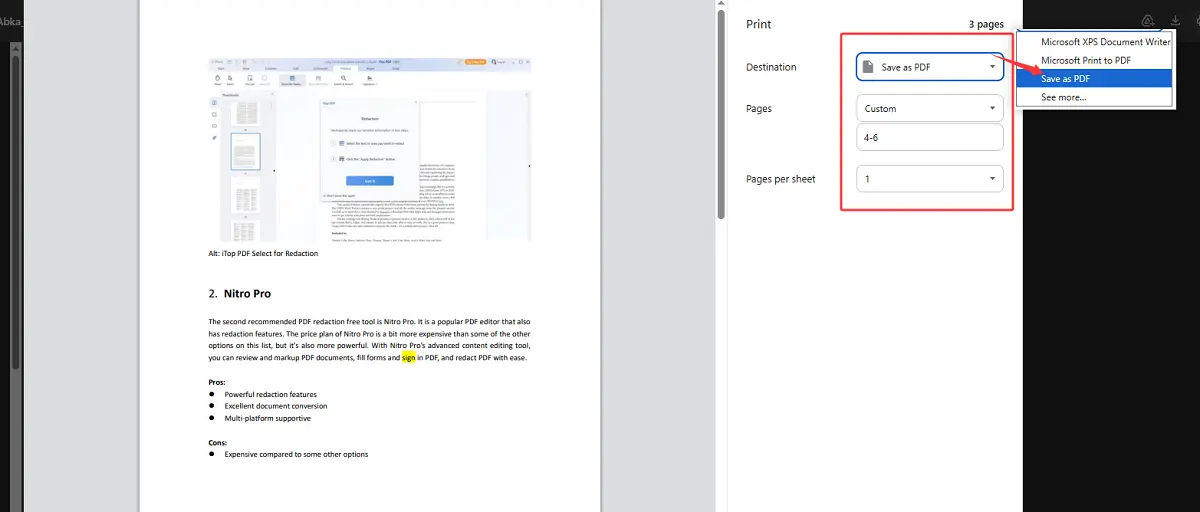
(Optional) If you select “Microsoft Print to PDF," you can also customize the page size, color, and scale.
Click "save" to merge the extracted pages into a new PDF file. It will be downloaded in compression without sacrificing the quality.
Note: This way works well for non-sensitive and a small number of PDF page extractions.
If the PDF you're working with contains sensitive information, like contracts, financial statements, or resumes, a third-party web tool isn't always the safest choice. For these files, it's better to stick with an offline, locally processing tool or a built-in preview app.
How to do it:
Way 1. Make sure you have a PDF reader installed on Windows. On Mac, you can use the built-in Preview app.
Way 2. Open your PDF file, choose Print, select the page range you want to extract, and save it as a new PDF.
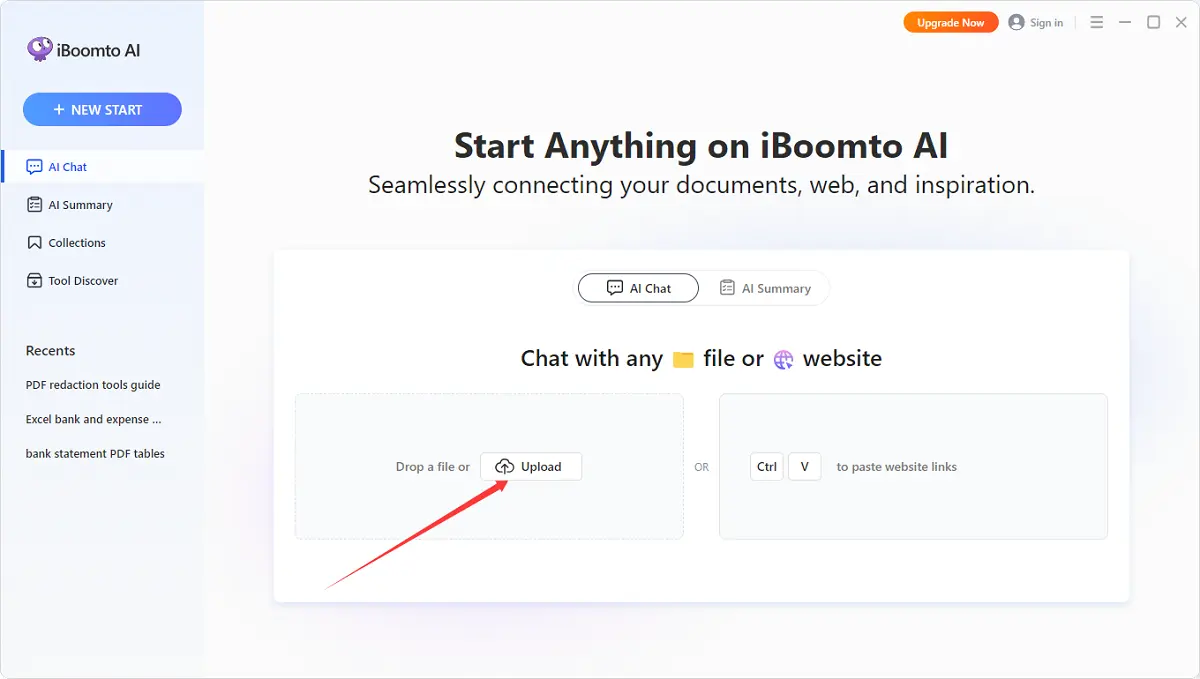
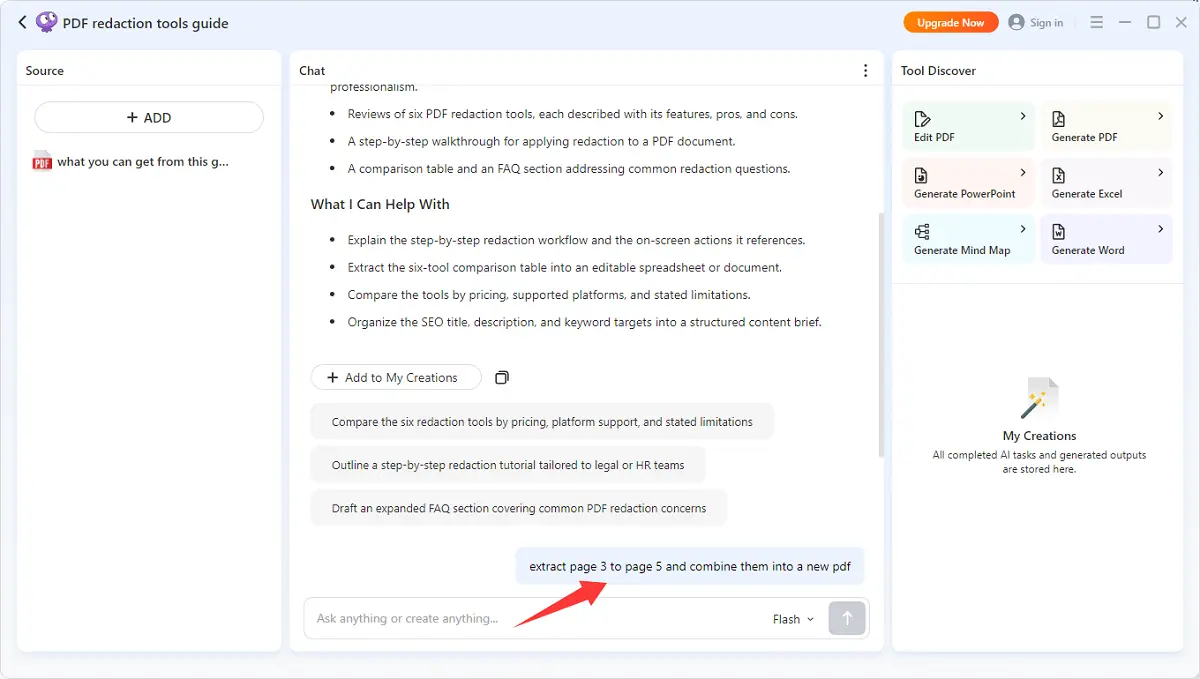
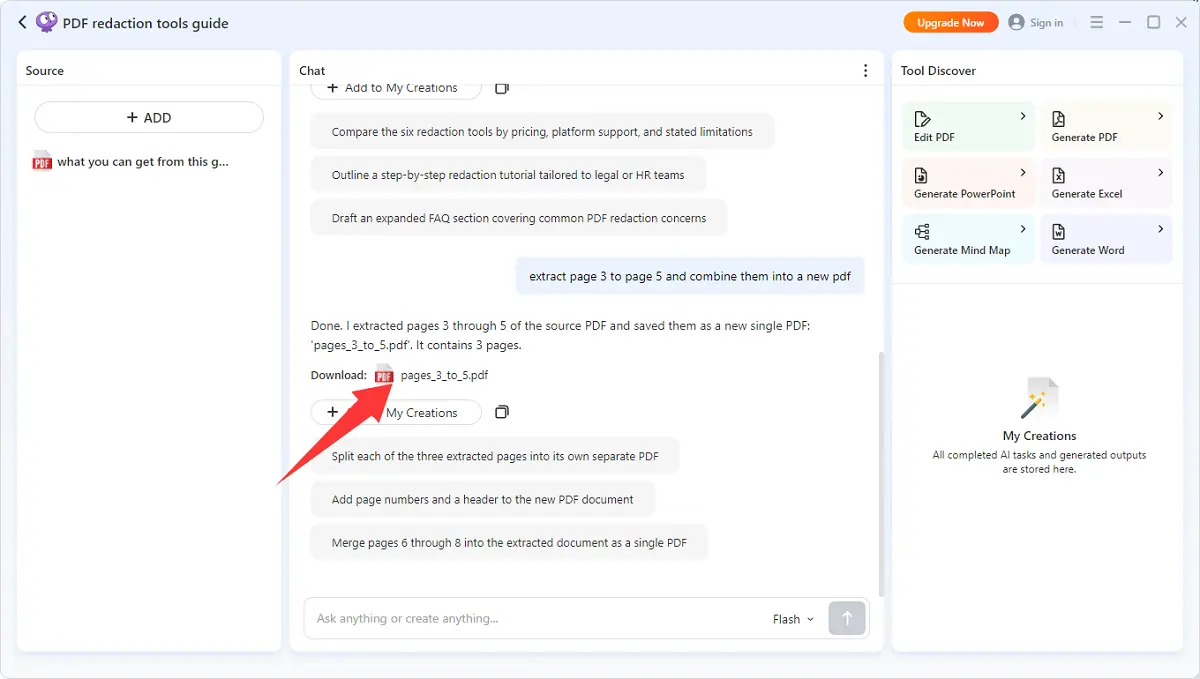
Way 3. Use a free, on-device PDF documentation processing tool like iBoomto AI, which can safely extract whatever you want from the files and supports more edits, summarizing, calculation, etc.

Note:
Basic PDF readers only support simple "print-to-extract" functionality. They don't let you reorder or rotate extracted pages or automate batch tasks, e.g., splitting a document into new files every 5 pages.
Step 1
Step 2
Step 3
Step 4
Whether you need to extract one or more pages from a multipage PDF file, there are 3 free, no-sign-up, watermark-free online tools ready to help. Pick one fit for your needs below.
PDF24 is great for users who seek a simple and quick way to extract pages in PDFs only, without special requirements. It is suitable for extracting only the specific chapter or chart page that's relevant to your own research topic from a lengthy academic paper collection or industry research report.
Quick Guide:
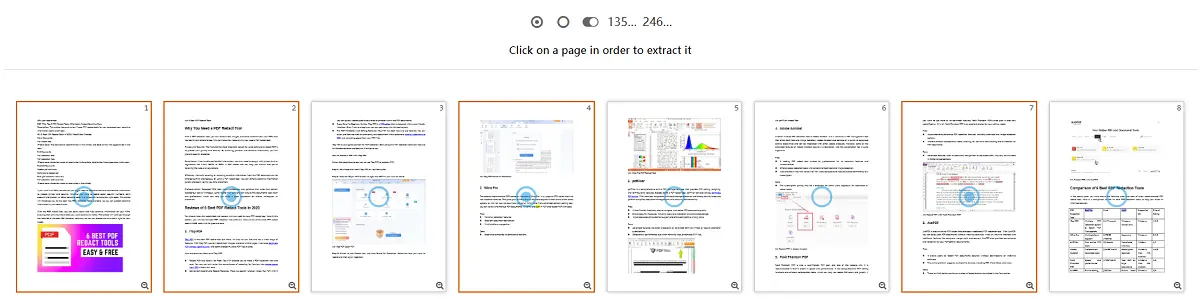
1. Upload your PDF file and manually click on the pages you want to extract.
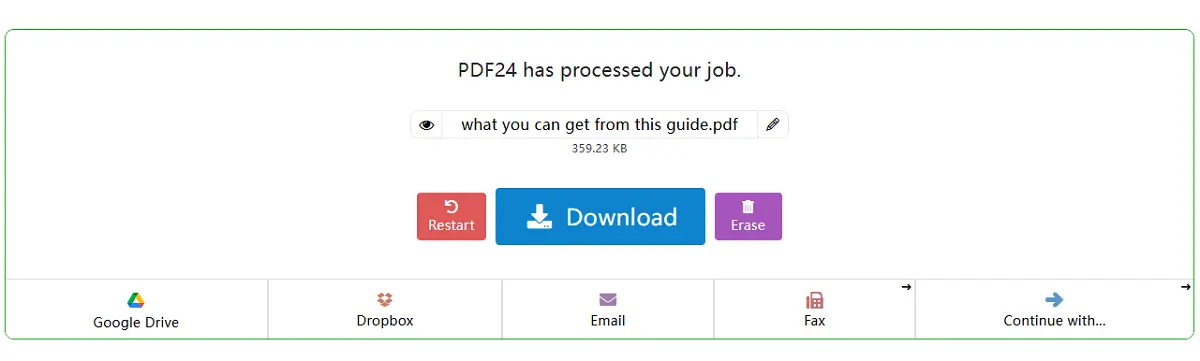
2. After the procession, you can preview and rename it before downloading.
3. Finally, you can erase all the files from the tool’s server, or it will auto-delete all files after one hour.
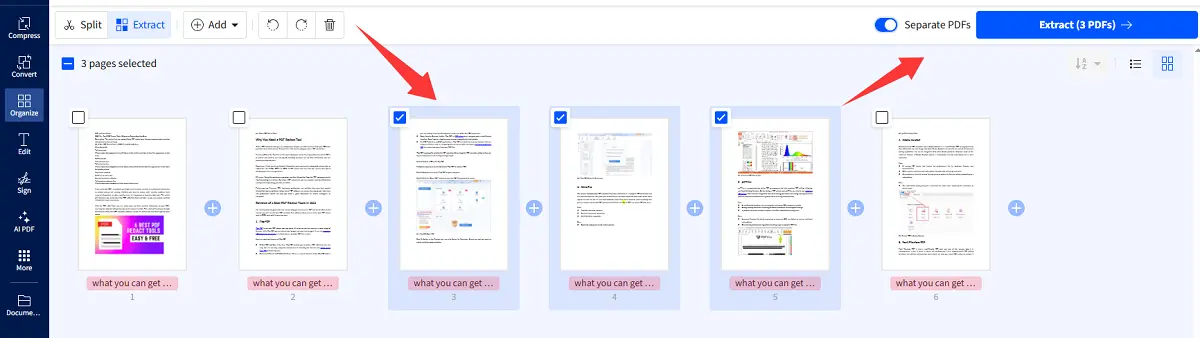
Smallpdf is special for allowing users to work with multiple documents at once, and you can separate the extracted PDF pages for different PDFs. For example, you can use it to quickly extract just the 2 pages that contain both parties' signatures and seals from multiple business contracts.
Quick Guide:
1. Import one or several PDFs, and they will be arranged on the same page, waiting for your selection.
2. You can choose one or multiple pages and enable "Separate PDFs" to extract them into one or several PDFs.
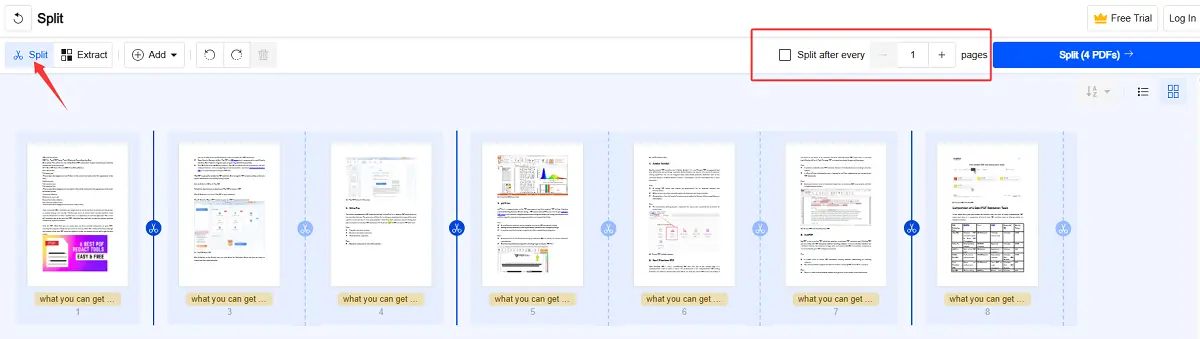
Also, you can manually split the pages into different combinations or auto-split the file per a fixed number of pages.
When exporting, you can convert the new PDF files into Word, Excel, PPTX, or JPG.
ILovePDF is an intuitive, ready-to-use PDF page extraction tool that has different modes to extract and split your PDF files. It supports random page selection, custom page range filling, fixed page range, and smart split preset for various document categories. Get a quick introduction on 3 ways below:
Way 1. Randomly Pull the Pages Out of a PDF
1. Open ILovePDF > Click on Split PDF Files > Import your file.
2. Under Split panel > Pages > Choose Select pages in Extract Mode > Fill in the page numbers.
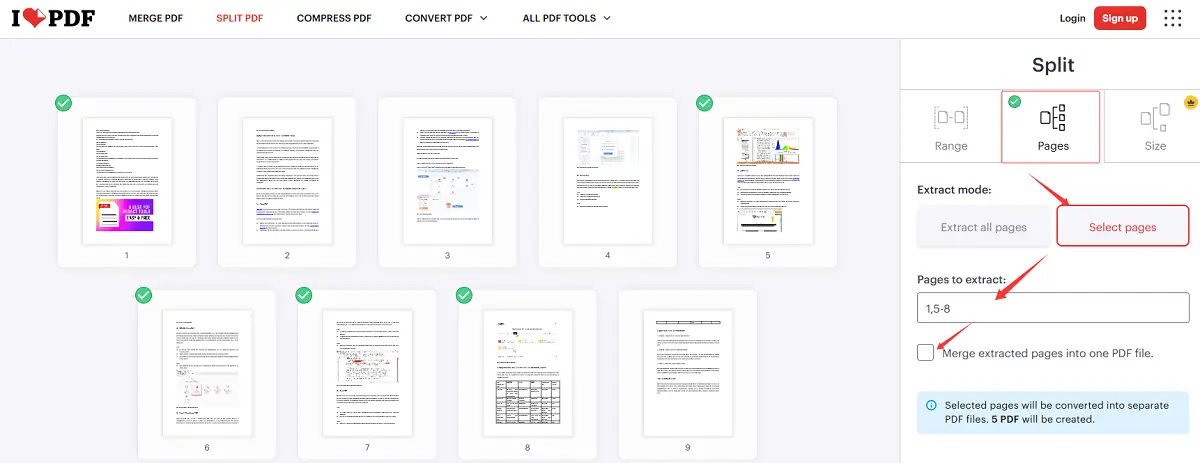
3. Check the block of “Merge extracted pages into one PDF file” if you need it. Otherwise, the selected pages will output as separate PDF files.
4. Click on Split PDF and download the files.
Way 2. Custom Page Range Split
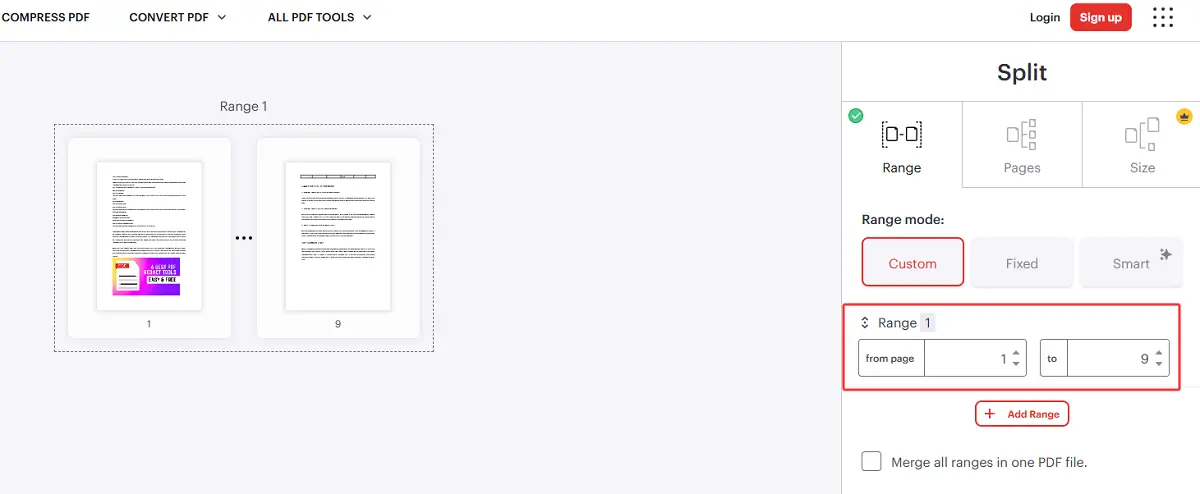
1. Select Range > Range > Custom > Fill in the page number range, e.g., 3 to 6. Also, you can add more page number range.
Way 3. Extract PDF Pages with Fixed Page Range
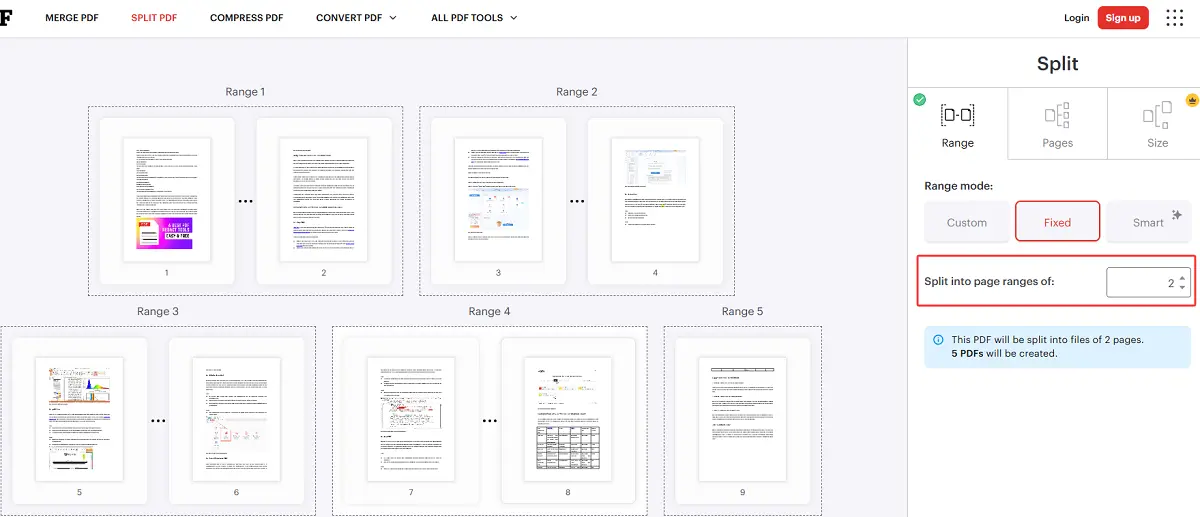
Choose Range > Fixed > Fill the page range, e.g., 2. Then, a 100-page PDF file will split into 50 new files, and each one has 2 pages.
Way 4. Split PDF Pages Smartly
Still opt for Range > Smart > Select the Document category and the split preset.
As we all know, Adobe Acrobat is the topmost tool for organizing, creating, and editing PDF files. Follow these steps to split a large PDF on it:
1. Search and open Adobe Acrobat online, choose “Edit” > “Organize Pages," and upload your PDF file, and sign in.
2. Check the pages you want to put into a new PDF and click Extract.
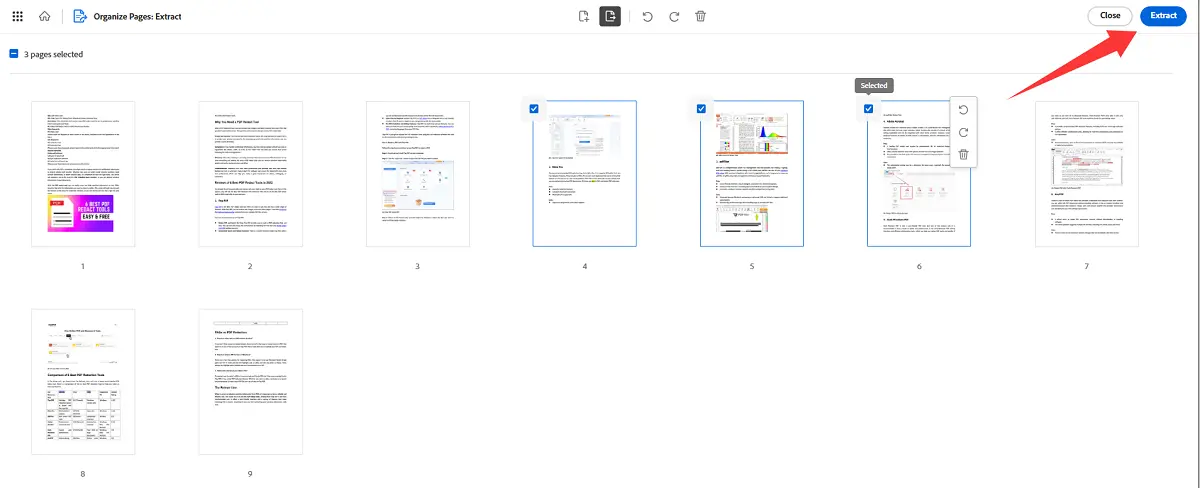
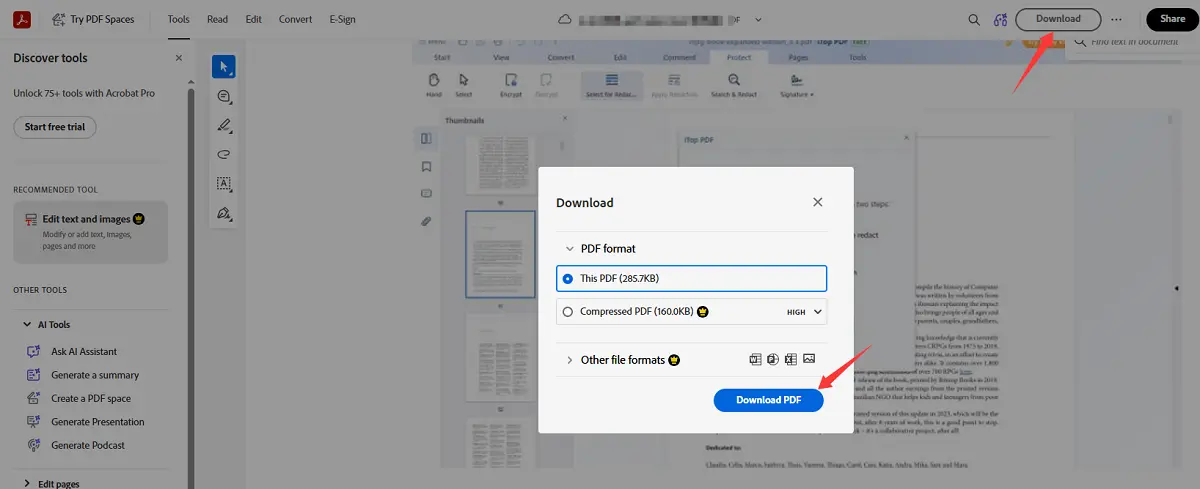
3. After page extraction, in the new pop-out window for PDF preview and editing, you can directly click on Download. Save the captured pages on your device. Also, you can get a link to share it right away.
Note: If your PDF file has an “Extract Page” restriction and you somehow forget the permission password, then you have to remove the restriction first.
Conclusion
Choosing how to extract PDF pages comes down to sensitivity and control: Browser Print/Save or a local reader keeps sensitive files offline, while PDF24, Smallpdf, and ILovePDF add batch processing, custom ranges, and format conversion online. Already using Adobe? Acrobat handles it too. Once you've picked a tool, extraction takes just a few clicks.
 Free Download Now