
Login
Login
No fluff. Just free, new stuff. (Demos, credits, updates and the occasional thing we're proud of)
Thanks for subscribing! Stay tuned for demos, credits, and updates.

You've got a scanned contract, and you're hunting for one clause. Ctrl+F comes up empty. That's usually where this problem starts. But it rarely ends there—even if your PDF is searchable, you might find it's too long to read or too dense to skim, or you might have hundreds of files and no idea which one has your answer. That’s why you need to make PDF searchable not only in a single file but also in a pile of PDFs.
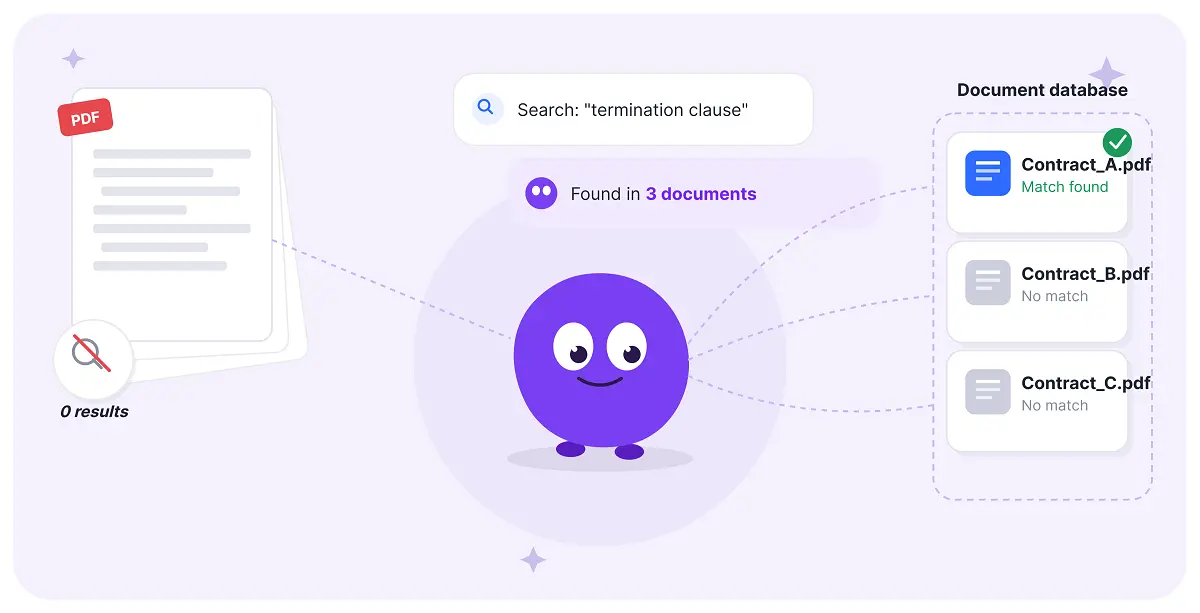
But how to make your PDF searchable and go ahead to create a searchable PDF database? This article walks you through the possible situations step by step.
Unsearchable PDFs mean the file content is not selectable or is not being located, which only occurs with scanned or image-based PDFs. Generally, these PDFs need OCR (optical character recognition), which reads the image and adds a real, selectable text layer behind it. Then you can locate the text you want to read, copy, edit, and more.
There are basically 4 ways to make a scanned or image-based PDF searchable.
Method 1: Upload it to Google Drive > open with Google Docs, and it runs OCR automatically > the file will be converted to searchable text.
Method 2: Open the file with macOS Preview > File > Export > in the save dialog box, look for the Embed Text checkbox > save the file, and you’ll get a new searchable PDF version permanently. But note that the Preview feature is only available on macOS 12 and later versions.
Method 3: Use online converters like Smallpdf or iLovePDF to handle single files in seconds.
Method 4: Import one or a batch of PDFs to Adobe Acrobat; its OCR feature will process them fast and give far more control over language settings and output formatting.
Except for online converters and the Adobe Acrobat PDF editing tool, there is a safe and simple way to flatten a scanned PDF into searchable text content—the iBoomto AI documentation tool. It is a free no-signup, offline choice that helps to deal with sensitive files locally on your device, avoiding privacy leaks.

 Free Download Now
Step 1
Step 2
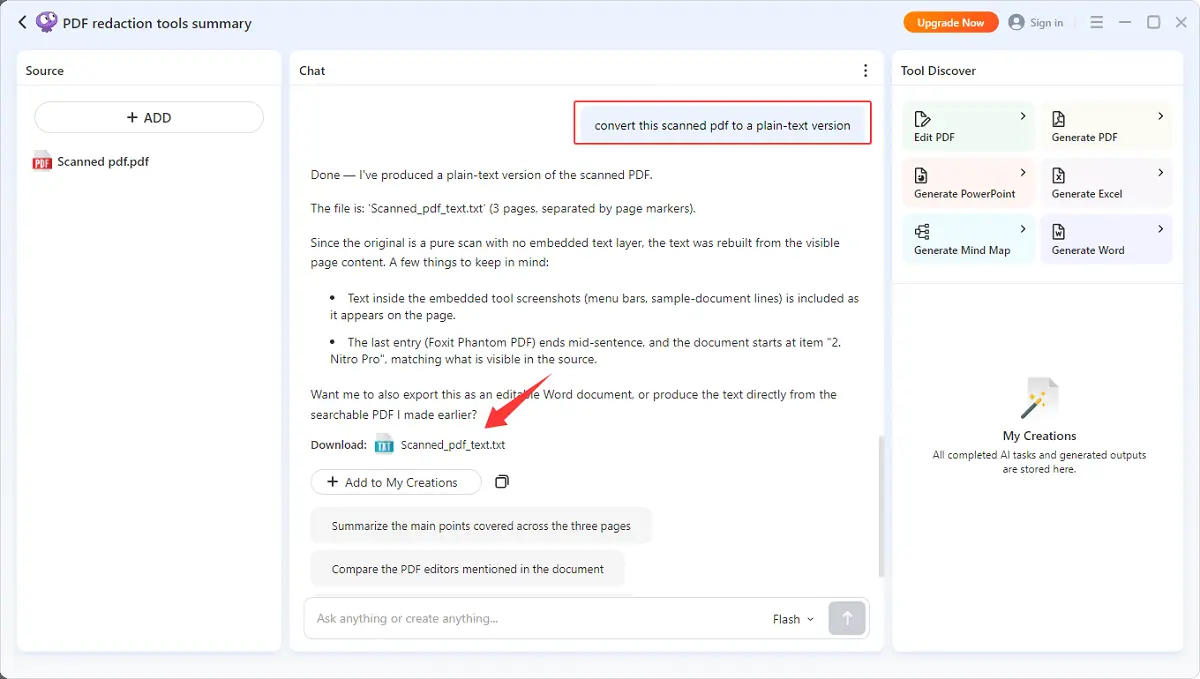
Step 3
Privacy tip: For sensitive files, using a local, offline tool will be more secure.
An overview of the 4 ways:
| Method | Cost | Batch support | Runs locally |
|---|---|---|---|
| Google Drive OCR | Free | No | No |
| macOS Preview | Free | No | Yes |
| Online converters | Free/Paid | Limited | No |
| Adobe Acrobat | Paid | Yes | Yes |
| iBoomto AI | Free | Yes | Yes |
If the document is short, you're done. If it runs 40, 60, or 100 pages, finding a word and understanding the section around it are two different things.
Contracts, research papers, and reports routinely run long, and reading one cover to cover just to pull 3 data points is poor use of time. Use AI PDF tools like iBoomto AI PDF summarizer to summarize the whole PDF document or a certain chapter in no more than 1 minute, saving a lot of time on reading long reports, academic papers, etc.
1. Upload your searchable PD file to iBoomto AI.
2. Skip "summarize this" and ask for something specific:
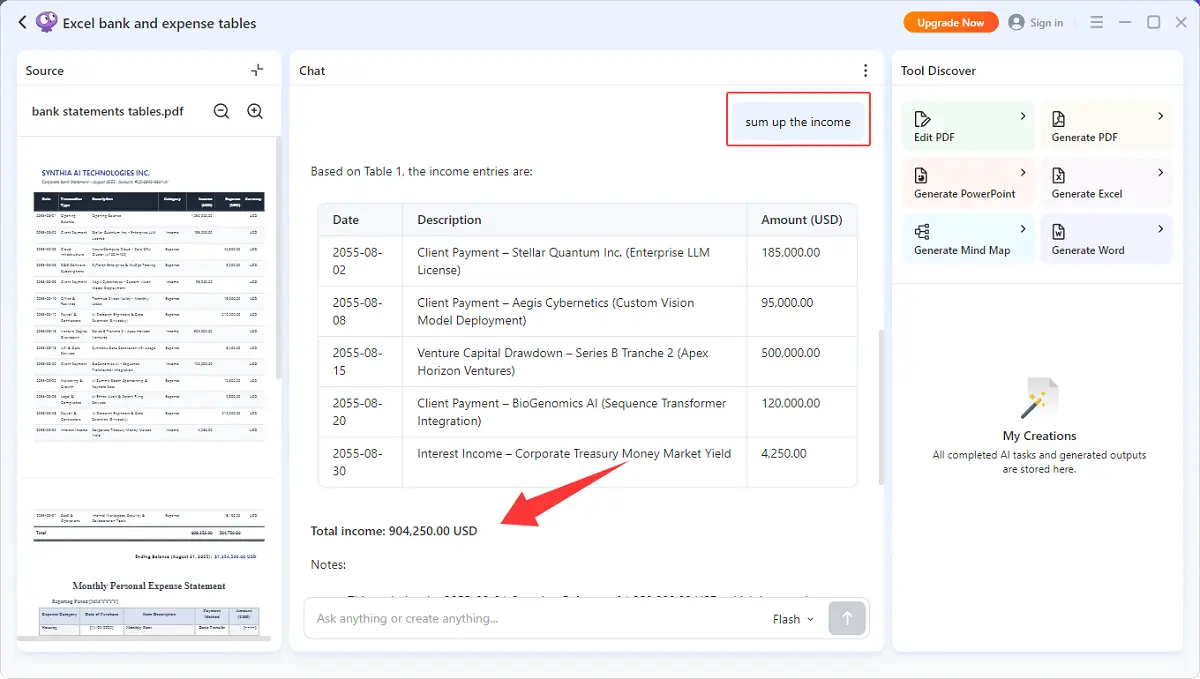
3. Copy or export the answers to a new document.

Notice: AI summaries can miss nuance, so verify anything decision-critical against the source on ChatPDF, Claude, Gemini, NotebookLM, etc.
If you want a concise, direct answer instead of a broad conclusion, you‘d better chat with PDF.
Search a 90-page contract for "termination" and you'll get 30 hits. Ask, "What's the notice period for early termination?" and you get one answer. AI Document chat tools read the entire document, understand it, and find out the answer in this file based on your actual question.
1. Pick a tool according to your file type, length, and complexity.
2. Enter your question. The AI reasons it for a while and outputs answers based on your documents. Also, you can go deeply or ask for complementary information from other reliable sources.
This fixes a complexity problem rather than a volume problem. Even simple, short files become unmanageable once you've got hundreds of them. Thus, you have to create a searchable PDF data base.
One click to extract tables from 5 PDF files or get all the data support based on the same topic across 7 related documents. A searchable PDF database bridges the information silos and highly improves productivity and efficiency as well. No matter if you have technical skills or not, all you need to do is choose a tool, upload files, ask questions, and get ready-to-export solutions or answers from your entire collection.
The right fix depends on whether you just need to find files or need to ask questions across them.
If you only need simple indexing, the 3 tools perform enough.
E.g., if you search for "termination clause," it returns a list of files containing this word (for example, "This word is mentioned on page 12 of Contract A and page 5 of Contract C ").
If you need an AI knowledge base to answer your question based on the information from the uploaded PDFs, you can pick a way below.
This uses retrieval-augmented generation (RAG): documents get indexed in chunks, and a question pulls the most relevant pieces before an AI generates an answer.
A general step guide: Upload files > Ask Questions > Verify them by simply indexing the topic in the upload sources, if needed.
| Tool | Best for | Setup effort | Cost |
|---|---|---|---|
| DEVONthink | Personal Mac library offline-only | Low | One-time fee |
| Acrobat + Everything | Windows batch archives | Medium | Acrobat paid; Everything free |
| NAS search | Small team, shared drive | Low | Included with NAS |
| NotebookLM | Research, quick Q&A across sources | Low | Free |
| iBoomto AI | Fast, easy search and answers | Low | Free |
| Humata | Legal/compliance docs needing citations | Low | Subscription |
| Denser | Fast, high-stakes document sets | Low | Subscription |
Simple conclusion: need to locate files reliably? Indexing is enough. Need answers pulled from across hundreds of documents? Only the RAG-based tools do that.
Conclusion
This guide is not limited to a single problem on how I can make a searchable PDF document. It stretches to the later problems in a workflow and gives proper fixes. Whether it’s to summarize a long report in seconds, to chat PDF for direct answers, or to search information, answers, and logical summarization across multiple files, you’ll find a proper match to solve the problem.