Login
Login
No fluff. Just free, new stuff. (Demos, credits, updates and the occasional thing we're proud of)
Thanks for subscribing! Stay tuned for demos, credits, and updates.
Before diving into the guide on how to resize a PDF, figuring out your real use scenario saves your time and effort. Answer the question: What do you actually need? Reduce the file size, change PDF page dimensions to A4 or Letter, or cut out the unwanted white borders? Identify your situation first and go straight to the right solution in this article immediately.
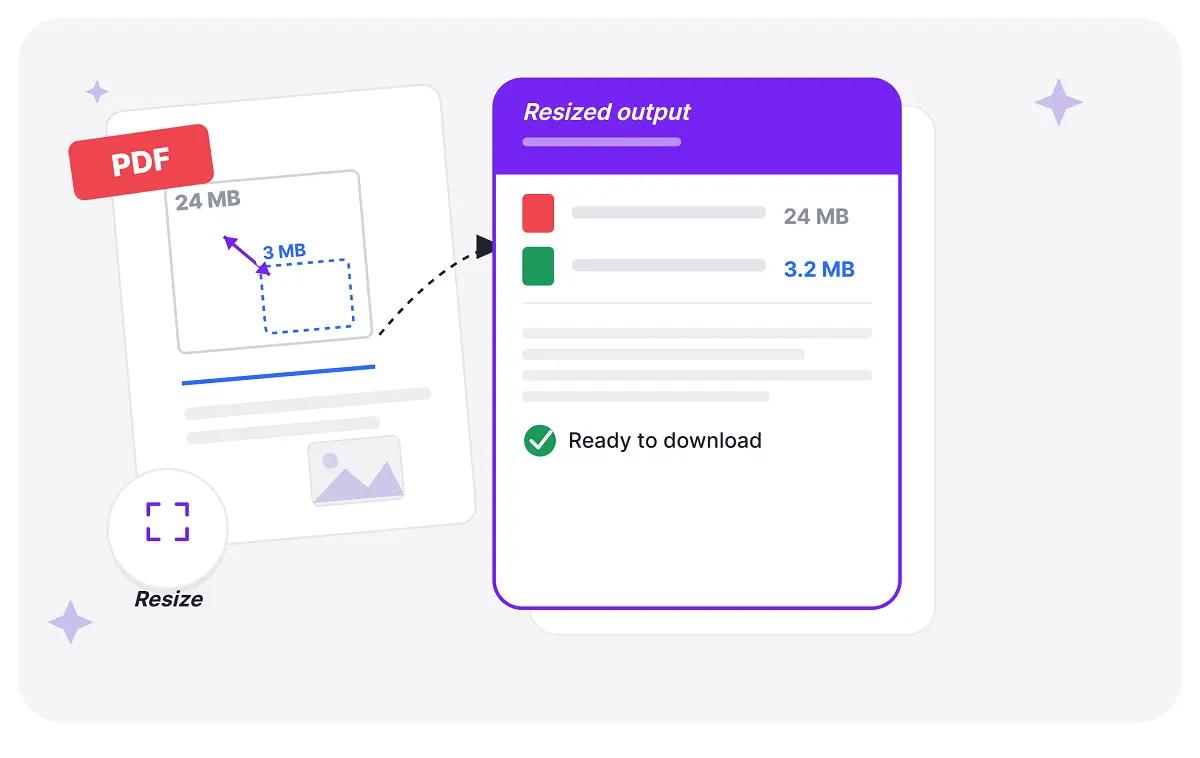
There is a fast identification that helps you find your scenario to the right solution. If you want to resize a PDF because the file is too large, compress it. If you want to resize a PDF because the paper size is mismatched for print, change the page dimensions. If you want to remove the scanned PDF’s excessive white borders, crop it. Need to understand more clearly? Read on the table below.
| Scenarios | Real Need | How-To | Result |
| Submission or email attachments | Files are too large to upload or email | Compress PDF size | Maybe low down the image quality |
| Print or use as a fixed template | size: A4, A3, Letter, or Legal | Change paper size or scale the pages and content | Maybe affect the font readability and margins |
| Remove unwanted white borders with comments in scanned or image-based PDFs | Crop the white margins | Crop the PDF | Keep the aspect ratio of the content |
| Merge multiple PDFs | Unify inconsistent page sizes | Scale the content or expend the canvas | Depends on method used |
When PDF files are too large to upload, send, share, or save, you can reduce their size appropriately. Compression is a quick method to do that, but it works better on text-only PDFs. If your files are scanned or they have a lot of images, it may cause a decline in clarity, searchability, or interactive functionality.
Smallpdf is a solid free option with no signup, no watermark, and it supports four compression levels plus batch processing.
1. Pick up a quick online tool like SmallPDF, which is free with no sign-up and no watermark. It also supports 4 compression levels and batch compression.
2. Select your PDF files and upload them to smallPDF.
3. Choose the compression strength among Basic, Moderate, and Strong, and each choice corresponds to an estimated new file size. If your files have images, the custom mode allows you to keep the smallest file size and customize the image quality to your needs.
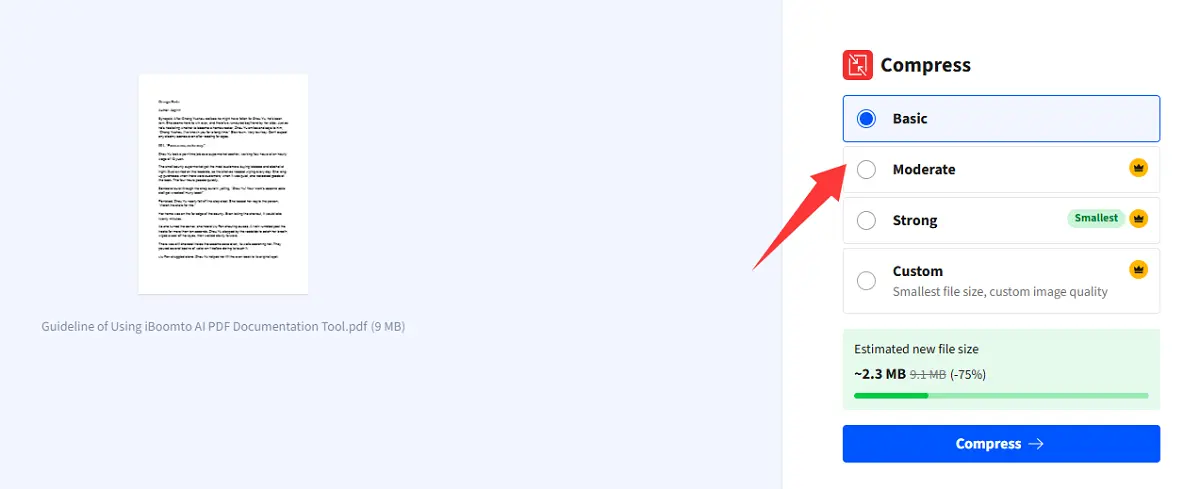
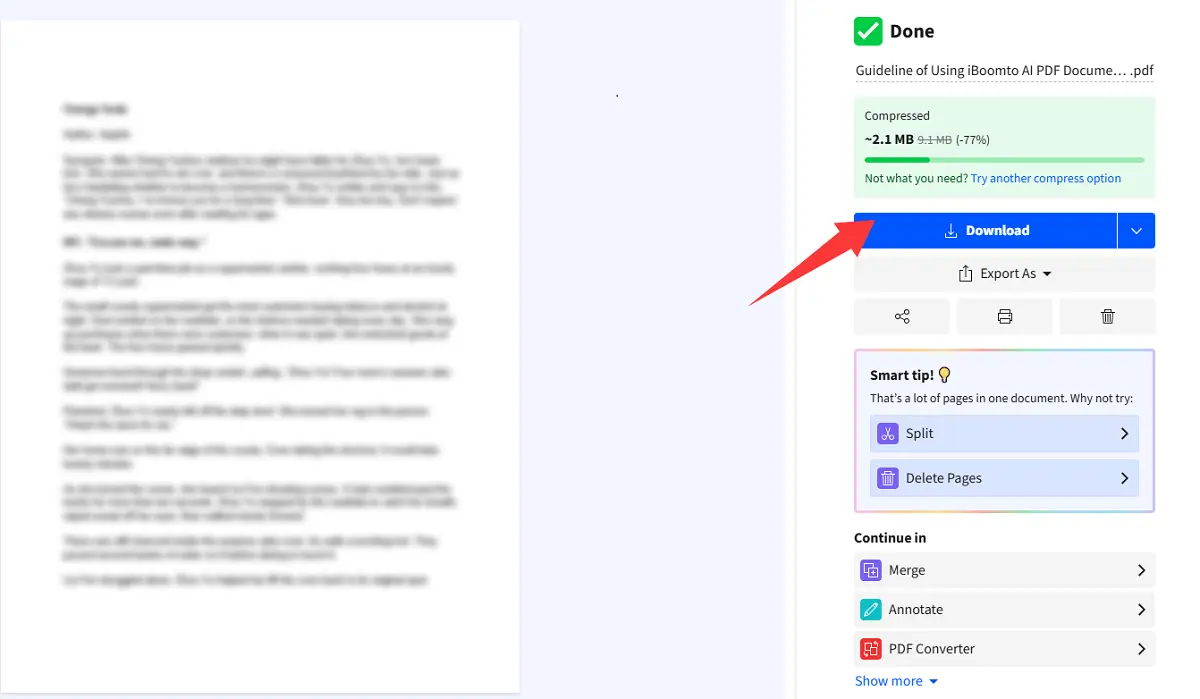
4. Start compressing, and it can finish in under 1 minute. Download the lower-sized PDF for free. Also, there are options to continue in further PDF editing, such as print, merge, annotate, etc.
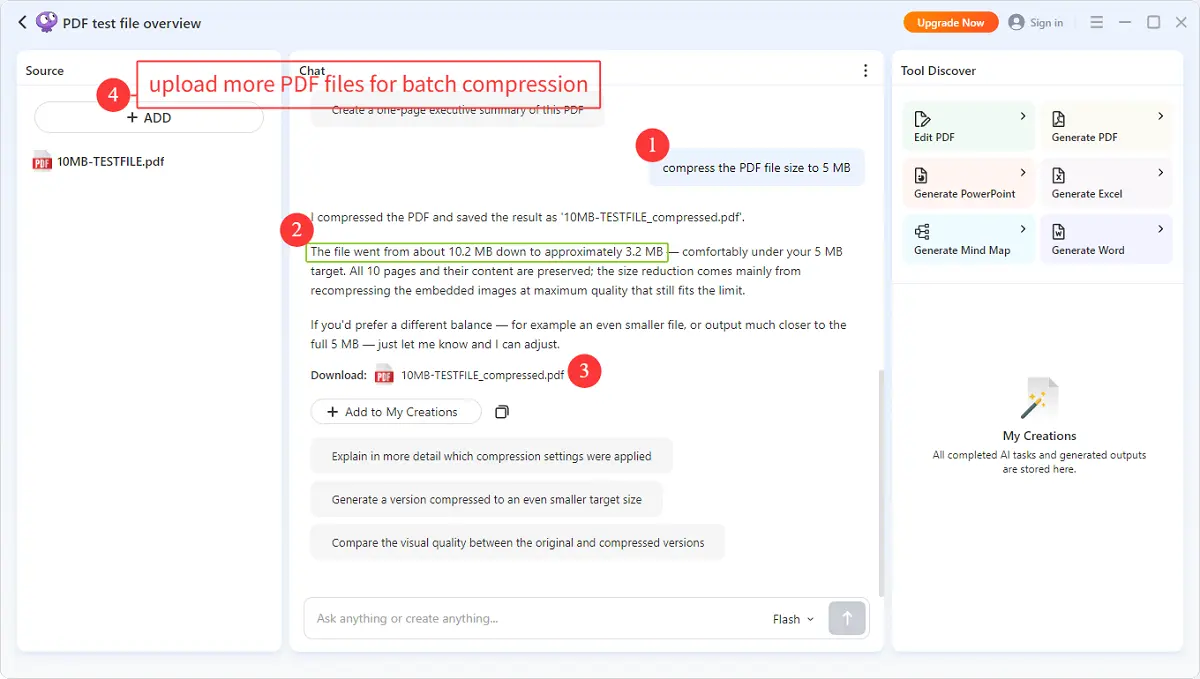
Part of PDF files like bank statements, contracts, invoices, etc., have sensitive data. Thus, a desktop compression tool will be safer. Here, iBoomto AI has a PDF documentation tool for Windows that is selected for its free, local, fast, and batch processing.
Step 1
Step 2
Step 3
Step 4
Notice: For documents such as contracts, agreements, and certificates that include seals/signatures, encryption, attachments, and verifiable digital signatures, you'd better prioritize low-loss compression and retain an original copy. Because high compression may compromise signature validity and verification status.

 Free Download Now
Resizing pages is the right move when you need a standard paper format for printing or submission or when a PDF has inconsistent page sizes.
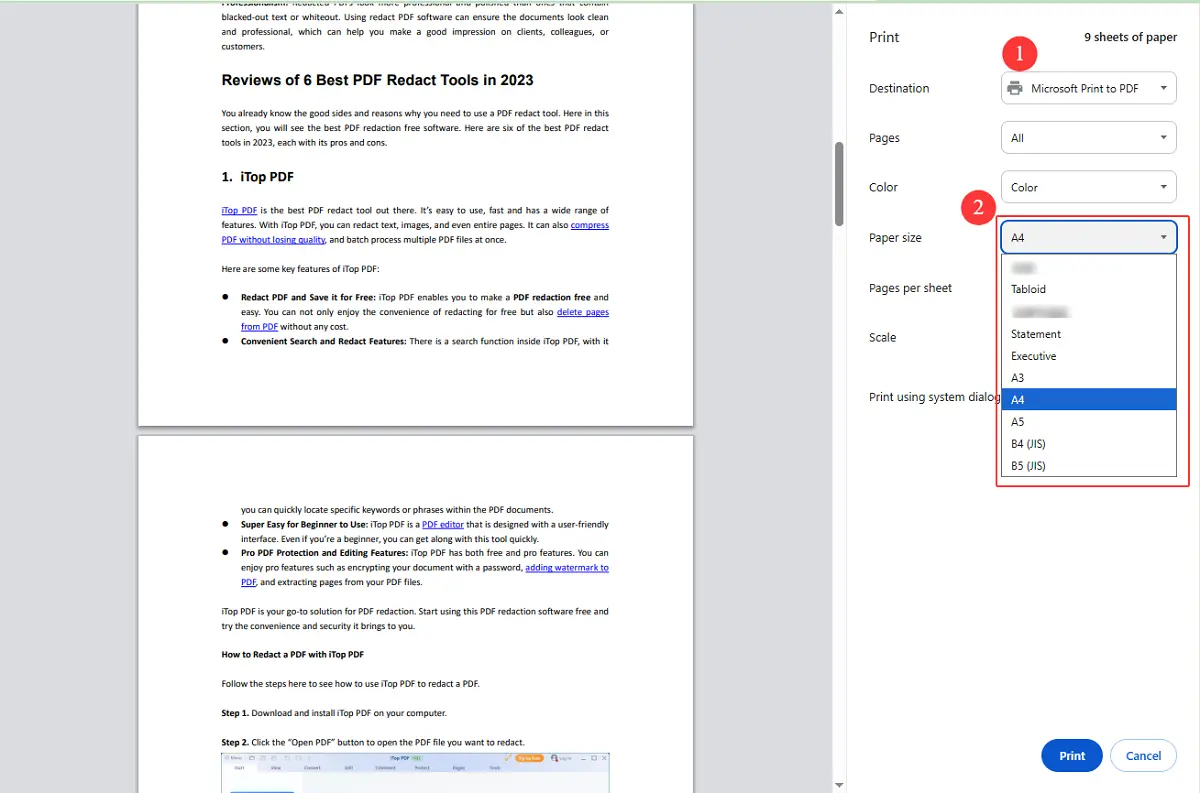
1. Open your PDF file in Google Drive > Click on the Print icon at the top right bar and enter the Print preview > Click the Print icon at the top left bar and go to the print settings.
2. Change the “Destination” to “Microsoft Print to PDF”. Then, go down to the “Paper Size". Here, you can resize the pages to A3, A4, A5, Executive, Statement, and more, matching different requirements.
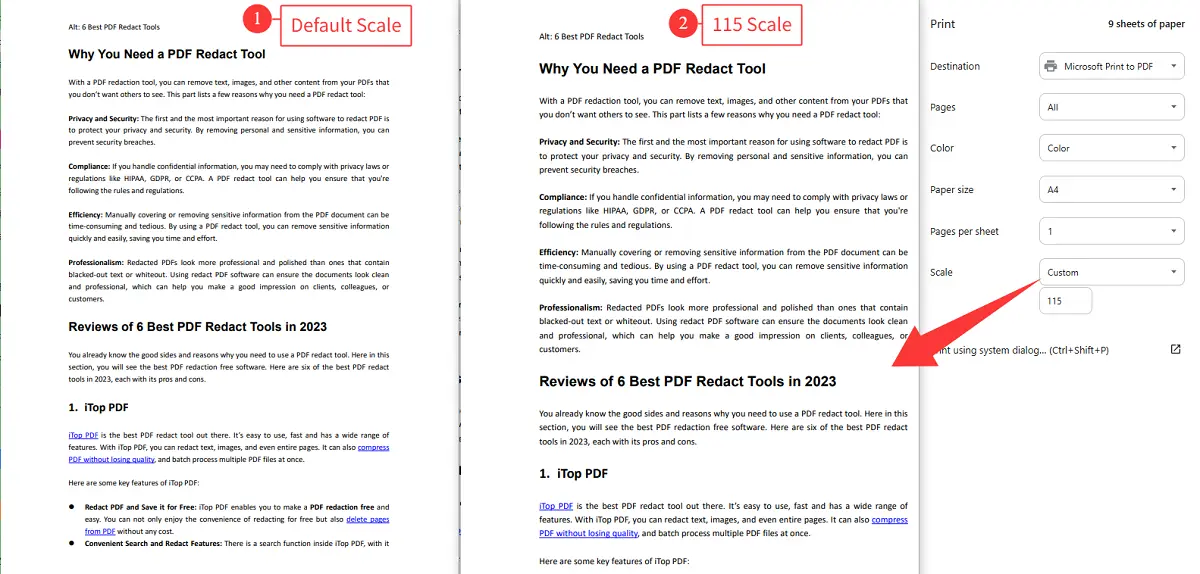
4. Optional, you can scale the content to expand or shrink the text, tables, diagrams, images, vectors, etc., proportionally, with choices of “Fit to printable area”, “Fit to paper”, and “Custom”.
5. Save the changes and store the new PDF locally on your device.
Note: There is no conflict to change paper size and scale content at the same time.
If you want a local tool to resize PDF papers and content safely, the Print to PDF feature of Adobe Acrobat Reader will be a good choice.
1. Open your PDF document in Acrobat Reader > Select Print > In the Page Setup settings, choose the physical paper size, such as A4, Letter, or Legal.
2. Under Page Sizing & Handling, select a size option:
3. Check the print preview and select Print and save the resized PDF on your device.
Except for selecting a fixed paper size, you can set a fully custom paper size as well.
1. Open Print > Select Page Setup > Choose Page Size > Manage Custom Sizes.
2. Add a name, width, height, and margins.
3. Save the custom size and select it for printing.
Cropping is best when the content itself is fine but the surrounding white space is excessive or inconsistent. Typically, this process does not reduce the file size, nor does it actually delete the content in the cropped areas.
1. Take iLovePDF free cropper, for example. Upload your PDF to it first.
2. Use a flexible box to select the content area you want to preserve.
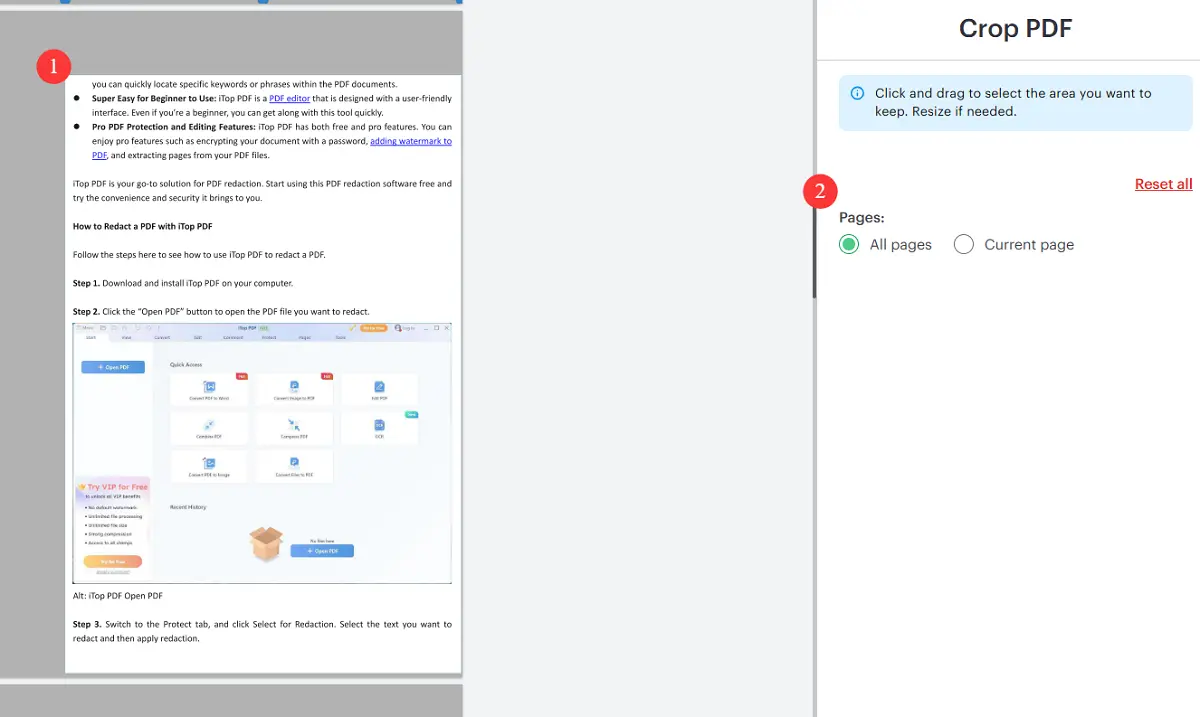
3. Choose this operation to work on all pages and click on the Crop button.
4. Your PDF will be resized, and you can download it free.
Let’s take Briss for example. It is a free, open-source desktop app (Windows/Mac/Linux, needs Java) that is best for auto-detection and trimming white margins across a whole PDF.
1. Open your PDF file in Briss. It scans the pages and shows an overlay of all the content areas combined, so you can see exactly where the actual content sits versus the white space.
2. Briss draws a suggested crop box around the detected content automatically. Adjust the box edges slightly if it clipped anything, since it bases the box on the union of all pages.
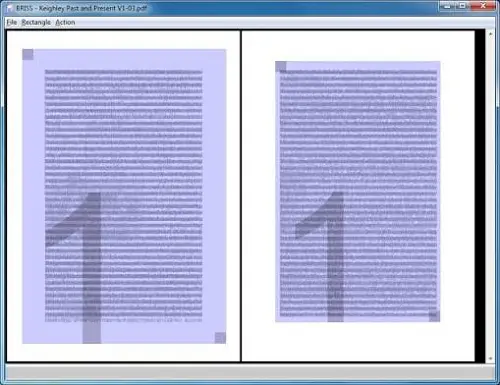
3. Click the preview/split icon to see how each page will look cropped, then confirm you're happy with the margins on a few different pages (especially first/last pages, which sometimes have different layouts).
4. Go to File > Save (or Export) to save the cropped version as a new PDF, so the original stays untouched.