
Login
Login
No fluff. Just free, new stuff. (Demos, credits, updates and the occasional thing we're proud of)
Thanks for subscribing! Stay tuned for demos, credits, and updates.

You have a PDF full of tables — a bank statement, an invoice batch, a supplier price list — and you need that data in Excel so you can sort, filter, and calculate. The obvious move is to select the table, copy it, and paste it into a spreadsheet. Then the columns collapse into one, the numbers turn into text, and the totals stop adding up.
That happens because PDFs were built to display documents, not to store data. A table in a PDF is a picture of a table: text positioned on a page, not a structured grid of cells. So extracting it is less like copy-paste and more like reverse-engineering the layout back into a spreadsheet. This guide walks through the methods that actually work, the cleanup nobody warns you about, and the checks that separate a usable spreadsheet from a confident-looking disaster.
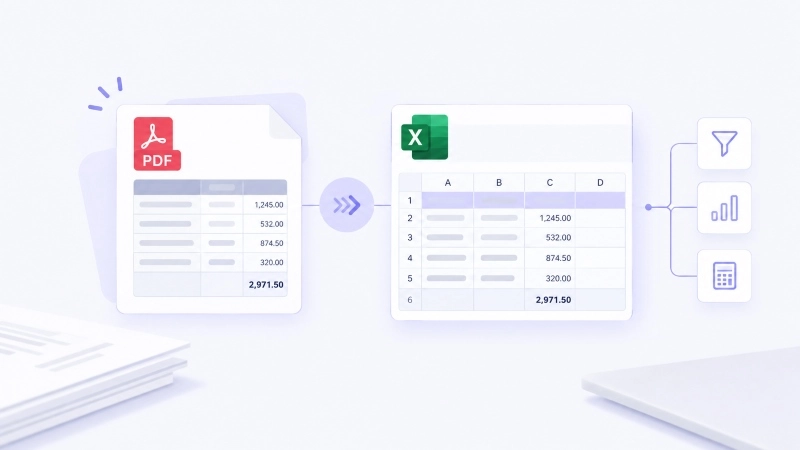
A PDF stores text as positioned fragments — "this word goes at x=120, y=340" — not as rows and columns. When you copy a table out of a PDF, you're grabbing those fragments in reading order, and Excel has to guess where the column boundaries were. Sometimes it guesses right. Often it doesn't, especially with merged cells, multi-page tables, or documents that mix text and tables.
The second trap is scanned PDFs. If the document is a photo of a printed page, there is no text to copy at all. The file contains pixels, not characters, so any tool has to read the image first (that's OCR — optical character recognition) before it can produce editable cells.
None of this means extraction is hard. It means the right method depends entirely on what kind of PDF you're holding. Get that right, and the rest is straightforward.
Before choosing a tool, run a 10-second test: open the PDF and try to select the text in a table.
This one check decides which method below will actually work. A native PDF and a scanned PDF need completely different tools, and using the wrong one is the most common reason people end up retyping everything by hand.
Pick the path that matches your file. Each works best in a specific situation — there isn't one tool that wins for everything.
If your table is a single page, under a few dozen rows, and has clean columns, the fastest route is often no tool at all.
Open the PDF and select the table text
Copy it (Ctrl+C)
In Excel, use Paste Special > Text, or paste normally then run Data > Text to Columns to split it on tabs or spaces
This works because simple, evenly spaced tables paste with their structure mostly intact. It breaks down fast on anything larger: merged cells scatter, one row can split across columns, and numbers paste as text. If your table has more than about 10 rows and 5 columns, or any merged cells, use a converter instead — the cleanup time will exceed the few seconds you saved.
If you already have Microsoft Excel (2016 or later), you own a free, local PDF importer. It reads native PDFs, detects the tables inside, and lets you load them without uploading anything to the internet.
Open a blank Excel workbook
Go to Data > Get Data > From File > From PDF
Select your PDF — Excel shows a preview of every table it found
Pick the table you want and click Load
The advantage over copy-paste is that Excel parses the structure instead of guessing from reading order, so columns stay aligned far more often. It also creates a refreshable connection: if you get an updated PDF in the same format, refreshing re-imports the new data without redoing the work. The limitation is the same as every native-PDF method — it does nothing for scanned files, because there's no text layer to read.
For a quick, one-off conversion when Excel isn't handy, browser-based converters like Smallpdf and iLovePDF do the job in a few clicks:
Open a converter (Smallpdf or iLovePDF both offer PDF to Excel)
Upload your PDF
Download the resulting spreadsheet
They're the lowest-friction option for occasional use, but your file travels to a third-party server — so for bank statements, tax documents, contracts, or anything sensitive, skip them. Free tiers also cap file size and daily uses, and complex layouts may need a paid plan for clean output.
If you'd rather use a purpose-built tool than a general converter, iBoomto's Table Extractor pulls tables out of a PDF online with the same three-step simplicity, and it keeps your workflow in one place. For the harder cases — tables that span multiple pages, merged cells, or scanned PDFs with no text layer to read — the iBoomto AI desktop client is the better fit. It runs AI-powered extraction locally on your machine, so scanned pages are read with built-in OCR and messy layouts are reconstructed into clean columns without your files ever leaving your computer. We built it for exactly the situations where rule-based converters and free tools break down: borderless tables, merged headers, and cross-page breaks, the moments when getting the numbers right matters most.
If the same report lands in your inbox every week — a bank statement, a sales export, a supplier feed — converting it by hand each time is wasted effort. Power Query (the same engine behind Excel's PDF import) lets you build a saved pipeline.
Import the PDF with Data > Get Data > From PDF
Instead of Load, click Transform Data to open the Power Query Editor
Apply your cleanup steps once: remove header rows, rename columns, set data types, filter junk rows
Save the query
Next time the new PDF arrives, point the query at it and refresh. Every cleaning step re-applies automatically. This is the method that turns a 20-minute monthly chore into a 20-second refresh — but it's worth setting up only if the format stays consistent month to month.
Whatever tool you use, plan on spending a few minutes fixing the output. These are the issues you'll almost certainly hit:
A converted spreadsheet can look perfect and still be wrong. Run this check before the data feeds any report, reconciliation, or analysis:
Treat the converted file as unreviewed data until these pass. The few minutes of checking cost far less than a report built on a number that was never there.
Can I extract data from a PDF to Excel for free?
Yes. If you have Microsoft Excel, the built-in Get Data > From PDF importer is free and runs locally. For occasional non-sensitive files, Smallpdf and iLovePDF offer free tiers. Tabula is a free, open-source option for tables in digital (non-scanned) PDFs. Scanned PDFs need OCR first; the iBoomto AI desktop client reads scanned pages locally with built-in OCR, and free OCR alternatives include Google Drive's conversion and OneNote's Copy Text from Picture.
Will formulas be preserved when I convert a PDF to Excel?
No. A PDF stores only the final calculated values, never the underlying formulas. After conversion you'll have the numbers, but you'll need to recreate any SUM, VLOOKUP, or other formulas yourself.
Can a multi-page PDF be extracted into one Excel sheet?
Yes. Most converters extract all pages into a single workbook, placing each detected table in order. Very long or complex documents may split tables across sheets — check the output and consolidate if needed.
What if my PDF is scanned and won't select text?
It needs OCR first. Run optical character recognition to create a text layer, then convert. The iBoomto AI desktop client does this locally with built-in OCR; free routes include Google Drive (open the PDF with Google Docs) and OneNote (copy the image, right-click, Copy Text from Picture). Scan quality matters — aim for 300 DPI or higher, good contrast, and straight pages.
Is it safe to upload PDFs to online converters?
For non-sensitive files, yes. For anything with personal, financial, legal, or commercial data — bank statements, tax returns, contracts, client lists — use a local tool instead. Uploaded files leave your computer and pass through servers you don't control, which can violate privacy rules like GDPR or HIPAA and exposes you to breaches. Desktop software like the iBoomto AI desktop client or PDF24 processes files on your own machine.
Extracting data from a PDF to Excel comes down to three moves. First, identify your PDF — native or scanned decides the tool. Second, pick the method that fits: copy-paste for tiny tables, Excel's free importer for native PDFs, an online converter for quick non-sensitive jobs, iBoomto for complex or scanned files, and Power Query when the same report repeats. Third, and most often skipped, clean up and verify the output before you trust it.
The hidden cost of PDF to Excel isn't the conversion — it's the cleanup and the checking. Converters keep getting better at detecting table structure, and AI-assisted tools are closing the gap on merged cells and borderless layouts. We're also expanding to include AI-powered document processing at iBoomto, with the goal of making document workflows like this simpler and more accessible — but regardless of the tool, the rule stays the same: a spreadsheet that looks right isn't right until the totals reconcile.